SECTION 3
OPERATING PRINTER
70
Service Menus
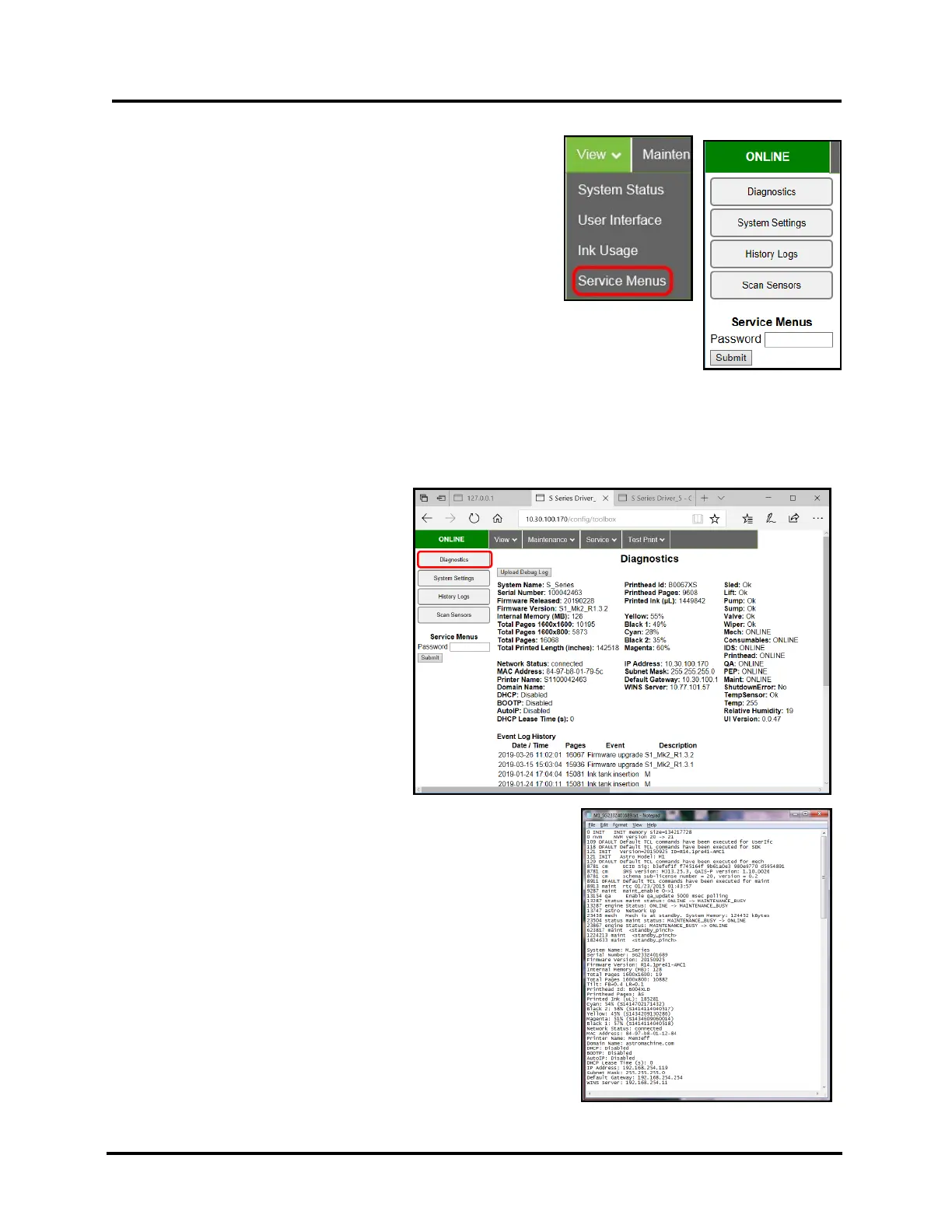
Clicking Service Menus opens the Service Menus (Diagnostics)
screen and service menu buttons.
Diagnostics button: Click to check the status of the Printer.
(See section titled “Diagnostics” for more details.)
System Settings button: Click to view, enter or change settings to
connect Printer to your network. Also configure and set the Printer's
Date and Time. And set the level of detail desired for Debug Logs.
(See section titled “System Settings” for more details.)
History Logs button (previously Debug Logs button): Click to
display a list of available (stored) Debug and Job logs.
Then select the Log to be opened or uploaded.
(See section titled “History Logs” for more details.)
Scan Sensors button: Provides status and a log of sensor activity on sensors located
throughout the Printer. (See section titled “Scan Sensors” for more details.)
Service Menus, Password: Entering the Service Menu password provides access to more advanced Printer
control and maintenance menus. For authorized service personnel only.
Diagnostics
This is the screen that opens when you select
“Service Menus”.
From this screen you can see current status of
the Printer and its internal components,
including page counts, Ink Tank status,
Printhead status, Network status and Event
Log History.
Event Log History – Displays major
events that have occurred on the Printer
(Such as Printhead or Ink Tank
insertions and Firmware upgrades.)
Upload Debug Log – Clicking this button creates a text file that
contains a snapshot of recent printer events, as well as current
printer configuration and settings. (See Sample Log below right.)
NOTE: If a persistent problem arises, that you can’t identify, click
the Upload Debug Log button after recreating the problem but
before powering-down the printer. This information is lost once the
printer is powered down. Provide this log file to the technician to
help them identify the problem. Include information on what
happened just before problem occurred, including screenshot of
Toolbox “System Status”.



 To Next Page