882 Video Test Instrument User Guide (Rev A.35) 103
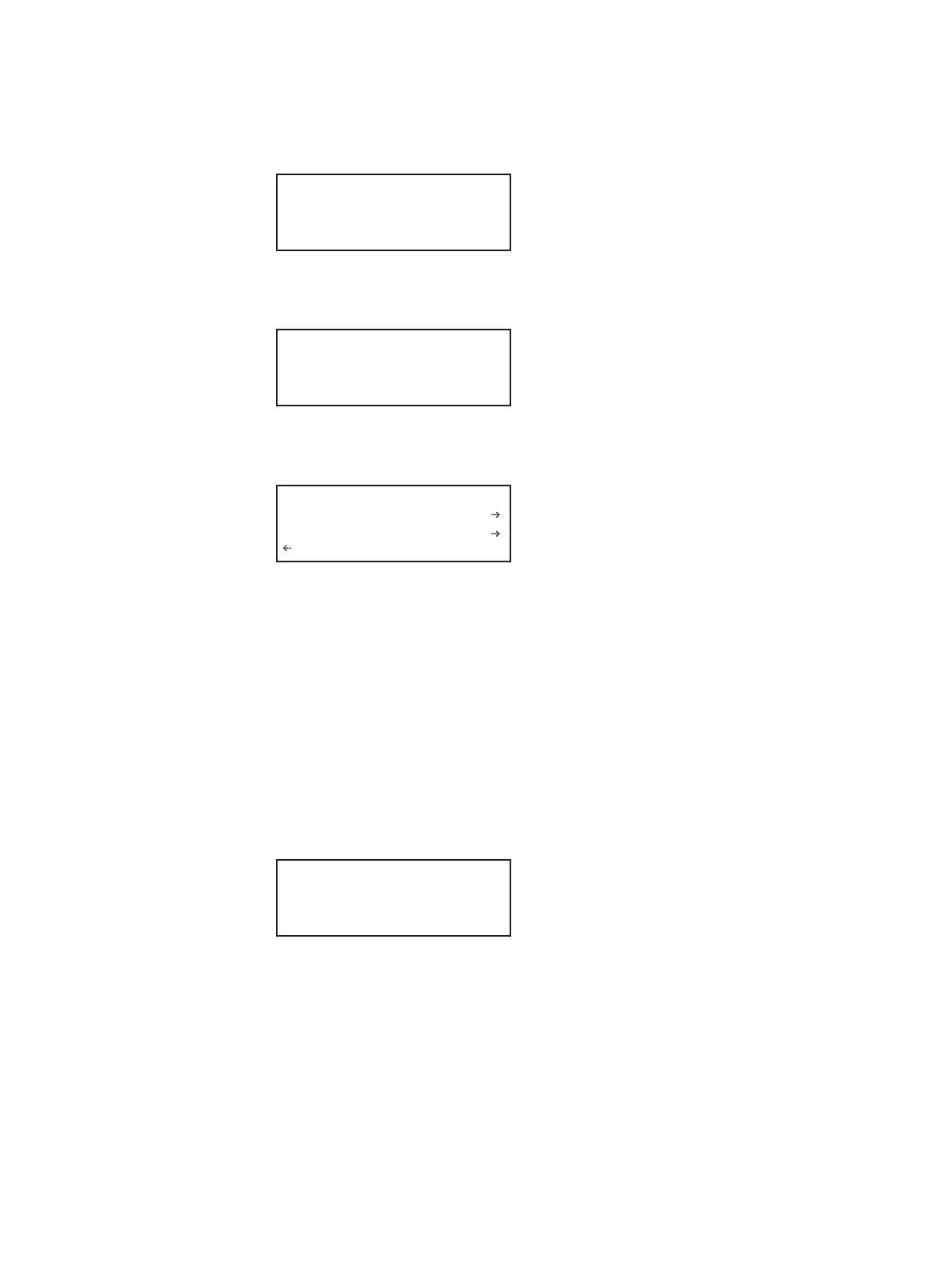
2. Choose the System item by pressing the adjacent soft key. The System menu appears
on the generator’s display as shown below.
3. Choose the Network item by pressing the adjacent soft key. The generator’s IP
address and subnet mask appear on the generator’s display as shown below.
4. Press the Settings key. The Network Connection screen appears on the generator’s
display as shown below.
If the IP Address configuration option is not visible, press the soft key adjacent to the
arrow symbol by SubnetMask until IP Address appears.
5. Change the IP address as follows:
a. Position the blinking cursor on the address digit you want to change. To do this,
press the soft key adjacent to the arrow by the address to move the cursor left or
right until it appears on the digit you want to change.
b. Adjust the value of the digit up or down by pressing the + or - keys. Repeat for each
IP address digit you want to change.
6. To save the changes, press the Enter (Options) key. The following choices appear on
the generator’s display:
To save the changes, choose the Yes item by pressing the adjacent soft key.
To exit without saving the changes, choose the No item.
To return to the previous screen without saving the changes, choose the Back item.
7. Reboot the generator.
Clock Clone*
CalFactor Server
Network About
Serial GPib
IP Address
192.168.254.1
Subnet Mask
255.255.255.000
Network Connection
Set TCP/IP
IP Address
206.135.215.168
Apply Settings?
Back
Yes No


 To Next Page