Using IWB Remote Desktop Software to
Perform Operations on a Computer Screen
Open IWB Remote Desktop Software, and then connect the machine to a computer. When the machine
is connected, the screen displayed on the computer appears on the screen of the machine.
• You cannot connect if the machine is in standby mode or the power is off.
• While the machine is connected to the computer, a message is displayed every 15 minutes which
asks whether you want to maintain the connection. If one minute elapses without clicking [Continue]
in the message, the connection is lost automatically. This message setting can be changed when the
machine starts.
1. On the [Start] menu of the computer, select [All Programs].
If you are using a computer that is running Windows 8/8.1, right-click where tiles are not
displayed on the Start screen, and then click [All apps].
If you are using a computer that is running Windows 10, click [All apps] on the [Start] menu.
2. Select [Ricoh], and then click [IWB Remote Desktop Software].
If you are using a computer that is running Windows 8/8.1, proceed to the next step.
3. Click [IWB Remote Desktop Software].
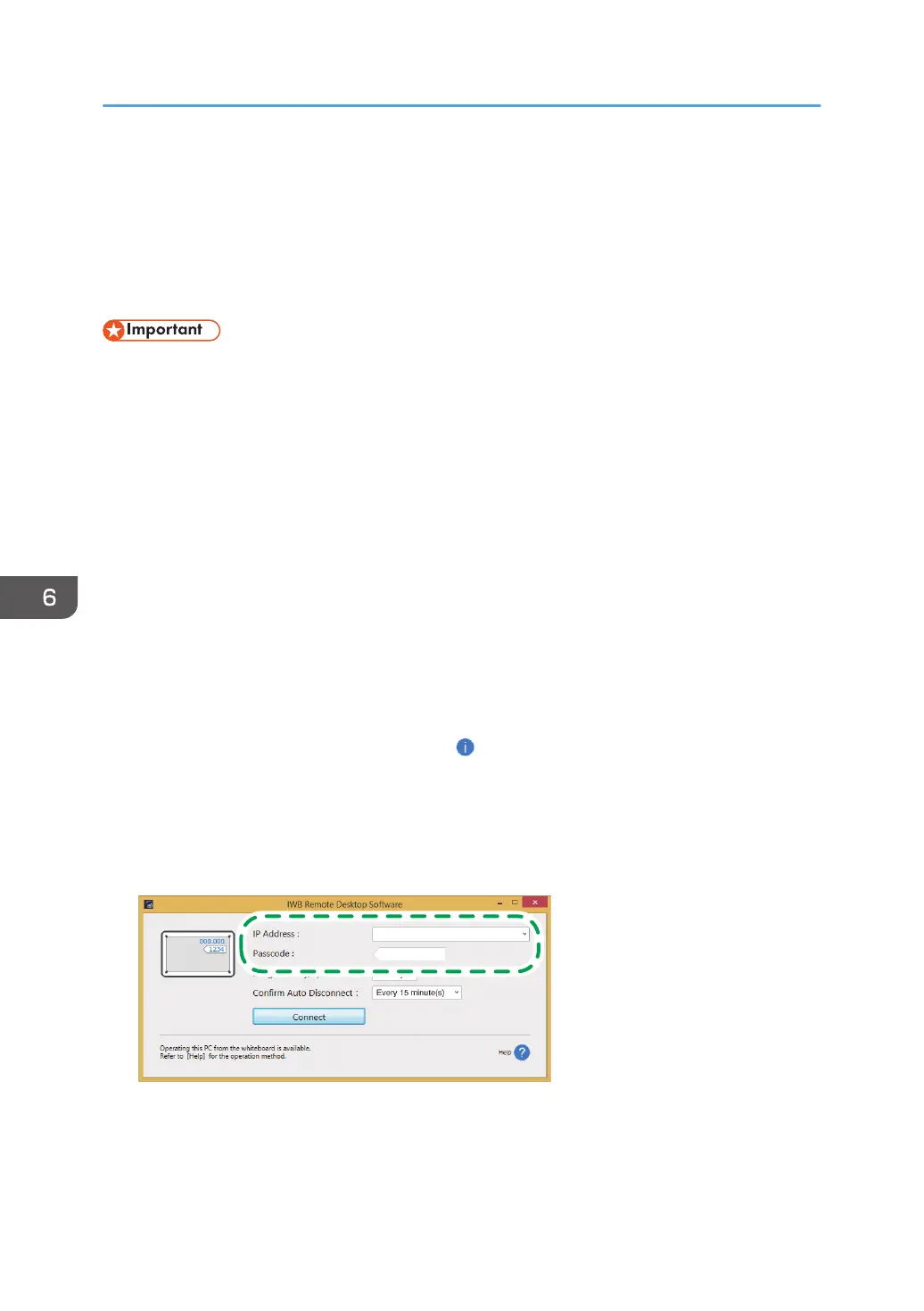
4. Enter the IP address and passcode displayed at the top of the machine screen.
If no IP address or passcode is displayed, use , the Information display icon, to display the IP
address.
You can also enter the host name or fully qualified domain name of the machine.
If you have already entered the IP address, host name, or fully qualified domain name, you can
select it from the pull-down menu.
6. Using the Machine to Perform Operations on a Computer Screen
102


 To Next Page