• When the "Open with passcode" check box is selected, you can limit the number of
participating devices.
• When the "Limit participating whiteboard's functions" check box is selected, the participating
whiteboards cannot save files, print pages, or send e-mail during the session.
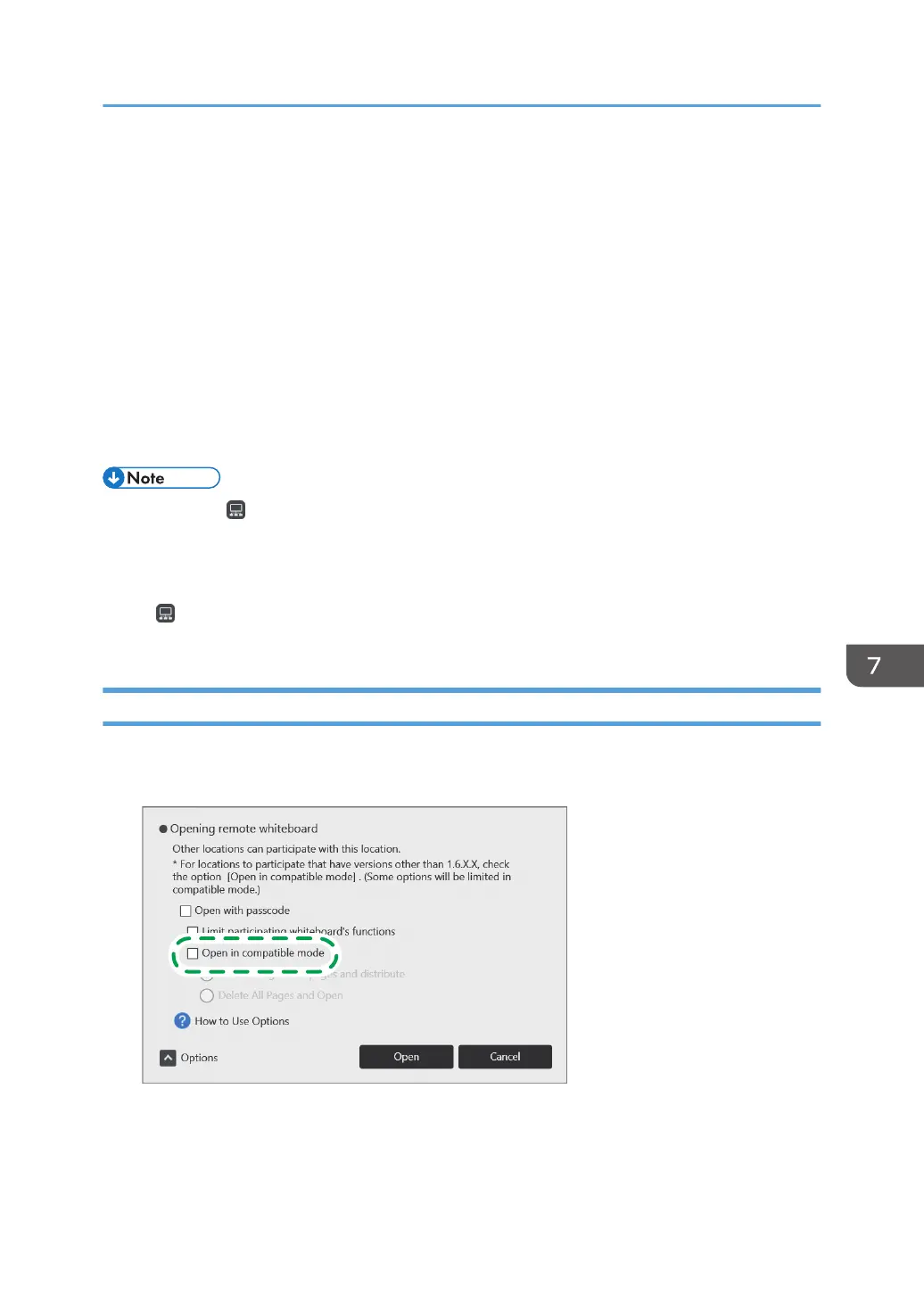
• When the "Open in compatible mode" check box is selected, the remote whiteboard session
is opened in compatible mode. For details about how to open a session in compatible mode,
see page 109 "Opening a Remote Whiteboard Session in Compatible Mode".
4. Touch [Open].
A remote whiteboard session is opened.
When you select "Open with passcode", a message will appear. Confirm the details of the
message, and then touch [Open].
• You can use , the Share icon, to check the communication status while participating in a remote
whiteboard session. For details about the communication status, see page 120 "Checking the
Remote Whiteboard Information".
• During the remote whiteboard session, the participating whiteboards are displayed in the submenu
of , the Share icon. For details about how to view the submenu, see page 120 "Checking the
Remote Whiteboard Information".
Opening a Remote Whiteboard Session in Compatible Mode
1. Select "Open in compatible mode" in the option settings of opening remote whiteboard
session screen.
Opening a Remote Whiteboard Session
109


 To Next Page