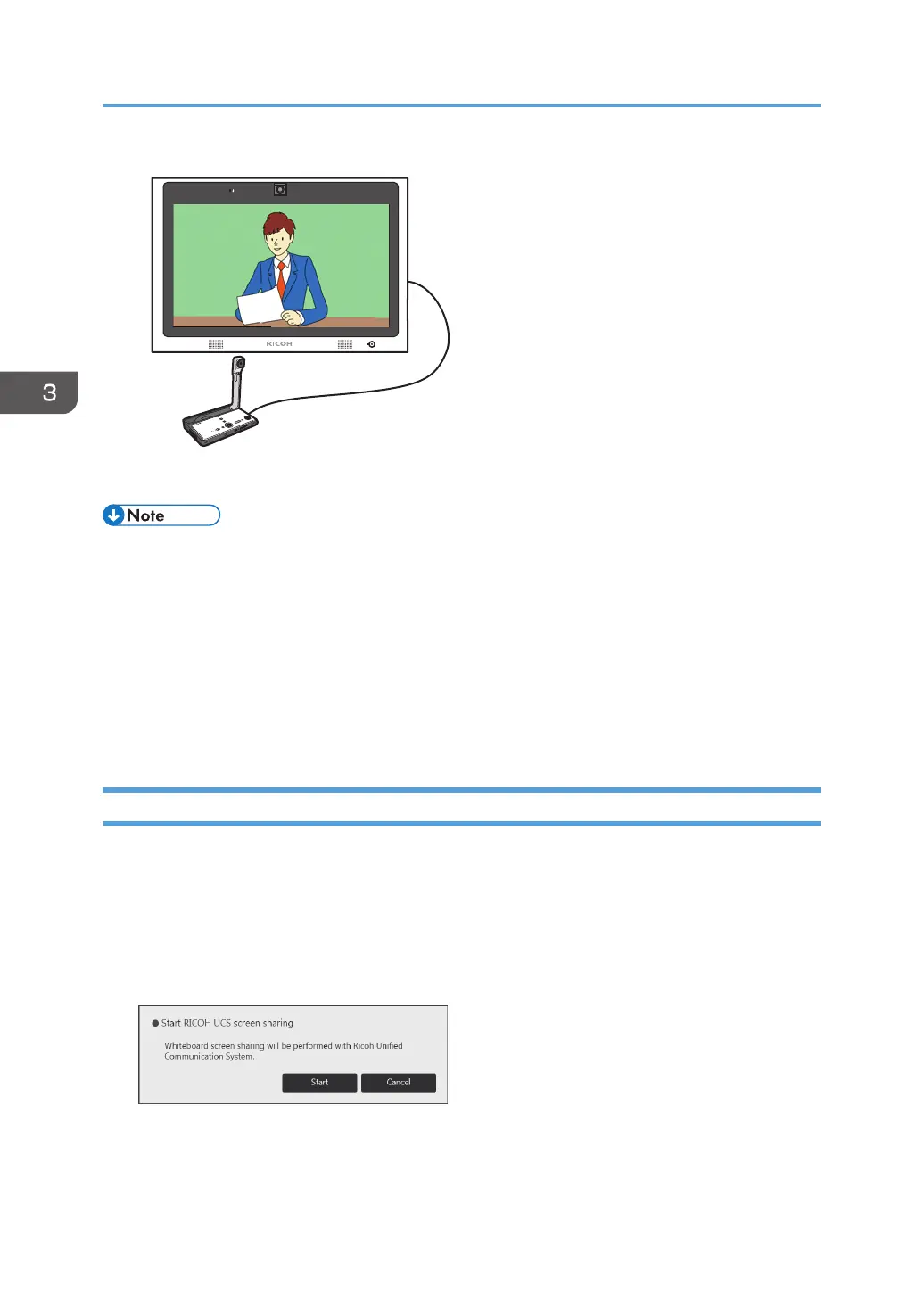
• When the machine is in the process of recognizing a video conferencing device, a message
indicating that is displayed. If the machine successfully recognizes the device, a confirmation
screen for starting screen sharing is displayed.
• You cannot write to an image input from a video conferencing device.
• You cannot use an image input from a video conferencing device in the whiteboard application or
recorded as a captured page.
• For details about how to use a video conferencing device, see the manual of the device you are
using.
Sharing the Whiteboard Screen in a Video Conference
The screen of the machine can be shared in a video conference using the computer screen sharing
application software of the machine. (RICOH UCS screen sharing)
1. Connect the video conferencing device to the machine via USB.
2. Start a video conference.
A confirmation message for sharing the computer screen appears.
3. Touch [Start].
Sharing of the machine screen starts.
To cancel sharing of the machine screen, touch [Cancel].
3. Connecting Devices
74



 To Next Page