Closing a Remote Whiteboard Session
This section explains how to close a remote whiteboard session.
When the host whiteboard closes the remote whiteboard session, the session will be closed on the
participating whiteboards as well.
• When you finish using the machine, quit the remote whiteboard session, and then turn off the
power.
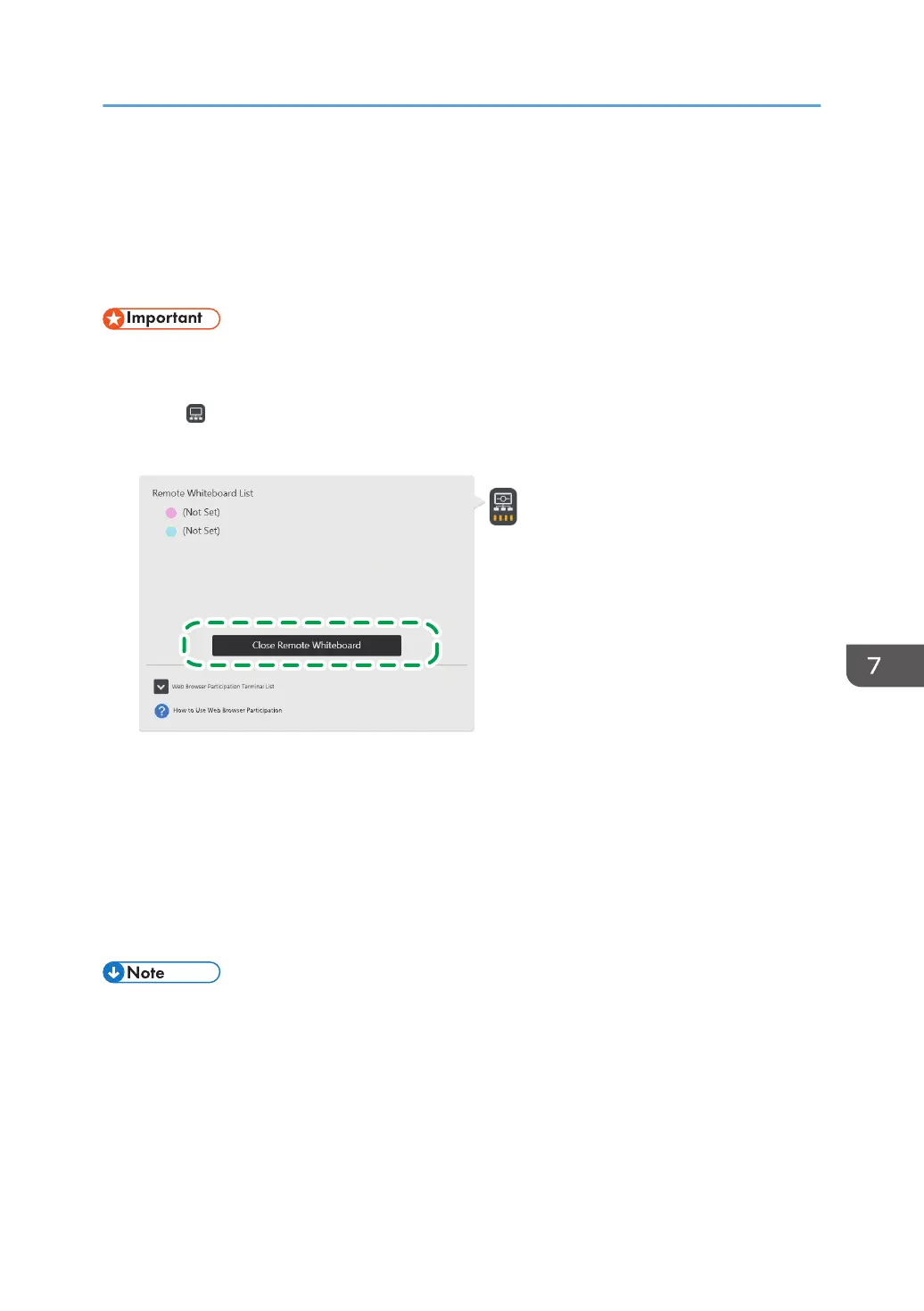
1. Touch , the Share icon.
2. Touch [Close Remote Whiteboard].
XXX.XXX.XXX.XXX
XXX.XXX.XXX.XXX
DHG351
• When compatible mode is active, touch [Close].
• When a video conferencing device is connected to the machine via USB, a confirmation
screen to start screen sharing is displayed upon starting a video conference using the device.
Touch the [Start] button to share the image displayed on the machine screen. For details, see
page 74 "Sharing the Whiteboard Screen in a Video Conference".
• When you activate compatible mode, the [Start] button is not displayed.
3. Touch [Close].
• When you exit compatible mode, the page displayed immediately before joining the remote
whiteboard session is loaded as an image.
Closing a Remote Whiteboard Session
111


 To Next Page