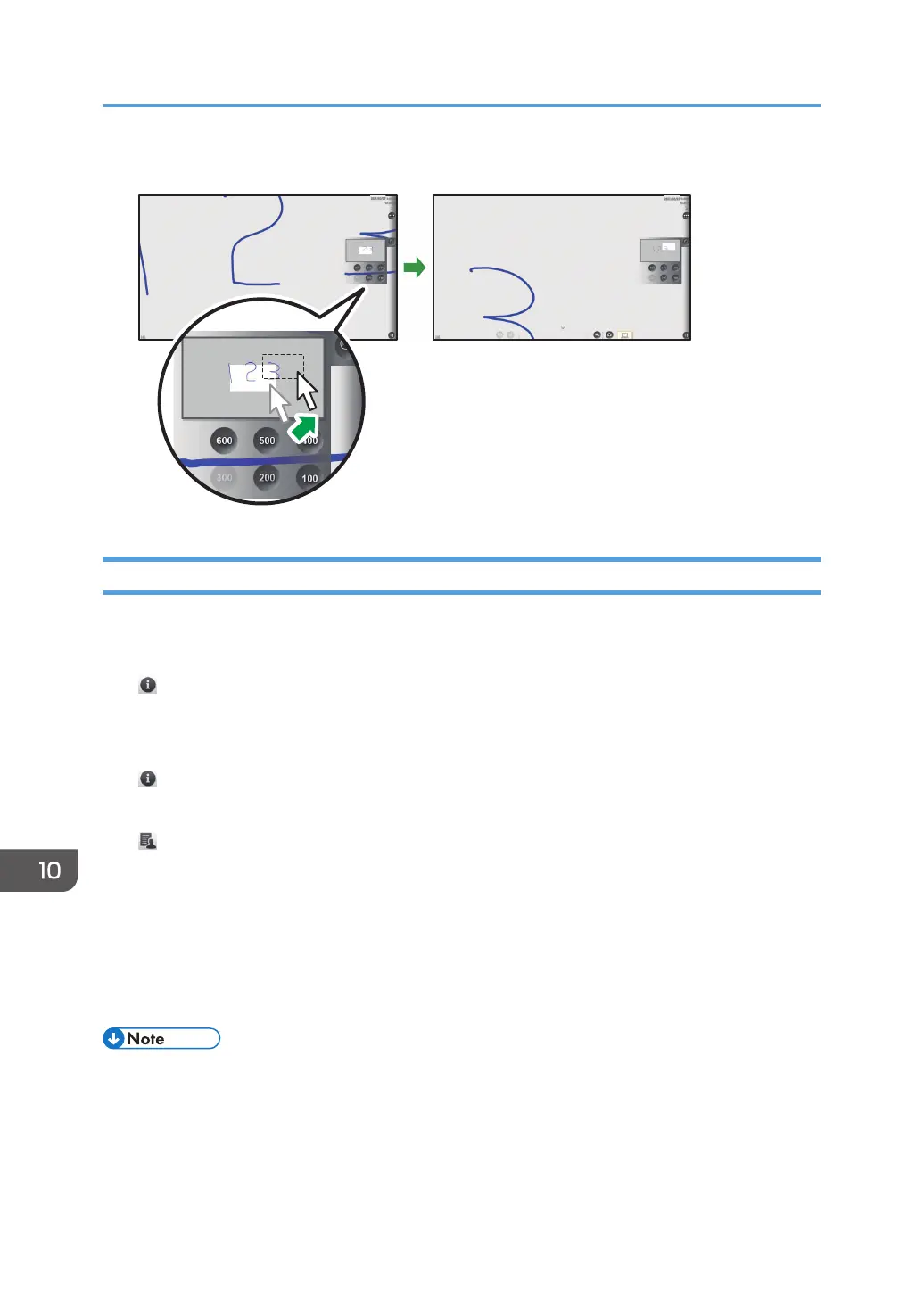
3. To move the display area, click and drag the display area.
Configuring the Remote Viewer Settings
This section explains General Settings of Remote Viewer.
The icons displayed in the General Settings screen are as follows:
• , the Version Information icon
Displays the Remote Viewer version information.
When you touch [Display License Agreement], the software license agreement is displayed.
• , the Copyright Information icon
Displays the Remote Viewer copyright information.
• , the Add Remote Contact List icon
You can register a host whiteboard to specify in advance when you use a remote whiteboard.
1. Click the [Start] menu on the computer to display the screen.
2. From [All Programs], select [Ricoh], [Interactive Whiteboard Remote Viewer].
3. Click [Settings].
The General Settings screen for Remote Viewer appears.
• If Remote Viewer is running, General Settings cannot be displayed.
• When adding a remote contact list, do not insert any memory storage devices other than a USB
flash memory device, such as a CD-ROM.
10. Appendix
218


 To Next Page