3. Settings button
For details, see page 86 "Specifying the Settings".
4. Connect button
Call the selected contact to start a meeting.
5. Connect as Private Meeting button
You can limit participants in meetings.
Pre-determine a four-digit meeting code and share it with the other contacts with whom you want to have the
meeting.
It is not possible to limit participants in a meeting once the meeting has started.
To join a limited participants meeting that has already started, you will need to obtain the meeting code
before joining the meeting.
Replying to an incoming call
When there is an incoming call, an incoming call dialog box is displayed. Check the caller and reply to
the call.
What you can do during a meeting
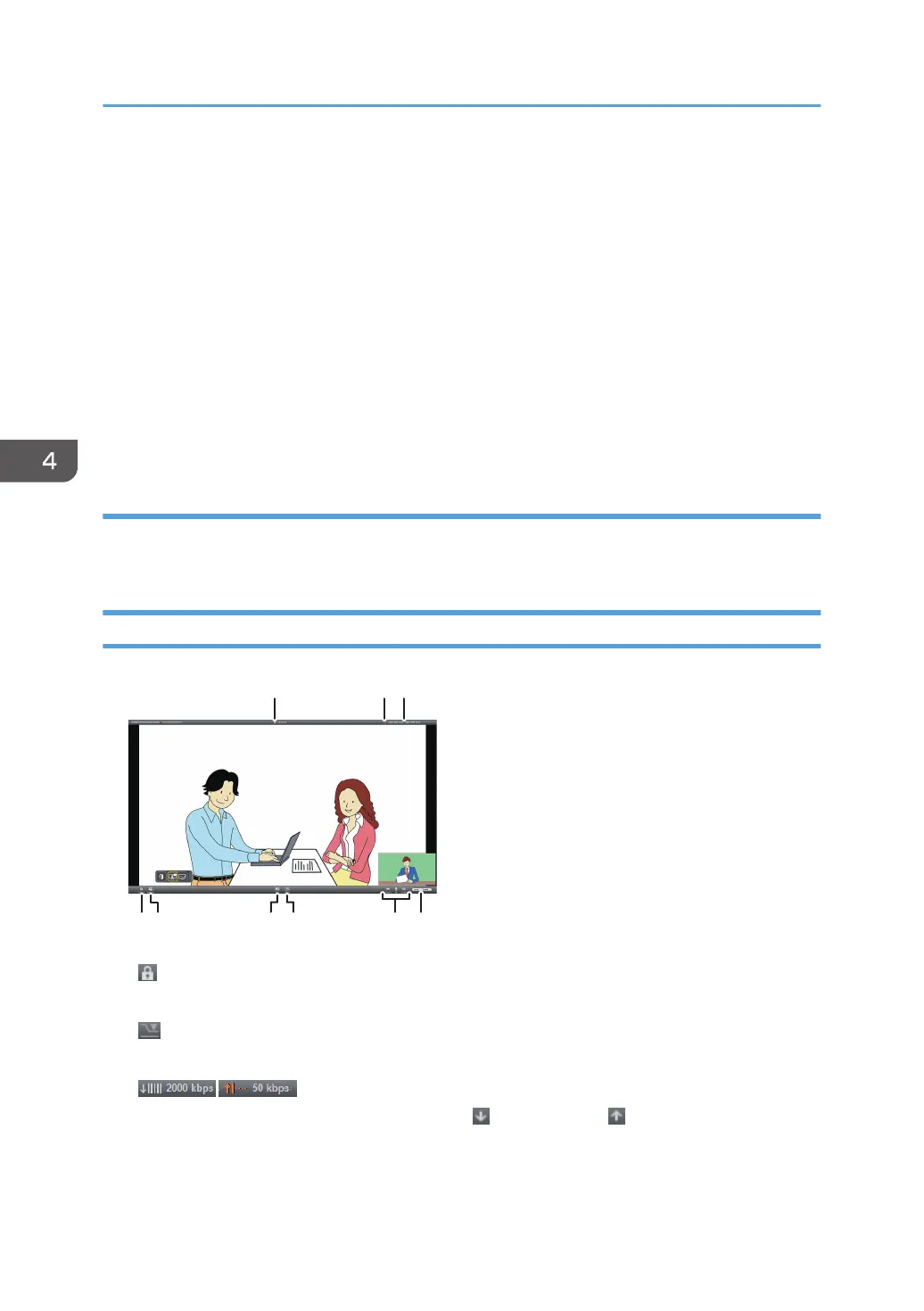
1. Private Meeting icon
This icon is displayed during meetings in which participants are limited.
2. Limited Network Bandwidth icon
This icon is displayed when the bandwidth of the network that you are using is limited.
3. Bandwidth Status
Show the network bandwidth available for reception ( ) and transmission ( ). You can check whether the
network environment you are using meets the operating environment requirements for this machine, and
whether it is possible to hold a meeting normally.
4. Connecting to a Video Conference
84



 To Next Page