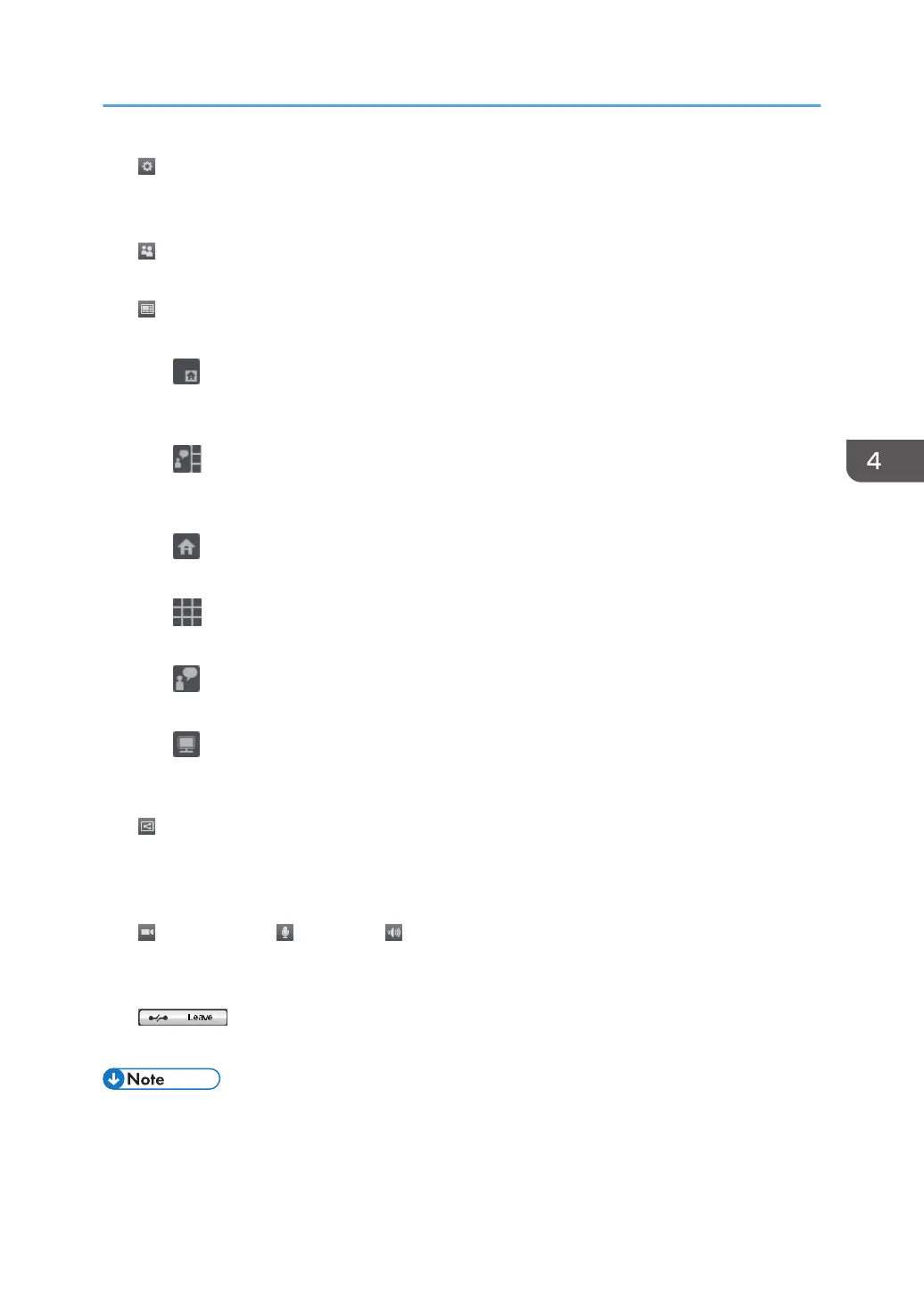
4. Settings button
Use this button to reconfigure the settings.
For details, see page 86 "Specifying the Settings".
5. Participants
Shows the number of participants in the meeting.
6. View button
Used this button to change the screen to one of the following layouts:
•
The videos of the other contacts are displayed in large windows. Your video appears in a small window
in the lower right of the screen.
•
The video of the other party is displayed in a larger window, while the videos of you and the other
contacts appear in smaller windows.
•
Your video is displayed full screen.
•
The videos from all the contacts, including you, are displayed in windows of the same size.
•
The video of the other party is displayed full screen.
•
Only the whiteboard screen being shared is displayed. This button is only available during screen
sharing.
7. Share button
Use this button to share the whiteboard screen with the other meeting participants.
During screen sharing, the displayed contents of the selected screen are displayed on the other participants'
screens.
8. Camera button / Mic button / Volume button
Adjust the audio volume and temporarily mute the microphone.
You can also temporarily disable the camera.
9. Leave button
Used this button to leave the meeting.
• Video from up to 9 contacts, including you, can be displayed.
• Displayed contents vary depend on the number of contacts connected.
Using the RICOH UCS Function
85



 To Next Page