Connecting a Video Conferencing Device to the
Machine
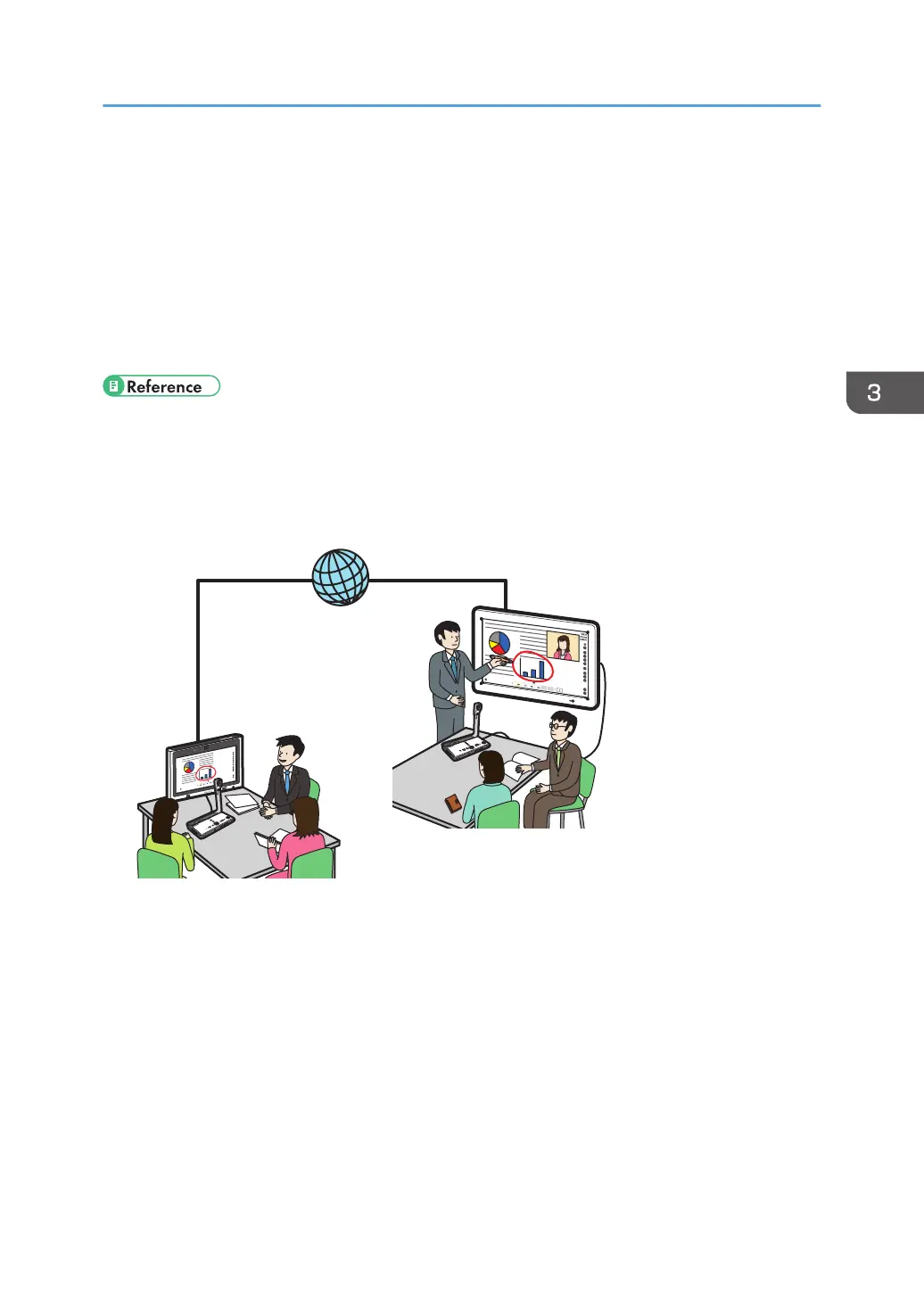
This machine can be used as a monitor for a video conference.
• You can connect a video conferencing device to the machine and share the screen of the machine
in a video conference using the computer screen sharing the application software (RICOH UCS) of
this machine.
• To hold a video conference by using the RICOH UCS function instead of connecting a video
conferencing device to the machine, see page 79 "Using the RICOH UCS Function".
• By using the remote whiteboard function, you can share the memo or document that is displayed
on the screen with other devices connected via the network. For details about sharing screen on a
remote whiteboard, see page 105 "Overview of Remote Whiteboard".
Connecting a Video Conferencing Device (RICOH UCS Screen Sharing)
The video conferencing device is connected as follows:
1. Turn off the video conferencing device.
2. Connect the video conferencing device to VGA Input.
For the input terminals to connect external devices, see page 69 "Devices That Can Be
Connected to the Machine".
3. Turn on the video conferencing device.
The image from the video conferencing device appears on the screen.
Connecting a Video Conferencing Device to the Machine
73



 To Next Page