Managing the AP
Changing the Administrative Login Settings
Ruckus Wireless Indoor AP 100.2.0 User Guide, 800-70892-001 Rev A 166
Changing the Administrative Login Settings
The default user name is super and the default password is sp-admin. To prevent
unauthorized users from logging in to the Web interface using these default
administrator login settings, Ruckus Wireless recommends that you change the
default Web interface password immediately after your first login.
1 Log into the Web interface.
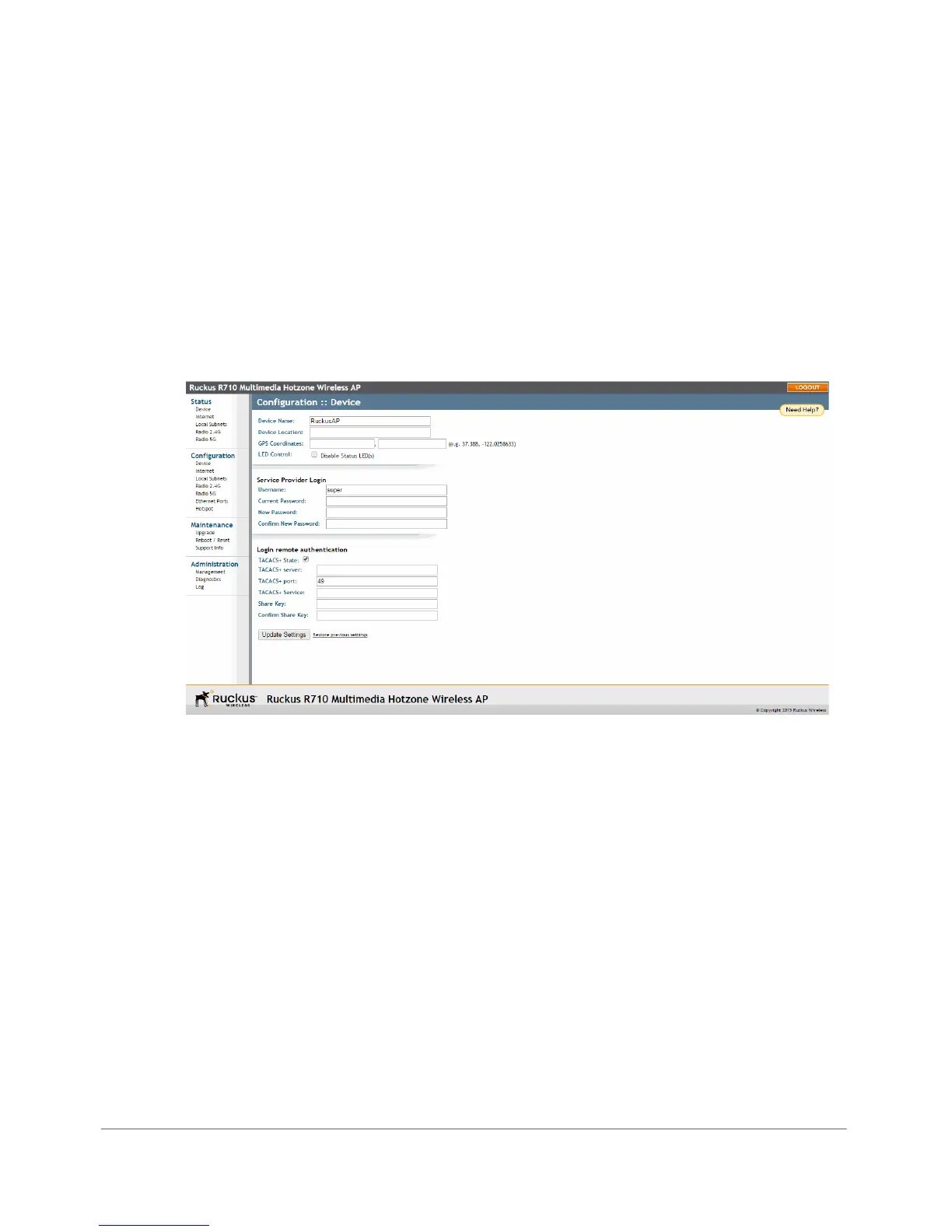
2 Go to Configuration > Device.
Figure 79. The Configuration > Device page
3 Under Service Provider Login, change the default administrator login settings.
•In Username, type a new user name to log in to the Web interface. The default
user name is super.
•In Current Password, enter the existing password.
•In New Password, type a new password to replace the default password sp-
admin. The password must consist of six to 32 alphanumeric characters
only.
•In Confirm New Password, retype the new password.
4 Click Update Settings. The message Your parameters were saved appears.
You have completed changing the default login settings. The next time you log in to
the Web interface, make sure you use these updated login settings.









 To Next Page