Software v3.0.9915
© Satmap Systems Ltd 2015
45
6. MAIN MENU: Settings Menu (... cont)
6.11 Memory Status
(GPS MAP → MAIN MENU → Settings → Memory
Status)
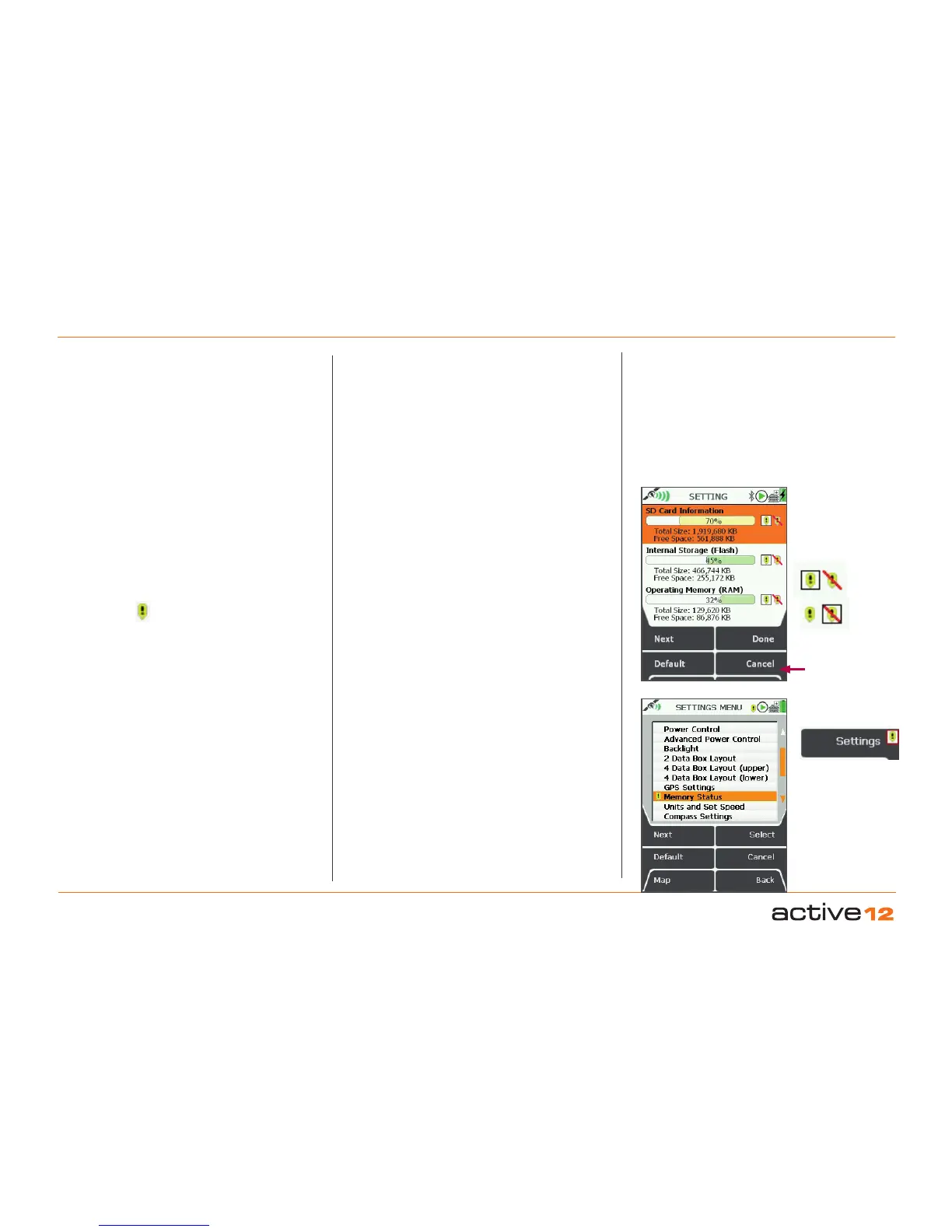
This screen provides information on the memory
usage and status of the different types of memory on
your unit. These include:
•
SD Card Information
Shows the percentage of memory used on your SD
card. Also indicates the total size and amount of free
space remaining on your SD card.
• Internal Storage (Flash)
Shows the percentage of memory used on your
unit.
• Operating Memory (RAM)
Shows the percentage of memory being used to
operate the unit.
A warning icon (showing a yellow bubble with a
black exclamation mark) appears on the status bar
of every screen if:
• amount of memory used on the SD card is 95% or
higher.
• amount of memory used on the internal storage is
95% or higher.
• amount of memory used in the operating memory is
95% or higher.
• SD card is read-only (write-protected).
In this case a message will also appear on the memory
status screen below the progress bars telling you
that the 'SD Card is Read-Only'. (Make the SD Card
writable by sliding the small switch on side of the card
upwards. This will also remove the warning icon that
appears on the screen).
A memory warning icon appears in 3 places in these
cases:
• on the status bar of every screen
• next to the Settings button in the MAIN MENU
• next to the 'Memory Status' option in the SETTINGS
MENU.
When a memory warning icon appears on the status
bar of your screen you will need to go to MAIN
MENU → Settings to check the warning. On pressing
the Settings button, you will be immediately taken to
the Memory Status screen on the SETTING screen.
(Usually by selecting the Settings button you are
directed to the SETTINGS MENU where you can
select an option. If you would like to access the menu
from the Memory Status screen, press Back).
Move the joystick up/down, or press the Next button
to select a memory option. Move the joystick left/
right to opt in/out of the memory warning.
Opt in by selecting the yellow icon which keeps the
warning icon message showing in the status bar.
Opt out by either fixing the problem or selecting the
yellow icon with a red line through it. This removes
the warning icon message.
Pressing the Default button sets the opt in option
for all warnings.
Back
to get to the
SETTINGS
MENU
Opt in
Progress bars:
orange: safe usage
green: low usage
purple: high usage
Opt out
To fix the memory status warning:
• Hide inactive routes (reduces RAM)
• Show inactive routes SP (reduces RAM)
• Back up and delete non-essential OOIs & routes
(reduces Internal Storage, SD Card space & RAM)
• Reset trip log (reduces Internal Storage & RAM)



 To Next Page