Software v3.0.9915
© Satmap Systems Ltd 2015
55
7. MAIN MENU: Route Menu (... cont)
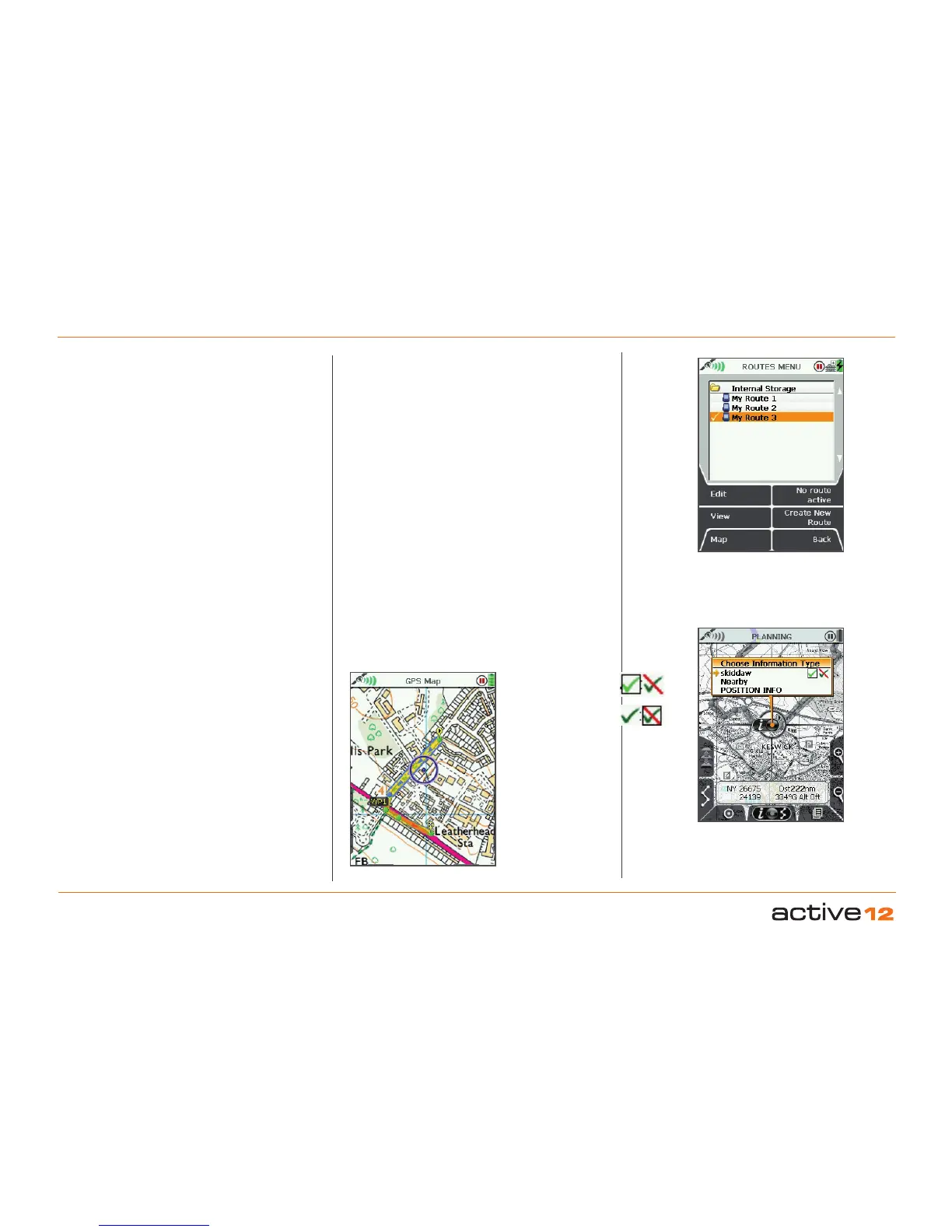
Active route
Inactive route
Figure 8.00b
"Choose Info
Type" box
Alternative ways to create a route:
GPS MAP → POSITION INFO via centre press →
Create New Route
or
GPS MAP → PLANNING → ROUTES MENU via
lower left button → Create New Route
Buttons:
Add Waypoint*
Press the button or centre press the joystick
Remove Waypoint
Press the button or centre press the joystick
ROUTES MENU
Return to ROUTES MENU
7.3 Following a Route
A route is made up of individual waypoints, shown
as small green circles which turn blue as you
approach the next waypoint. The route colour can
be either blue or yellow, with varying transparency,
depending on the active route colour chosen. The
default route colour is blue.
To follow a route, you need to first '
activate' it.
As you begin to follow the yellow/blue route, the
next waypoint along turns blue. The current leg
between waypoints is shown to have blue edging
and blue arrowheads. As you approach this point,
the waypoint name is displayed and the unit will
beep. As you pass this waypoint it will turn from
blue to green, and the next waypoint marker will
turn blue, and so on.
7.4 Create New Route
(MAIN MENU → ROUTES MENU → Create New
Route)
From the MAIN MENU, select the Routes Menu
and press Create New Route. This takes you to the
CREATE ROUTE screen where you will be able to
plot routes by laying down a series of waypoints.
Zoom in for greater accuracy in placing waypoints.
Route seleted =
"Activated"



 To Next Page