Software v3.0.9915
© Satmap Systems Ltd 2015
9
3. Overview
3.1 Battery Power
The Active 12 can be powered by a Lithium Polymer
rechargeable battery, or three AA batteries. The
rechargeable battery is optimized to last longer over
a wide range of temperatures/conditions and lasts
significantly longer than AA's. Since AA batteries
vary significantly in power and life from one type to
another, we recommend using Lithium Energizers
which are the most powerful on the market. It is not
advisable to use cheap batteries in the unit as they
will have a short life.
There are 4 ways to conserve power:
1. Select a
‘Screen Turn Off’ option
Settings > Power Control > Automatic Screen Turn Off
> Select ‘Off after 3 minutes’
2. Change the
Power Saving Mode to Advanced or
Ultra
, so the GPS MAP screen updates every 4 / 8
seconds instead of every second.
Settings > Advanced Power Control > Power Saving
Mode > Advanced / Ultra
Note: The "Trail Up" facility is disabled when in
Advanced Powersaving Mode, and backlight is
limited to 80%.
3. Decrease the Backlight setting
Settings > Backlight (adjust slider accordingly)
4. Use
Hibernate Mode to set an ultra low power
state and rapid satellite acquisition.
Power Button > Hibernate for X hours
Note: Trip log data is not stored in this mode
.
3.2 Switching On, Off & Hibernate
When first installed, the software allows users to
select the operating language. Whatever language
is selected, the unit is then set for the appropriate
GPS position: i.e. selecting English sets up the GPS
default to Great Britain.
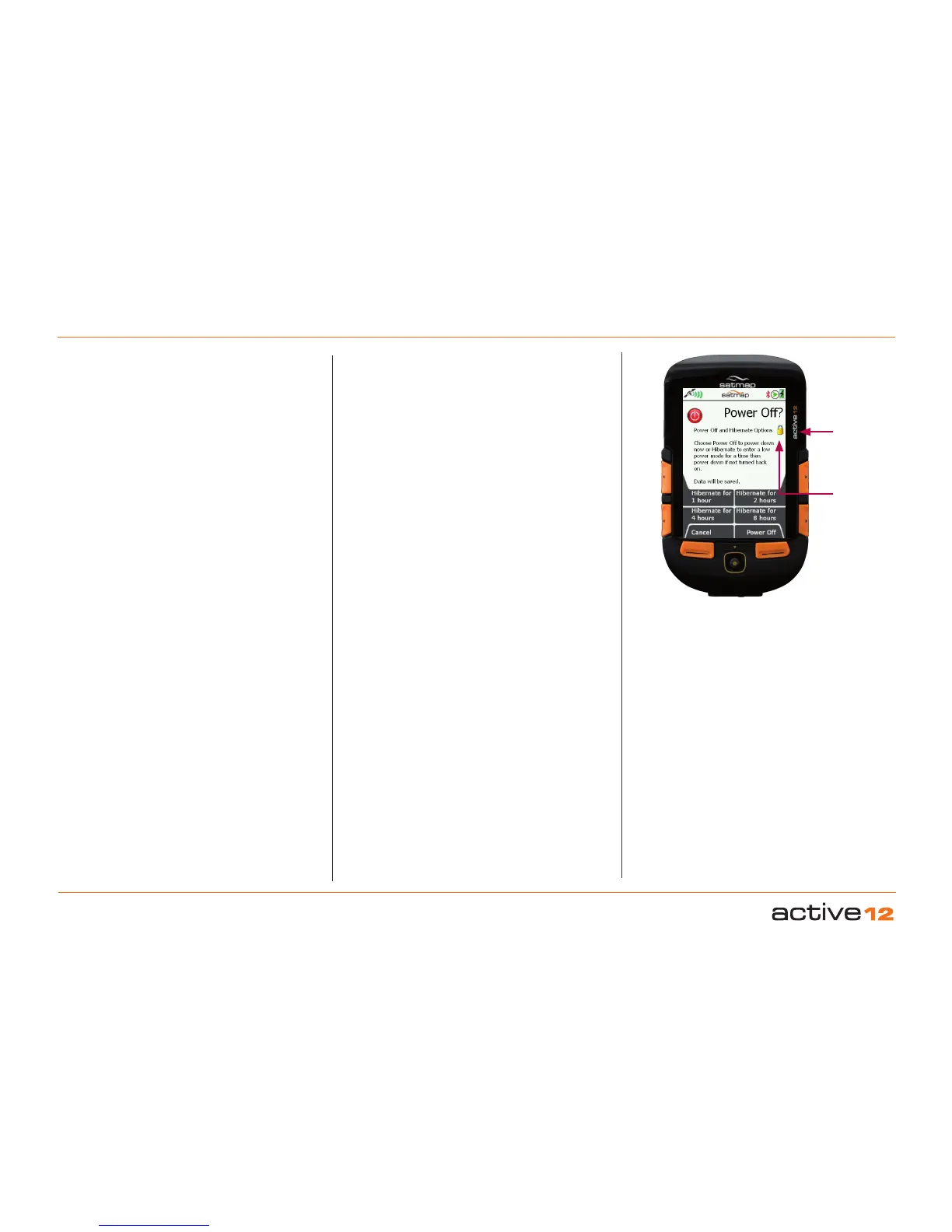
On / Off /
Lock
Button
Keyboard
Lock
Power Off screen for
Hibernate options
After switching on the unit, the GPS STATUS screen
will load up. The bars at the bottom of the screen
indicate how many satellites are in range of the
Active 12.
When the bars turn from yellow to orange this shows
that the unit has locked to that specific satellite. In
general, the unit needs a minimum of four satellites
to get a lock. Outdoors, the unit should get a lock
within three minutes. If it takes much longer, please
contact Satmap. Hibernate mode allows rapid
satellite lock as the unit remembers the satellites’
position.
To switch the unit off, press the
On/Off button and a
Power Off? screen is displayed in order to prevent
accidental switch-off; select
Power Off. Your data
will be saved before power off. If no selection is
made after 10 seconds the unit will revert to the
previous screen.
Hibernate mode puts the unit into a very low
power state, but keeps the real-time clock alive. This
permits a very quick boot-up time & fast satellite lock
when the power button is re-pressed.
3.3 Keyboard Lock
The Power Off? screen has a padlock (Keypad
Lock) icon by the
On/Off button. Press the On/
Off
button to lock the keypad. A padlock icon is
displayed by the battery indicator.
To unlock the keypad press any button and the
Unlock screen will be displayed. Select
Yes to
unlock the keypad. If no selection is made after 3
seconds the unit will revert to the previous screen.



 To Next Page