Software v3.0.9915
© Satmap Systems Ltd 2015
69
11. POIs (Points of Interest)
11.1 POIs Overview
POIs are Points of Interest: points on a map
linked to geo-referenced data (latitude/longitude),
displaying text or images with information about that
point (e.g. hotel, restaurant, viewpoint, historical
site, etc).
POIs can be added to the unit in two ways —
either by map or by grid reference. (POIs can also
be added by postcode for some units in the UK).
Individual icons can be allocated to each POI.
These allow for better management of POIs and
faster recognition.
Note: Use SatSYNC to add graphics or more detailed
information to a POI. (See the SatSYNC 1.5 User
Guide).
11.2 Add POI by Map
(GPS MAP → MAIN MENU → OOI Menu → Add POI
by Map)
Alternative access:
(GPS MAP → MAIN MENU → OOI Menu → OOI
Folders → Create New POI)
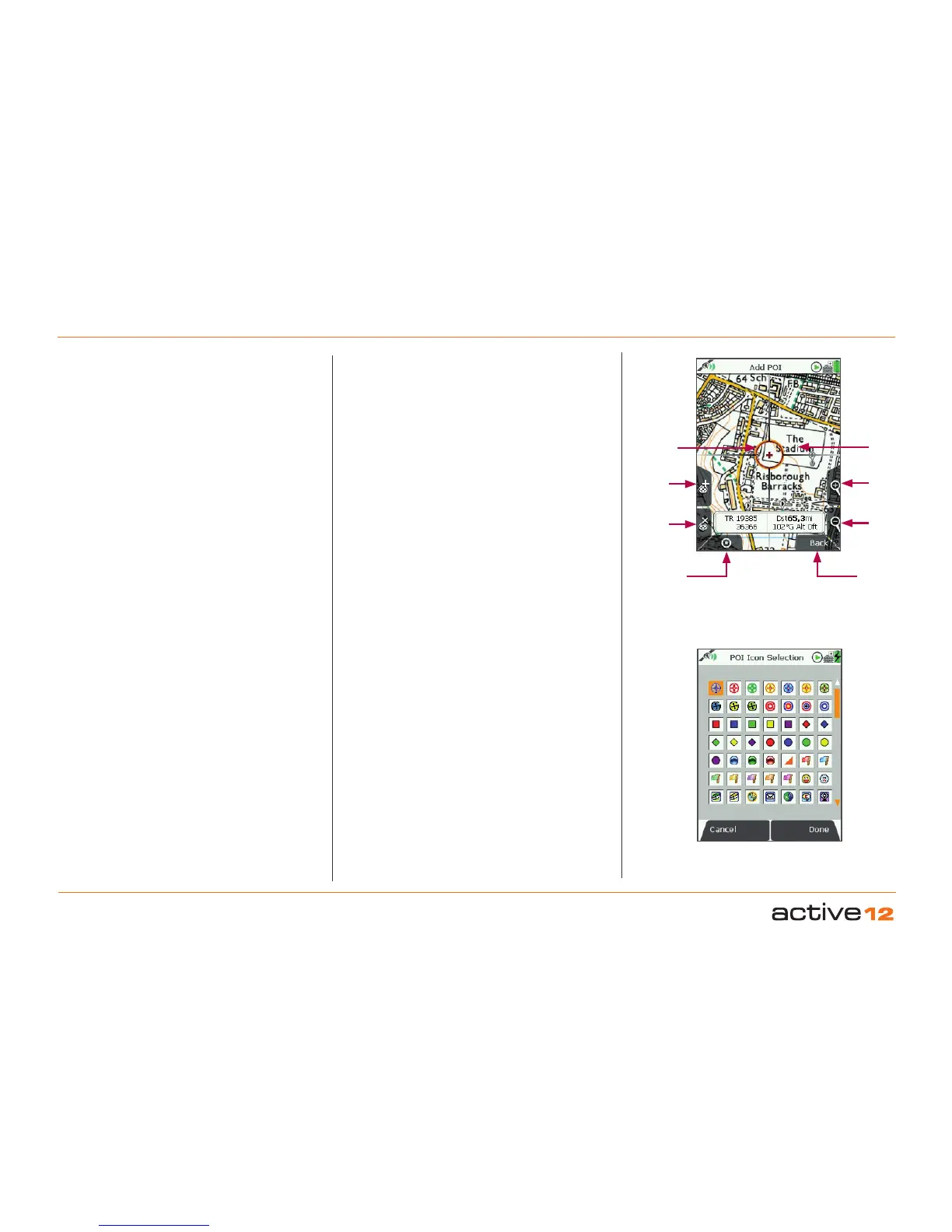
To create a POI using the map, select Add POI by
Map from the OOI Menu and press Select or centre
press the joystick. This will take you to the Add POI
screen where you will be able to set a POI icon.
The orange locator circle has a red cross in the
centre to indicate you are in edit mode on the
Add POI screen. Create a POI by either pressing
the top left '+' button or centre press the joystick in
the desired location. Use the lower left 'x' button to
remove POIs.
Once you set a POI you are prompted to name the
POI on the keypad screen. When a POI is created
it is called 'POI 1' by default (or similar, depending
on the number of existing POIs). Use the joystick to
rename your POI.
Pressing Done will take you to the POI Icon
Selection screen that consists of a library of POI
icons. Here you will be able to allocate an individual
icon to the POI.
Use the joystick to scroll through
choices and press Done to select the icon. Move
the joystick up/down to access more screens with
POI icons.
The Add POI screen appears with your recent POI
creation in the centre of the map. Press Back to
return to the OOI Menu.
Alternatively you can access the Add POI screen
by selecting Create New POI from the OOI Folders
menu.
Buttons:
Add POI (+)
Lay down POI icons on the map
Remove POI (x)
Remove POIs from the map
GPS Map
Return to GPS MAP screen
Zoom
Zoom in/out
Back
Go back to OOI Menu
POI icon
Remove
POI
GPS Map
Add
POI
Zoom
In
Zoom
Out
Back
Add POI
Locator
circle with
red cross to
indicate edit
mode



 To Next Page