Software v3.0.9915
© Satmap Systems Ltd 2015
83
13. LOIs (Lines of Interest) (... cont)
13.9 Edit Visibility
(GPS MAP → MAIN MENU → OOI Menu → OOI
Folders → Select LOI → Edit → Edit Visibility)
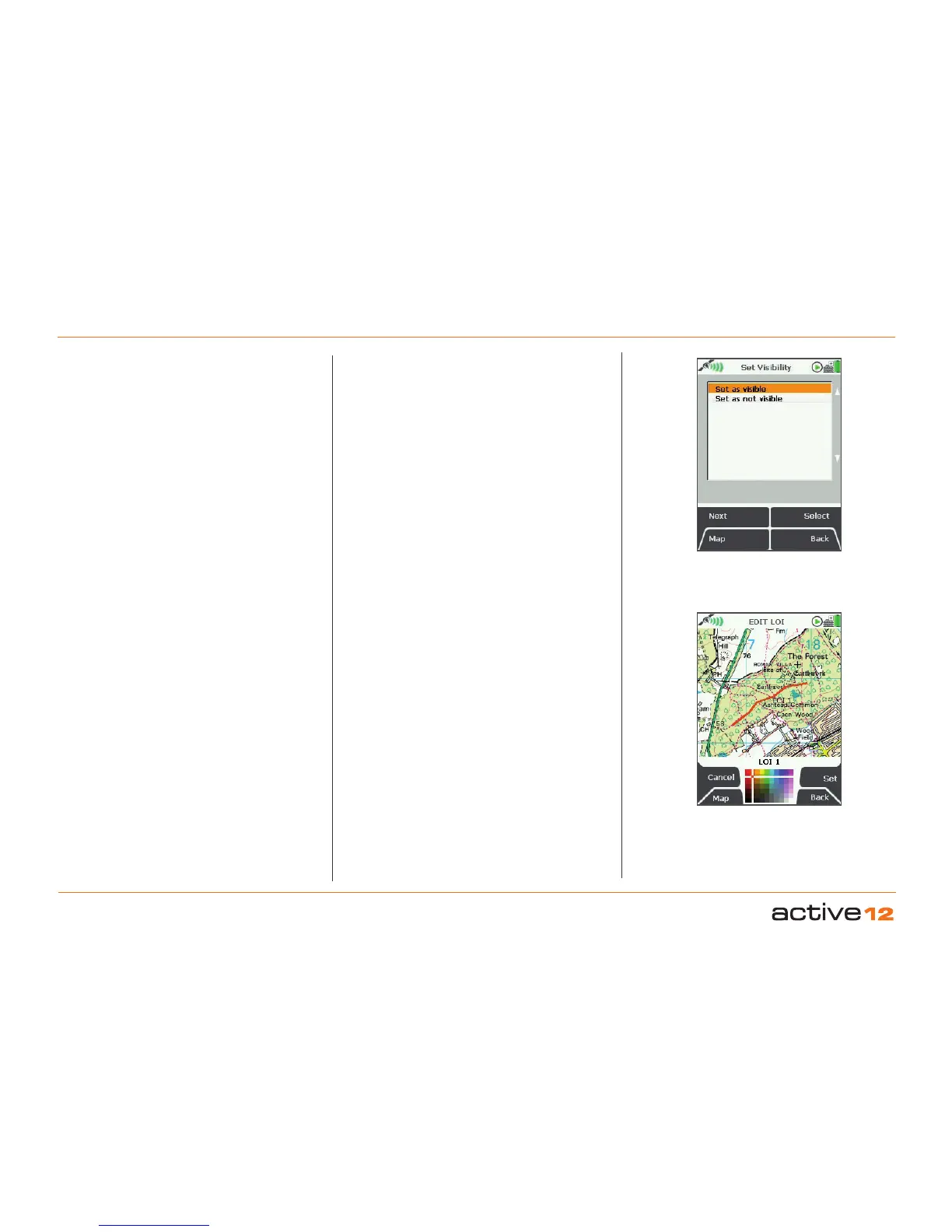
On selecting Edit Visibility you are taken to a
menu where you can hide or show your LOIs by
setting them as 'visible' or 'not visible' on your map.
Pressing Select takes you back to the edit menu.
Note: This is only respected if the global visibility is set
to 'Default' (GPS MAP → MAIN MENU → OOI Menu
→ 'Visibility - Default').
13.10 Edit Colour
(GPS MAP → MAIN MENU → OOI Menu → OOI
Folders → Select LOI → Edit → Edit Colour)
Highlight Edit Colour and use the joystick to make
a selection from the colour palette. As you move
the joystick over a colour, the LOI automatically
changes colour on the map. Once you are happy
with the colour choice, press Set to confirm or centre
press the joystick. This will take you back to the edit
menu.
13.11 Delete
(GPS MAP → MAIN MENU → OOI Menu → OOI
Folders → Select LOI → Edit → Delete)
Highlight Delete, then press Delete or centre press
the joystick to access a screen showing the option
to delete the LOI. When either Delete
or Cancel is
selected, the screen will go back to the EDIT LOI
menu.
Set LOI
visibility
Set LOI colour
13.12 Move to SD Card
(GPS MAP → MAIN MENU → OOI Menu → OOI
Folders → Select LOI → Edit → Move to SD Card)
(Only available if an SD card has been inserted)
. Move
the LOI from the SD card to the Internal Storage.
Highlight Move to SD Card
and either press Move or
centre press the joystick. (Subsequently this option
becomes Move from SD Card). The screen will go
to the OOI Folders and the LOI will appear in the
SD Card folder. To move the LOI from the SD card
you will need to select Move from SD Card from the
edit menu.
13.13 Copy to SD Card
(GPS MAP → MAIN MENU → OOI Menu → OOI
Folders → Select LOI → Edit → Copy to SD Card)
(Only available if an SD card has been inserted)
. Make
a copy of the LOI onto the SD card. Highlight Copy
to SD Card and either press Copy or centre press
the joystick. (Subsequently this option becomes
Copy from SD Card). The screen will go to the
OOI
Folders and a copy of the LOI will appear in the SD
Card folder.



 To Next Page