Software v3.0.9915
© Satmap Systems Ltd 2015
92
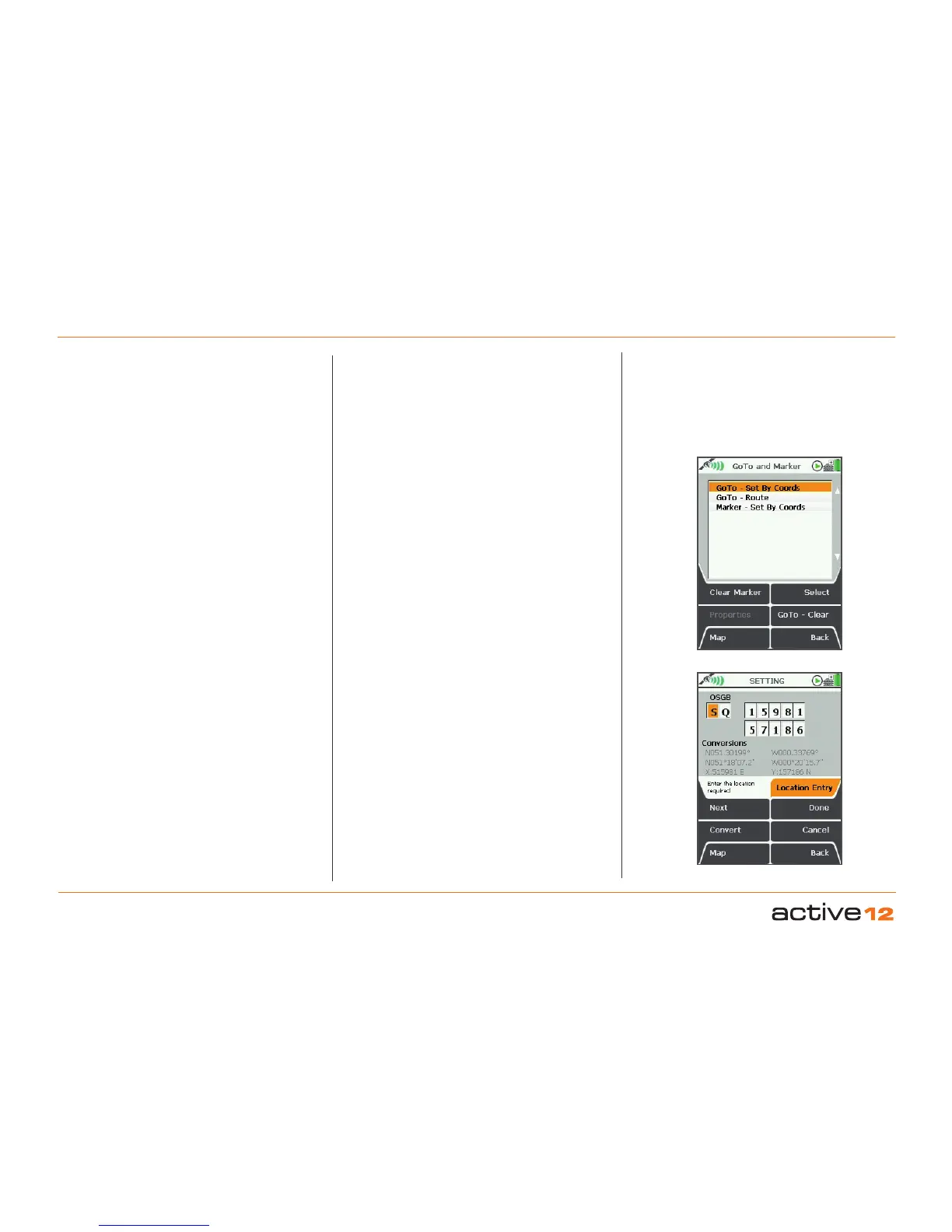
16. GoTo and Marker
16.1 GoTo and Marker Overview
(GPS MAP → MAIN MENU → GoTo and
Marker)
GoTo point: A set point that acts as a target.
Once you have activated a GoTo point, a straight
line from your current location and GoTo point (or
route) will appear. This is useful in situations when
you do not know where you are going, i.e. you have
no determined route. Access various statistics from
the data box options using this feature, e.g. GoTo
Distance, GoTo ETA, GoTo Bearing etc.
Marker: A red flag (reference point) on the map
from which the distance and bearing to any other
point on the map can be measured. You are not able
to follow a Marker and it is only available in Planning
mode. Use the joystick to move the planning circle
in the desired direction to calculate the straight line
distance or bearing.
The menu options are as follows:
• GoTo – Set By Coords
• GoTo – Route*
• Marker – Set By Coords
*Available once a GoTo point has been set.
Note: GoTo and Marker function for setting by postcode
are available for some units sold in the UK.
Clear Marker
and GoTo – Clear buttons are
active once a point/marker has been set.
(Also accessible from the POSITION INFO screen).
16.2 GoTo & Marker – Set By Coords
Selecting one of these options brings up a screen
on which grid references may be entered. Move the
joystick up/down to change the coordinate values,
and left/right to select the next entry box, or use the
Next button to move to the next row.
Buttons:
Next
Move between rows (does not work with OSGB)
Convert
Updates coordinate conversions. (Active once
original coordinates have been changed).
Map
Return to last map screen
Done
Press to set coordinates of GoTo point/Marker
Cancel
Return to GoTo and Marker screen
Back
Return to PLANNING screen
Coordinates can be entered in different position
display formats and the preferred format can
be selected from Main Menu → Settings → GPS
Settings
.
Alternative option for setting a GoTo point/Marker:
(PLANNING → POSITION INFO via centre press →
Set Marker/Set GoTo)
16.3 GoTo – Route
Only available once a GoTo point has been
set. Selecting this option shows the straight
line distance from your current location to a
route and puts the centre of the planning circle at
the GoTo point.
GoTo point
Set GoTo by
Grid reference



 To Next Page