Software v3.0.9915
© Satmap Systems Ltd 2015
61
7. MAIN MENU: Routes Menu (... cont)
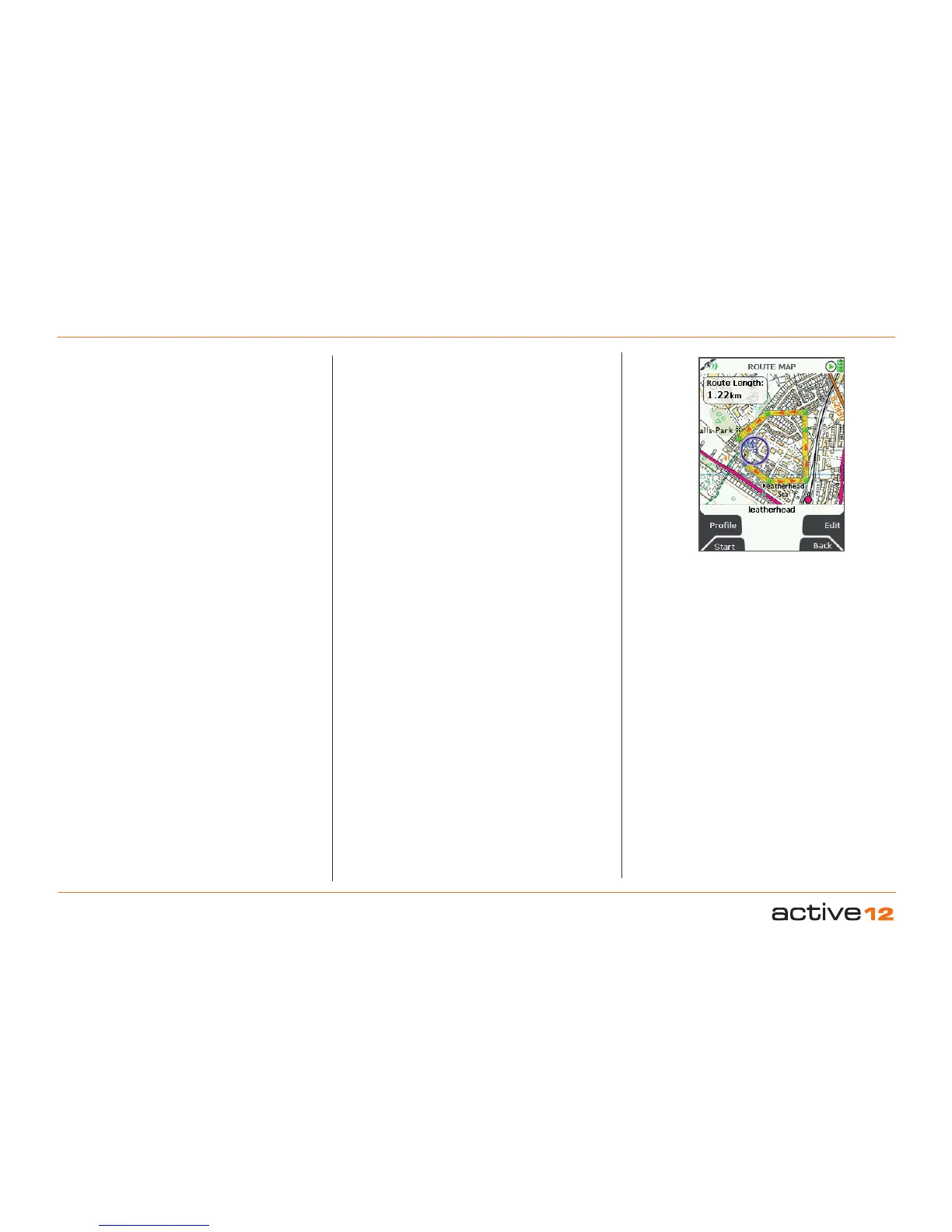
7.16 ROUTE MAP Screen
(GPS MAP → MAIN MENU → ROUTES MENU →
(folder/route) → View)
Alternative access:
(GPS MAP/PLANNING → click on activated route →
Choose Information Type → select route via centre
press → ROUTE MAP)
A map showing the entire planned route is shown.
An appropriate scale is used to ensure the whole
route can be displayed on the screen.
Note: If you see your route on a blue background,
this means there is no suitable map at that scale to
incorporate the entire route.
The route length is given in a window. From this
screen you can either examine details of the route
via the Prole button, or edit the route via the Edit
button. You can also view the start of a route by
pressing Start
.
To return to the PLANNING screen, either press
Back or centre press the joystick.
ROUTE MAP
screen
Buttons:
Prole
Go to ROUTE PLAN screen
Start
Go to the start of the route on the
PLANNING
screen (section 6.00)
Note: This is useful to locate a route on your screen
when it is not visible.
Edit
Go to the ROUTE EDIT screen
Back
Go to
PLANNING



 To Next Page