Software v3.0.9915
© Satmap Systems Ltd 2015
49
6. MAIN MENU: Settings Menu (... cont)
Control Data on
Map Screens
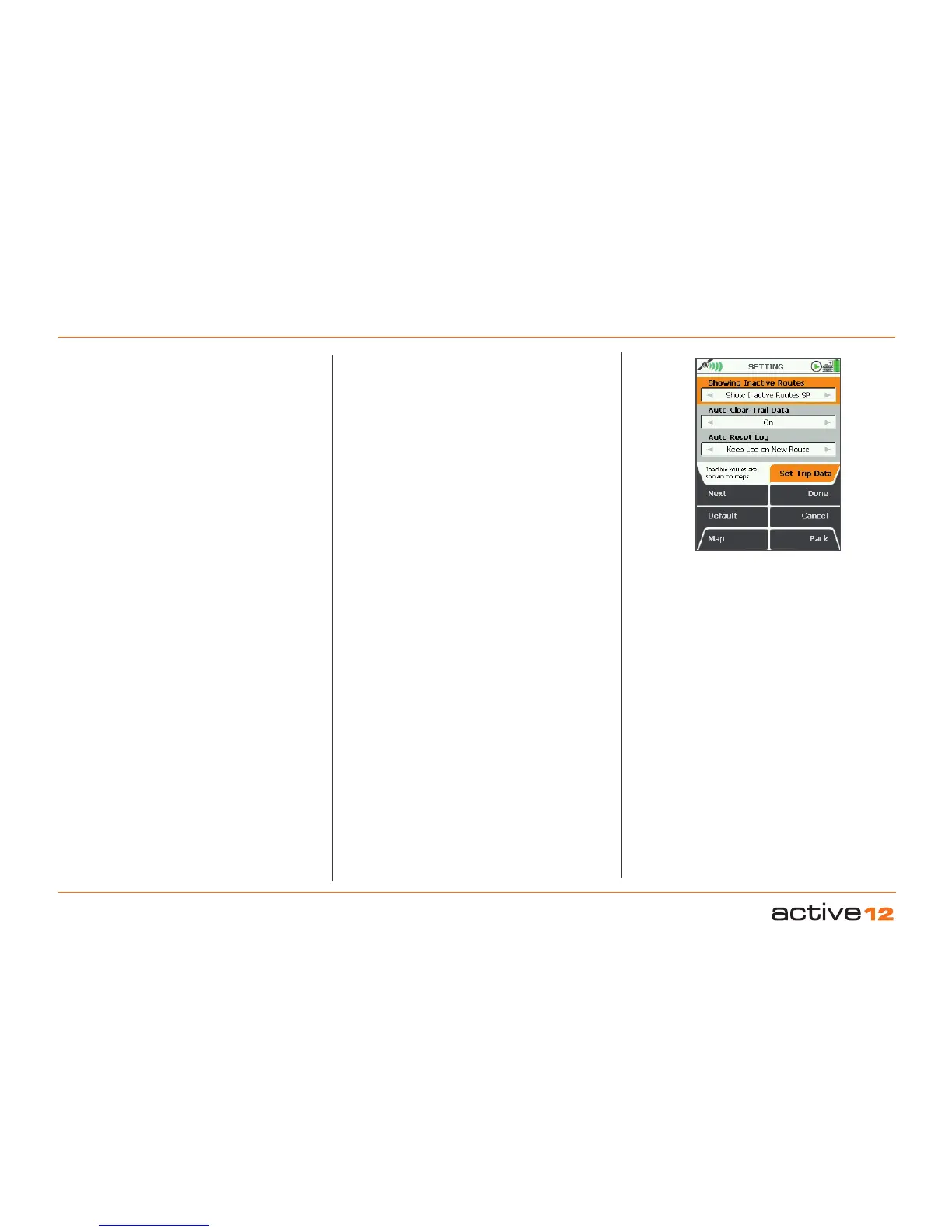
6.15 Set Trip Data
(GPS MAP → MAIN MENU → Settings → Set Trip
Data)
This is where you can control how inactive routes
are displayed, as well as the deletion/preservation
of trail and trip log data when a new route is
activated.
Showing Inactive Routes
• Use the joystick, moving left/right to toggle
between;
Show Inactive Routes: Inactive routes are shown
on maps.
Hide Inactive Routes: Inactive routes are hidden
on maps.
Show Inactive Routes SP: The start point (SP)
of each inactive route is shown on the maps. (A
gray marker with a black triangle appears at the
start point).
• Press Done or centre press the joystick to return to
SETTINGS MENU
.
Note: Showing inactive routes uses a lot of operating
memory on the unit, so it is important to keep this
selection to a minimum, as it will slow down your unit.
Showing too many inactive routes could also 'freeze'
your unit. Only show a few short inactive routes, or to
reduce RAM consumption, choose the Show Inactive
Routes SP option.
Auto Clear Trail Data
• Use the joystick, moving left/right to toggle
between;
On: Trail data is cleared when a new route is
selected.
Off: Trail data is not cleared on new route
selection.
• Press Done or centre press the joystick to
return to SETTINGS MENU.
Auto Reset Log
• Use the joystick, moving left/right to toggle
between;
Keep Log on New Route: Log will not be cleared
when starting a new route.
Clear Log on New Route: Log will be cleared on
starting a new route.
• Press Done or centre press the joystick to return
to SETTINGS MENU
Pressing the Default button restores the following
settings:
Showing Inactive Routes
Show Inactive Routes SP
Auto Clear Trail Data
Off
Auto Reset Log
Keep Log on New Route



 To Next Page