Software v3.0.9915
© Satmap Systems Ltd 2015
62
7. MAIN MENU: Routes Menu (... cont)
7.17 ROUTE PLAN Screen
(GPS MAP → MAIN MENU → ROUTES MENU →
(folder/route) → View → Prole)
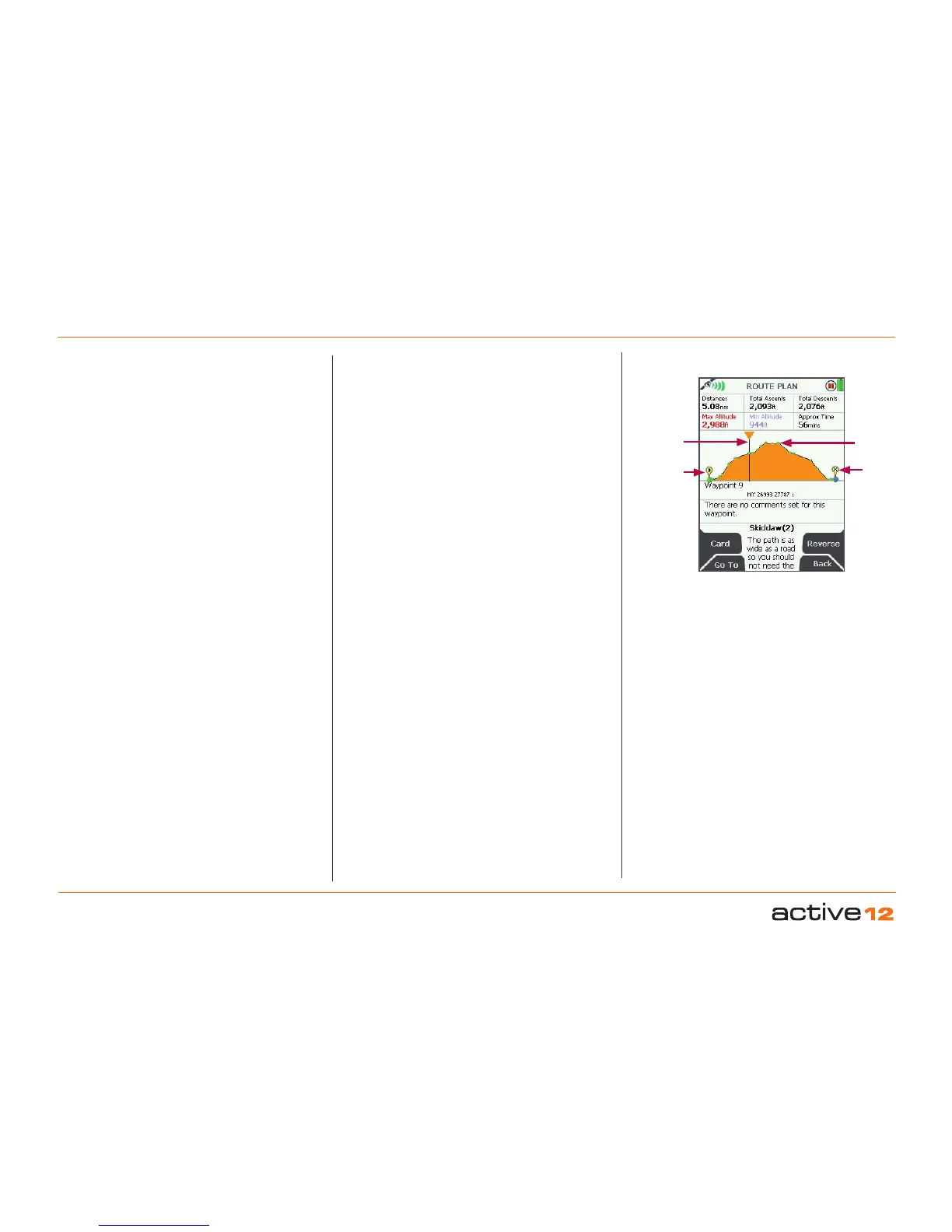
This screen shows an elevation profile of the route,
together with six data fields:
• Distance
• Total Ascents
• Total Descents
• Maximum Altitude
• Minimum Altitude
• Approximate Time
The ROUTE PLAN screen is accessed from the
ROUTE MAP screen by pressing the Prole button.
The vertical line can be used to access information
about each waypoint by moving the joystick left/
right. Pressing the joystick once left/right, moves
the vertical line along each individual waypoint.
Pushing and holding the joystick left/right moves the
vertical line across numerous waypoints, giving you
accelerated scrolling.
Accelerated scrolling: This is useful if you have
a route with many waypoints and want to access
information about a particular waypoint. Press and
hold the joystick left/right until you reach the specic
waypoint.
If you have more than 50 waypoints, then you will
only be able to see the start and end points, but you
will still be able to access details of each point using
the vertical line.
The waypoint label on the map, its coordinates
and comments appear under the elevation profile.
Below a total of fifty waypoints, individual waypoints
are shown along the profile as green dots. If a route
is a ‘track’, i.e. a converted trail, the comment field
contains date, time, speed etc. as recorded by the
Active 12.
Buttons:
Card
Go to ROUTE CARD screen
Go To
Go to PLANNING screen, centred on the indicated
waypoint
Reverse
Press to Reverse the route
Back
Go to previous screen
ROUTE PLAN
screen
Waypoint
End point
Vertical
line
Start point
Less than 50 waypoints



 To Next Page