Software v3.0.9915
© Satmap Systems Ltd 2015
73
11. POIs (Points of Interest) (... cont)
11.12 Edit Warning Radius
(GPS MAP → MAIN MENU → OOI Menu → OOI
Folders → Select POI → Edit → Edit Warning Radius)
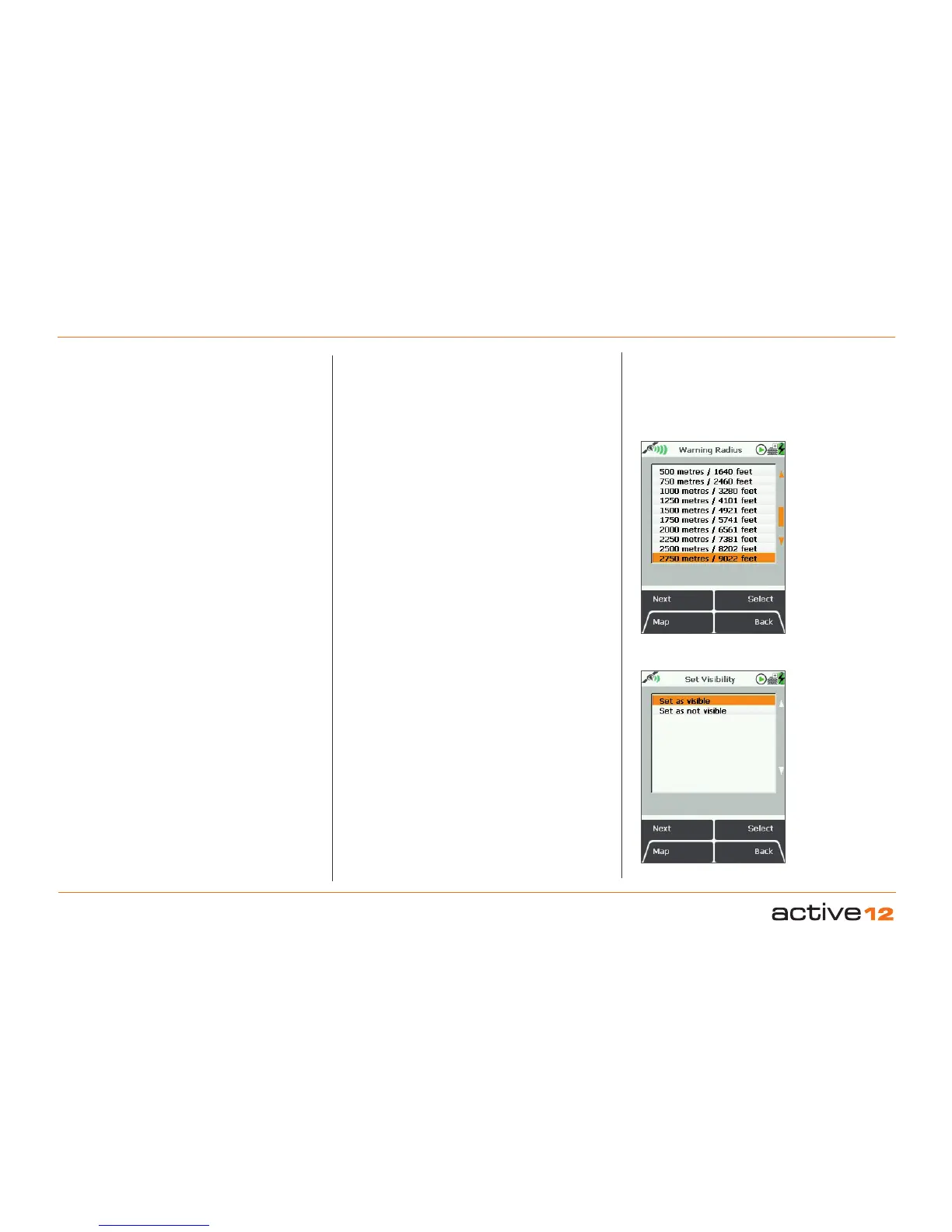
Select Edit Warning Radius to take you to the
Warning Radius screen. Use the joystick or the Next
button to scroll through the options. Press Select to
choose a radius at which the unit will sound warning
beeps indicating the vicinity of the selected POI.
11.13 Edit Visibility
(GPS MAP → MAIN MENU → OOI Menu → OOI
Folders → Select POI → Edit → Edit Visibility)
On selecting Edit Visibility you are taken to a
menu where you can hide or show your POIs by
setting them as 'visible' or 'not visible' on your map.
Pressing Select takes you back to the edit menu.
Note: This is only respected if the global visibility is set
to 'Default' (GPS MAP → MAIN MENU → OOI Menu
→ 'Visibility - Default').
11.14 Edit POI Icon
(GPS MAP → MAIN MENU → OOI Menu → OOI
Folders → Select POI → Edit → Edit POI Icon)
Highlight Edit POI Icon and use the joystick to select
a POI icon from the POI Icon Selection screen.
Press Done to return to the EDIT POI menu.
Set POI
warning radius
Set visibility
for POIs
11.15 Delete
(GPS MAP → MAIN MENU → OOI Menu → OOI
Folders → Select POI → Edit → Delete)
Press Delete or centre press the joystick to access a
screen showing the option to delete the POI. When
Delete is selected the screen will go back to the OOI
Folders. Pressing Cancel will take you back to the
EDIT POI menu.
11.16 Move to SD Card
(GPS MAP → MAIN MENU → OOI Menu → OOI
Folders → Select POI → Edit → Move to SD Card)
(Only available if an SD card has been inserted)
. Move
the POI from the SD card to the Internal Storage.
Highlight Move to SD Card
and either press Move or
centre press the joystick. (Subsequently this option
becomes Move from SD Card). The screen will go
to the OOI Folders and the POI will appear in the
SD Card folder. (To move the POI from the SD card,
select Move from SD Card from the edit menu. The
POI will then appear in the Internal Storage folder).
11.17 Copy to SD Card
(GPS MAP → MAIN MENU → OOI Menu → OOI
Folders → Select POI → Edit → Copy to SD Card)
(Only available if an SD card has been inserted)
. Make
a copy of the POI onto the SD card. Highlight Copy
to SD Card and either press Copy or centre press
the joystick. (Subsequently this option becomes
Copy from SD Card). The screen will go to the OOI
Folders and a copy of the POI will appear in the
SD
Card folder, as well as in the Internal Storage folder.
Note: Visibility should
be set to 'Default' to be
editable for individual
OOIs.



 To Next Page