Software v3.0.9915
© Satmap Systems Ltd 2015
84
14. Grids
14.1 Grids Overview
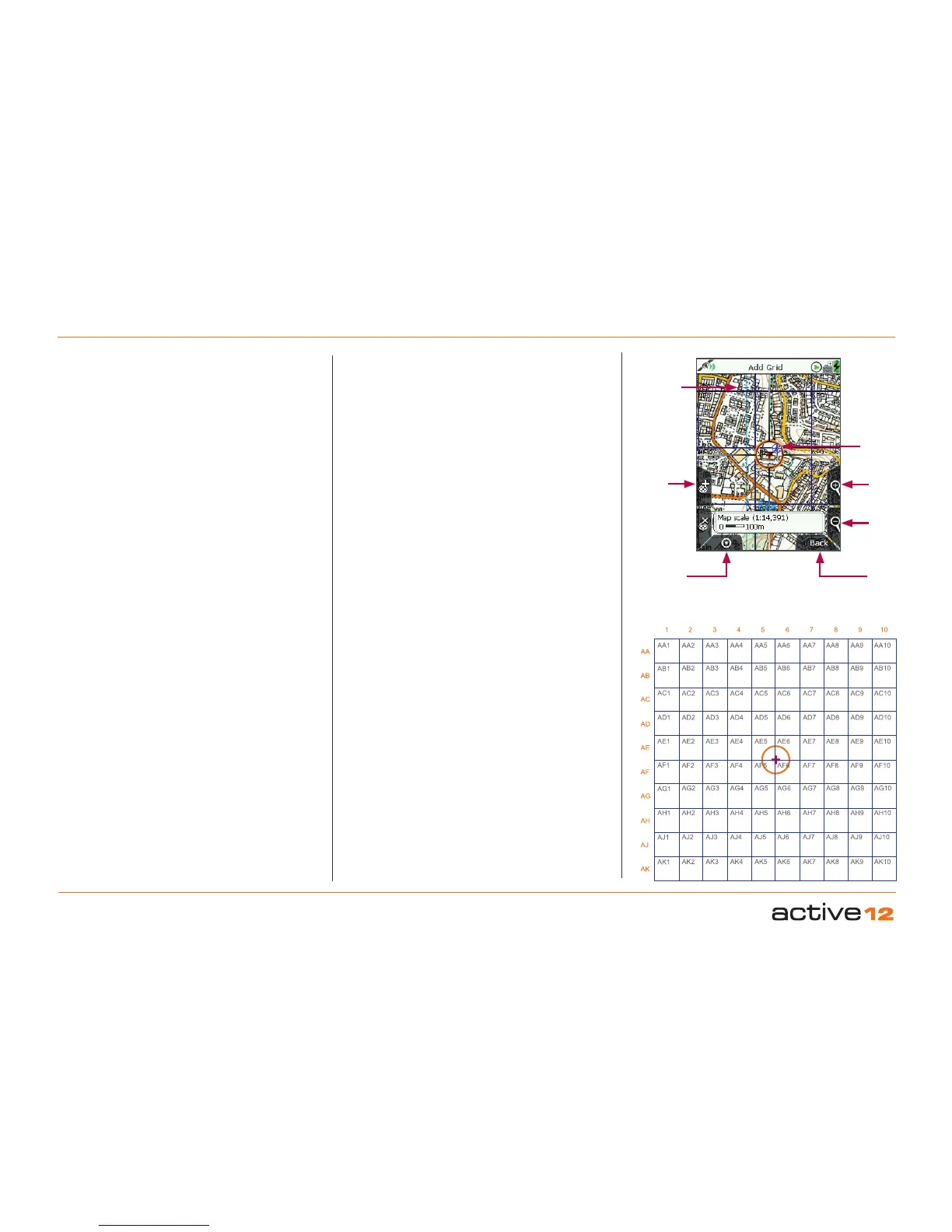
Grids consist of a group of square-shaped AOIs
in a large square/grid formation. They allow you to
overlay a square grid/table onto the map. Grids are
used to split an area into searchable chunks. For
example, search and rescue teams can use grids
for rescue missions. Other examples of uses include
ornithology (bird watching), archaeology, forestry,
crime surveying, etc.
Each grid consists of 100 AOIs (or squares), i.e. 10
across and 10 down. Each AOI is 300m x 300m.
The grid follows a default naming convention and
individual AOIs can be renamed individually (section
17.05). As you zoom into the map, the name of the
AOI appears in each square. Moving the locator
circle over individual squares shows the name of
the AOI in the top right-hand corner.
Rows are labelled AA, AB, AC, etc... and columns
are labelled 1, 2, 3, etc... so a square or individual
AOI can be referred to as “AA3” or “AB2”. (To avoid
confusion with the number 1, the letter 'I' has been
omitted).
You are able to change the colour and pattern of
individual AOIs just like a regular AOI. The grid
appears on the PLANNING screen once created.
More than one grid can be placed on the map.
Visibility can only be set for individual AOIs, not for
the entire grid.
14.2 Add Grid Screen
(GPS MAP → MAIN MENU → OOI Menu → Add Grid
by Map)
To create a grid, select Add Grid by Map from the
OOI Menu and press Select or centre press the
joystick. This will take you to the Add Grid
screen
where you will need to set the centre point of the
grid.
The orange locator circle has a red cross in the
centre to indicate you are in edit mode and on the
Add Grid
screen. Use the top left '+' button or
centre press the joystick to set the centre point. This
will take you to the keypad to name your grid.
Note: The lower left 'x' button is not used on this
screen.
Buttons:
Add Grid (+)
Sets the centre point of the grid
GPS Map
Return to GPS MAP screen
Zoom
Zoom in/out
Back
Go back to the OOI Menu
Grid
(made
up of AOI
squares)
GPS Map
Add
Grid
(centre
point)
Zoom
In
Locator
circle with
red cross to
indicate edit
mode
Zoom
Out
Back
Add GRIDS



 To Next Page