Software v3.0.9915
© Satmap Systems Ltd 2015
71
11. POIs (Points of Interest) (... cont)
11.7 Edit POI Menu
(GPS MAP → MAIN MENU → OOI Menu → OOI
Folders → Select POI → Edit)
Alternative access:
(GPS MAP/PLANNING → click on POI → Choose
Information Type → select POI via centre press →
POI details → Edit)
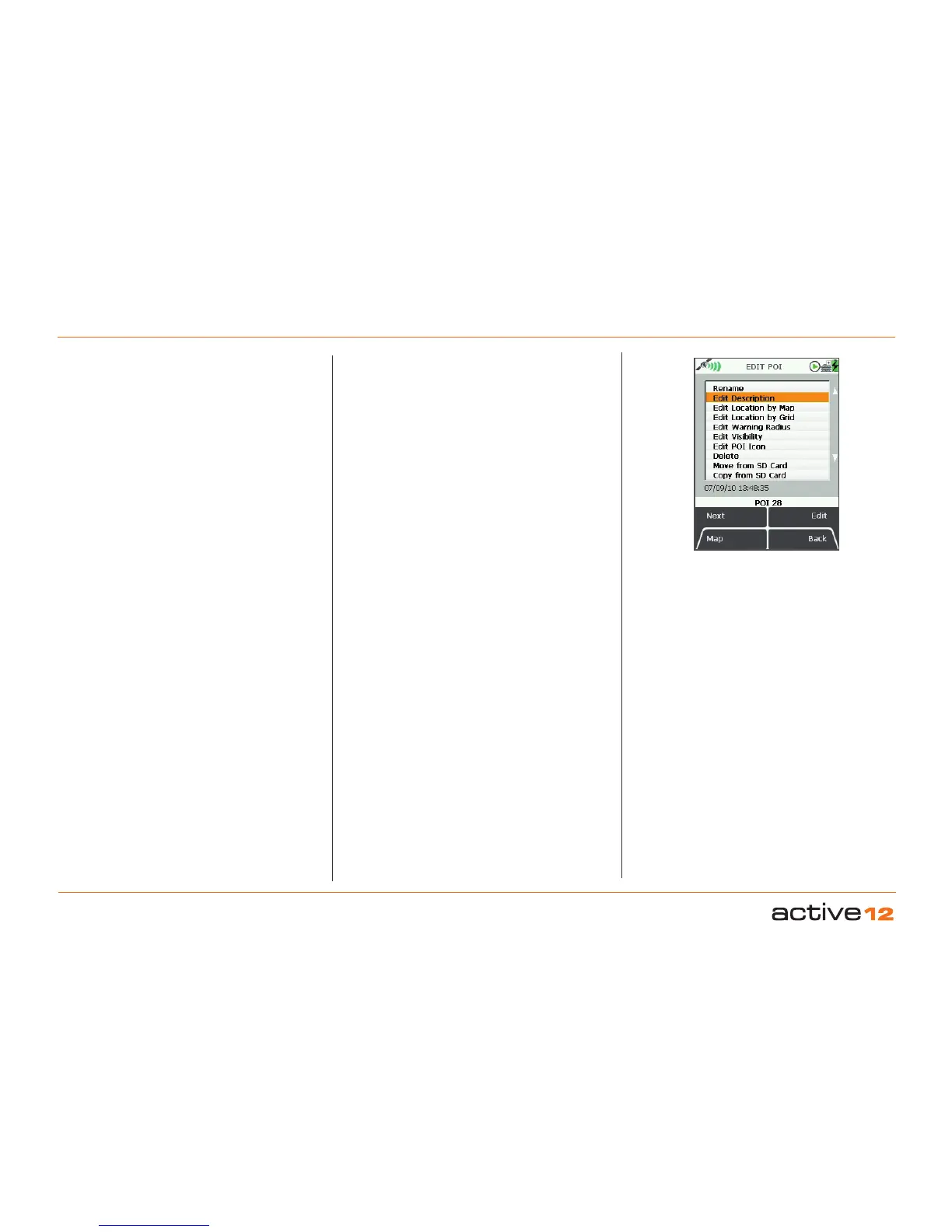
To access the EDIT POI menu, highlight the POI to
be edited in the OOI Folders (section 13.00), and
press Edit or centre press the joystick. Scroll up/
down using the Next button or the joystick. The
current setting for the highlighted option is shown
under the window.
In selecting either Rename or Edit Description you
will bring up an on-screen keypad (section 9.00).
When using the keypad for labelling, either press
Select or centre press the joystick to select entries.
The menu options on the Edit POI screen are as
follows;
• Rename
• Edit Description*
• Edit Location by Map
• Edit Location by Grid
• Edit Warning Radius
• Edit Visibility
• Edit POI Icon
• Delete
• Move to SD Card**
• Copy to SD Card**
Buttons:
Next
Move down to next option
Map
Return to GPS MAP screen
Edit
Either press Edit button or centre press joystick to
access alpha-numeric keypad for labelling.
Note: This button changes depending on the option
selected. Other options include Rename, Delete,
Move, Copy.
Back
Return to OOI Folders
The 'Edit Description' option is only available if the
existing description has 128 characters or less (e.g.
externally imported descriptions from geocaches etc.
with more than 128 characters cannot be edited).
The last two options on the list become available only
when an SD card has been inserted and is not write-
protected.
*
**
EDIT POI
options



 To Next Page