Zooming
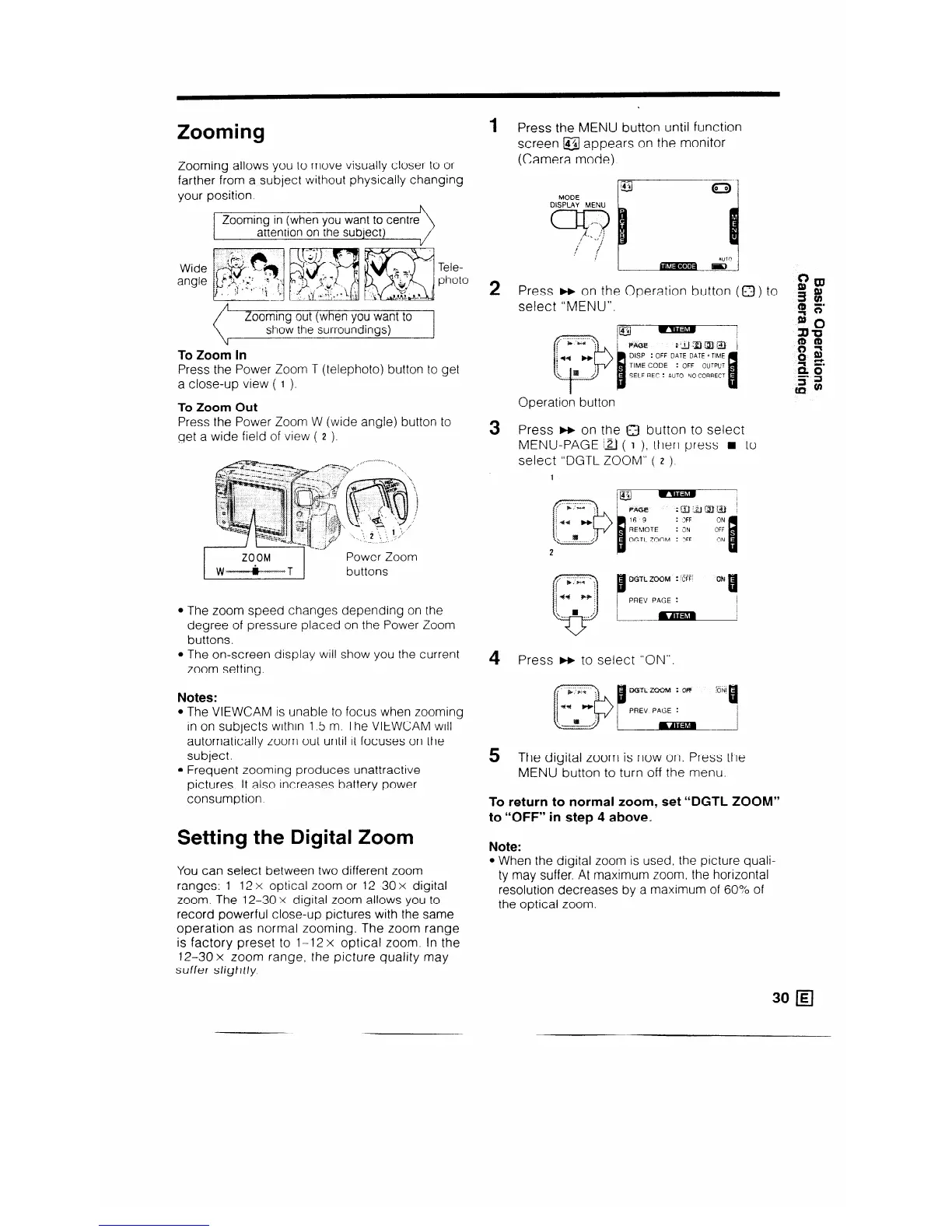
Zooming allows you to move visually closer to or
farther from a subject without physically changing
your position.
Zooming in (when you want to centre
attention on the subject)
Tele-
photo
Zooming out (when you want to
show the surroundings)
To Zoom In
Press the Power Zoom T (telephoto) button to get
a close-up view ( 1 ).
To Zoom Out
Press the Power Zoom W (wide angle) button to
get a
wide field of view ( 2 )
. . . ... . ... I__
I
ZOOM 1
Power Zoom
1 w-
&.-x-.-T 1
buttons
l The zoom speed changes depending on the
degree of pressure placed on the Power Zoom
buttons.
l The on-screen display will show you the current
zoom setting.
Notes:
l The VIEWCAM is unable to focus when zooming
in on subjects within 1.5 m. The VIEWCAM will
automatically zoom out until it focuses on the
subject.
l Frequent zooming produces unattractive
pictures. It also increases battery power
consumption
Setting the Digital Zoom
Note:
You can select between two different zoom
ranges: l-l 2 x optical zoom or 12-30 x digital
zoom. The 12-30 x digital zoom allows you to
record powerful close-up pictures with the same
operation as normal zooming. The zoom range
is factory preset to 1-12 x optical zoom. In the
12-30 x zoom range, the picture quality may
suffer slightly
1
2
3
4
5
Press the MENU button until function
screen @ appears on the monitor
(Camera mode).
/3J
Qo)
MODE
DISPLAY MENU
Press w on the Operation button (0) to
$?m
select “MENU”.
3 ff:
95
Operation button
Press w on the 0 button to select
MENU-PAGE ia ( I ), then press n to
select “DGTL ZOOM” ( 2 ).
16 9
: 3FF
ON
REMOTE
: ON
OFF
DGTL ZOOM : :FF
ON
Press w to select “ON”.
The digital zoom is now on. Press the
MENU button to turn off the menu.
To return to normal zoom, set “DGTL ZOOM”
to “OFF” in step 4 above.
l When the digital zoom is used, the picture quali-
ty may suffer. At maximum zoom. the horizontal
resolution decreases by a maximum of 60% of
the optical zoom.


 To Next Page