Deleting Skip Marks
To change a skipped section
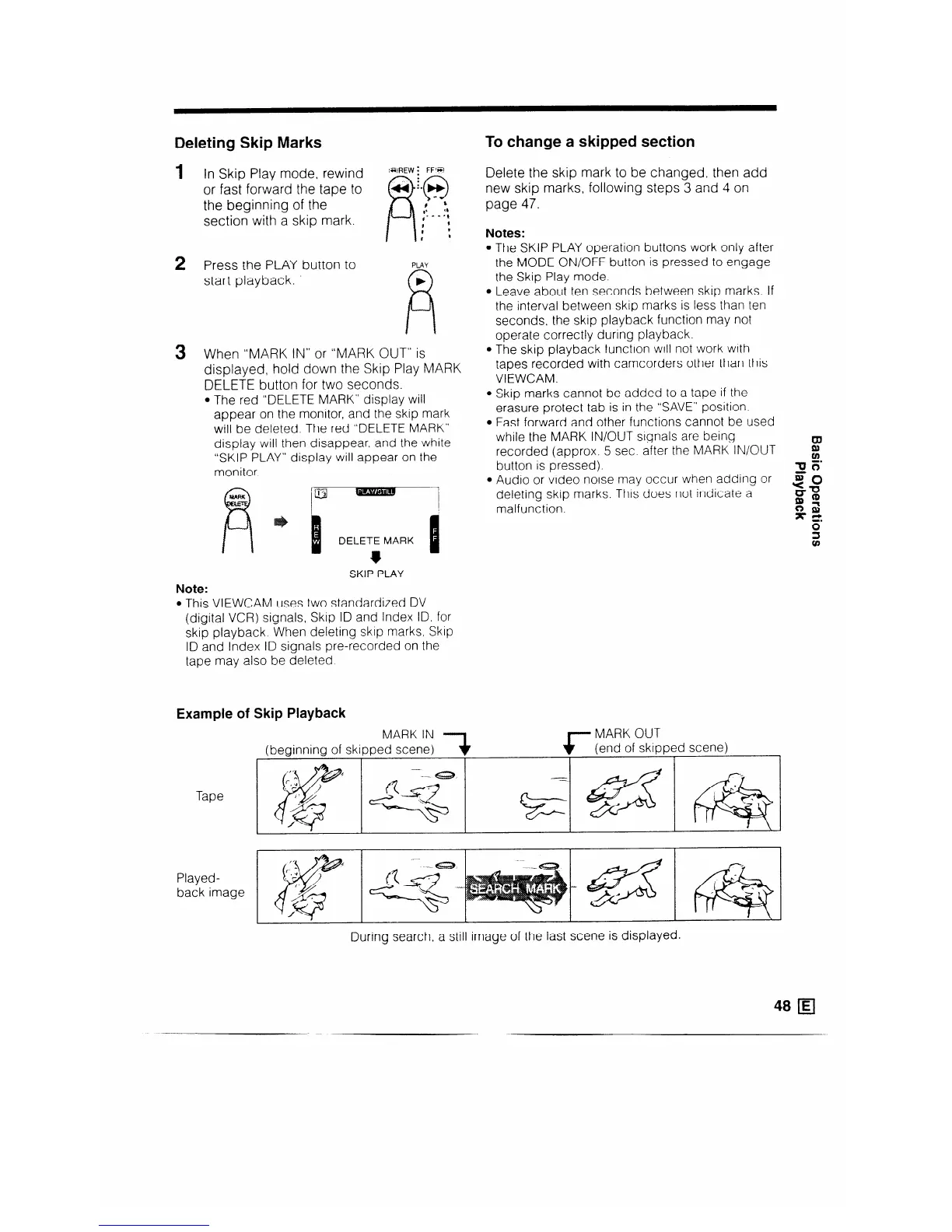
1 in Skip Play mode. rewind
or fast forward the tape to
the beginning of the
section with a skip mark.
2 Press the PLAY button to
PLAY
start playback.
b
R
3 When “MARK IN” or “MARK OUT” is
displayed, hold down the Skip Play MARK
DELETE button for two seconds.
l The red “DELETE MARK” display will
appear on the monitor, and the skip mark
will be deleted. The red “DELETE MARK”
display will then disappear, and the white
“SKIP PLAY” display will appear on the
monitor.
Note:
SKIP PLAY
l This VIEWCAM uses two standardized DV
(digital VCR) signals, Skip ID and Index ID. for
skip playback. When deleting skip marks Skip
ID and Index ID signals pre-recorded on the
tape may also be deleted.
Example of
Tape
Played-
back image
Skip Playback
MARK IN 1
(beginning of skipped scene)
+
Delete the skip mark to be changed, then add
new skip marks, following steps 3 and 4 on
page 47.
Notes:
l The SKIP PLAY operation buttons work only after
the MODE ON/OFF button is pressed to engage
the Skip Play mode.
l Leave about ten seconds between skip marks. If
the interval between skip marks is less than ten
seconds, the skip playback function may not
operate correctly during playback.
l The skip playback function will not work with
tapes recorded with camcorders other than this
VIEWCAM.
l Skip marks cannot be added to a tape if the
erasure protect tab is in the “SAVE” position.
l Fast forward and other functions cannot be used
while the MARK IN/OUT signals are being
recorded (approx. 5 sec. after the MARK IN/OUT
E
button is pressed).
% Z=
l Audio or video noise may occur when adding or
so
deleting skip marks. This does not indicate a
==X
malfunction.
:s
x rt:
r- MARK OUT
f
(end of skipped scene)
During search, a still image of the last scene is displayed.
48 IE/


 To Next Page