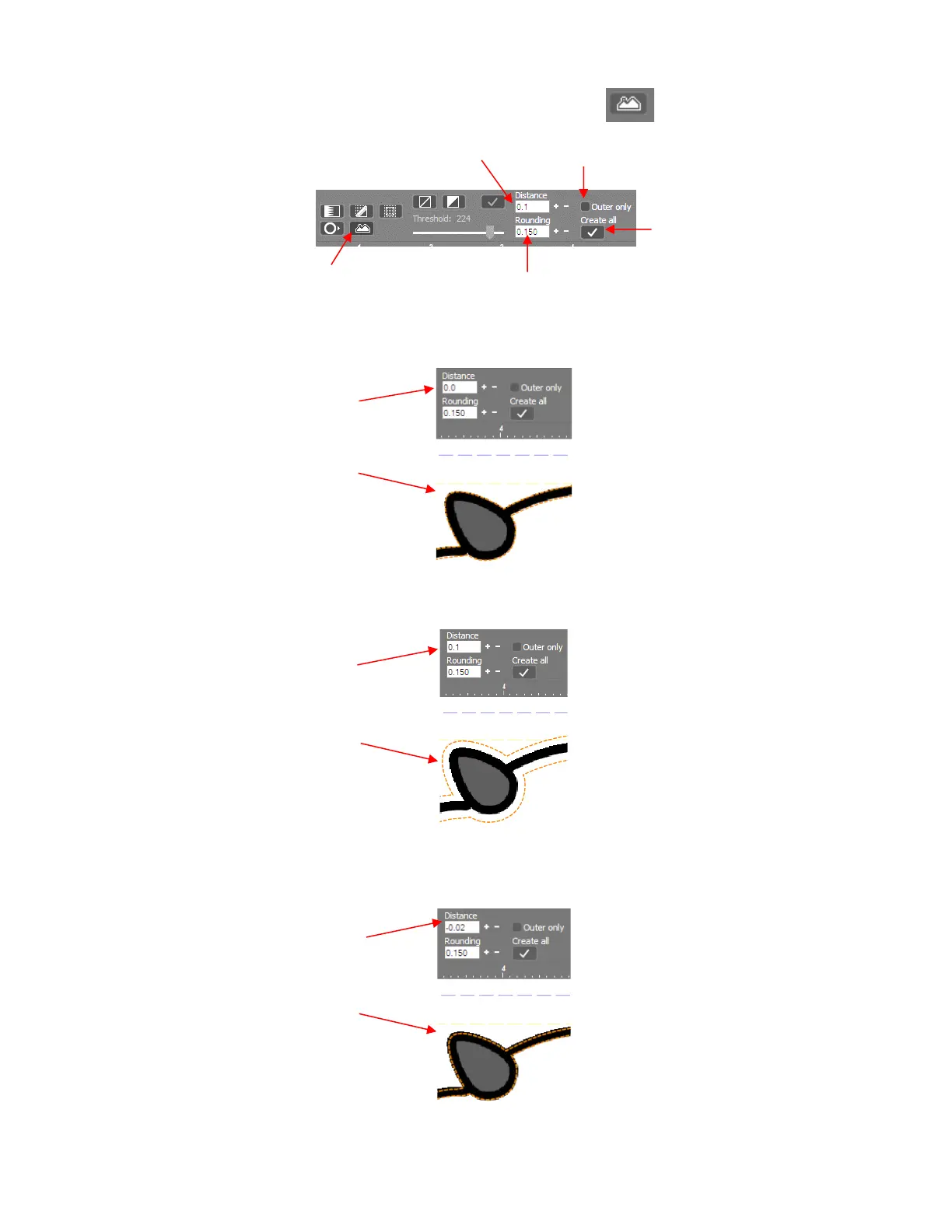
• After importing the bitmap, click on the Create outline on bitmap icon and the following additional
settings appear:
• The Distance setting is how far the trace line will be placed from the borders of the image:
If you want the trace line to follow the print line, set Distance to 0:
If you want a contour cut around the printed image, such as used for stickers, set the Distance to a
positive number:
If you want an inset cut line which is often used to allow for some error when cutting along the print line,
set the Distance to a small negative number, such as -0.02 inch (-0.5 mm):
To apply the settings, click on the Create All icon. The orange dashed lines will change color and will
no longer be dashed, indicating the tracing is now set. To hide the original imported image, click on the
Hide Bitmap icon. You will then see what lines will cut with these settings:



 To Next Page