Cutting rhinestone template material where a second pass results in much cleaner weeding of the cut
circles
• Passes can also be set on the Skycut control panel when, for example, a cut is being made using a USB
flash drive. However, unlike using Passes from SignCut Pro, the blade does not stay down to repeat the
cut. The Passes function behaves like a repeat cut.
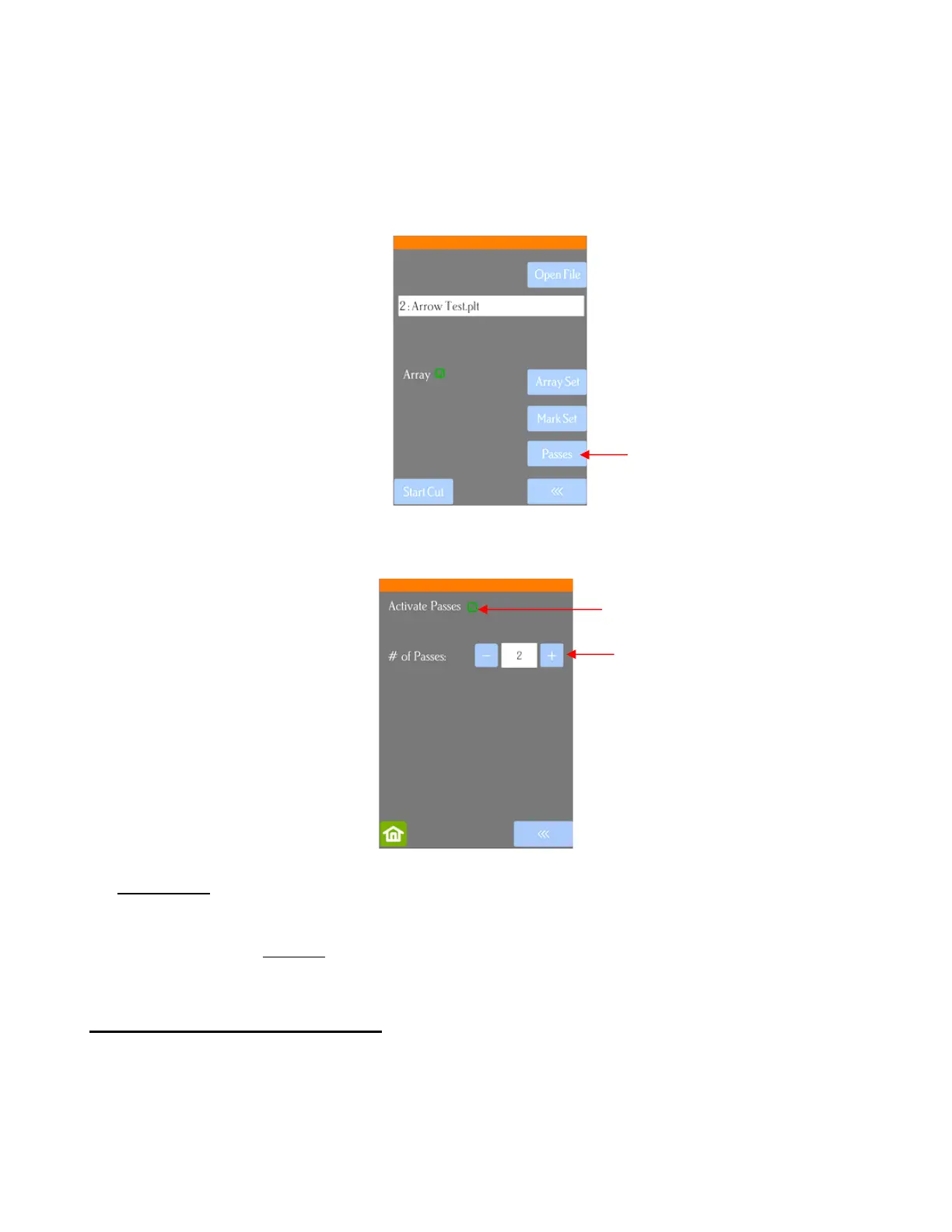
• Press the USB button on the main screen and you will see a Passes button in the window which opens:
Press the Passes button to open the following screen where you can turn on the Passes function and
enter the desired number of repeats:
• IMPORTANT: Currently the Activate Passes option will always default to unmarked (off) whenever the
Skycut is first powered on. Thus, make a mental note (or perhaps put a Post-It note on your cutter) to turn
this option on when needed.
• Also, if this setting is activated and Passes is increased in SignCut Pro, then the passes are added
together!
2.03.6 Pounce (Dashed-line Cutting)
• If you have an application that needs dashed cut lines, Pounce settings can be made in both the Cut Out >
Tool settings tab and in the Set Attributes window:



 To Next Page