Make sure the bottom of the mat isn’t sticky and the pinch wheels and grit shafts are clean and not
sticky. Clean with a lint-free cloth and a small amount of isopropyl alcohol or Un-Du applied to the cloth.
If the print and cut project contains a lot of shapes or the material is thick, try intermediate registration
marks so that additional scans can occur during the cut. Refer to Section 3.06.2 for instructions.
3.06 Contour Cutting Multiple Images and Adding Intermediate Registration Marks
• Using intermediate registration marks allows for additional scanning during a contour cut which can
compensate for any drifting that can occur as a result of friction. This is typically only needed when the
printouts are very large or the material being cut is thicker or denser than vinyl, paper, or cardstock.
• Because SignCut Draw does not currently support more than one raster image within a single project file, it
is necessary to use an alternative program for preparing these kinds of projects. In this tutorial, Inkscape will
be used. However, a similar process can be used in other graphic programs, such as Adobe Illustrator,
Photoshop, Affinity Photo, Corel Draw, etc.
3.06.1 Setting Up Multiple Raster Images in Another Program
• Download a registration mark file from this link. If you want to experiment with the scanning of intermediate
registration marks, select either of those templates. Note that these are SVG files, not SCD like the ones
you downloaded in Section 3.04.2.
• Because SVG is a native file format for Inkscape, use File>Open to import the shapes into a new Inkscape
file. Other graphic programs will most likely use File>Import. The sole purpose of having the registration
mark file present is for arranging the images you plan to print and cut, as explained in the next step.
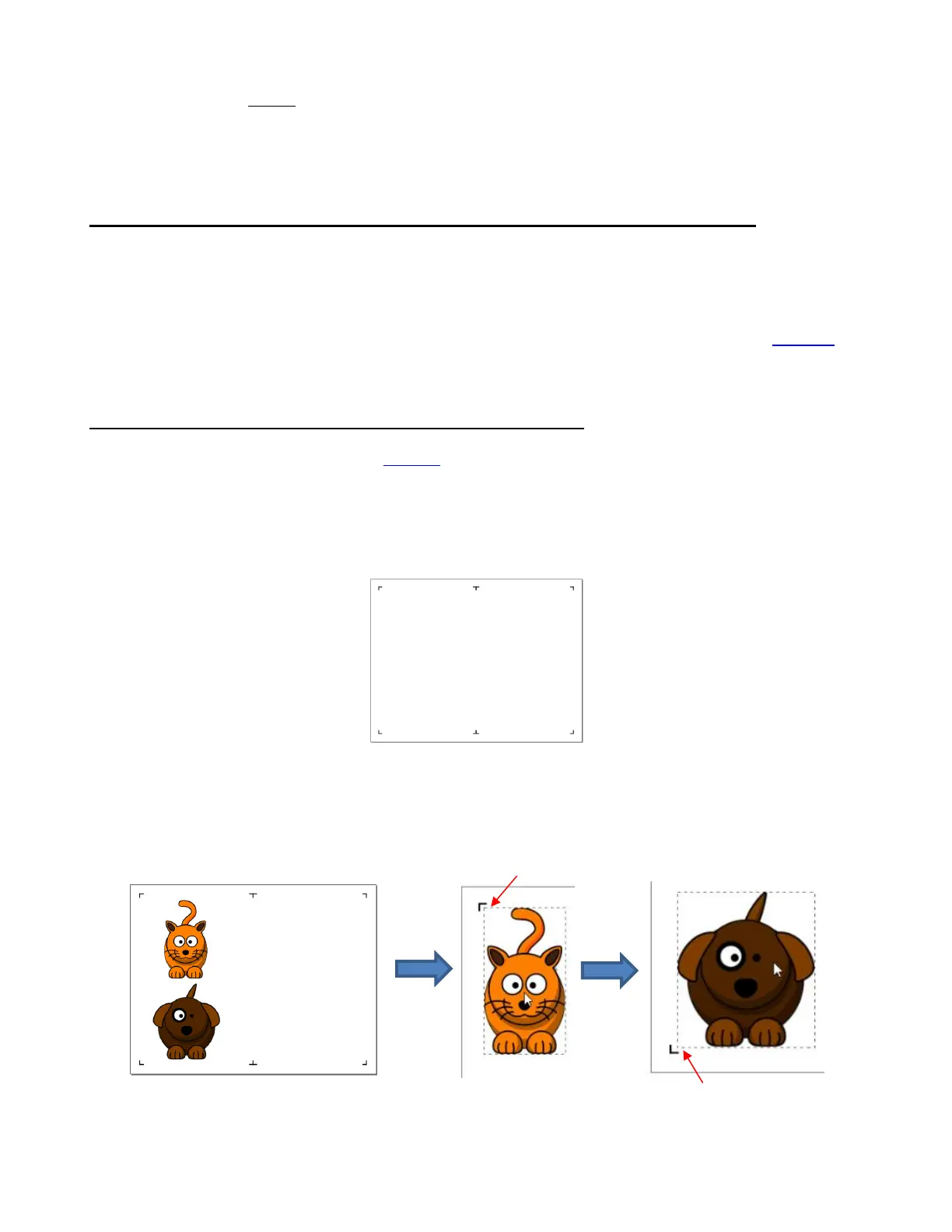
• Use File>Import to open the raster images you want to use in your project. Arrange the images so that they
are not overlapping the boundary defined by the registration marks. Use the bounding box which appears
around a selected shape for guidance. Note that allowances should also be made for the size of the contour
cut:
• Make duplicates of the imported shapes, as needed. Remember that if an image is too close to a
registration mark, the camera may confuse the two:



 To Next Page