• Note that you can also copy/paste bitmap images from what’s been copied onto the Windows clipboard
(such as from Google images) into SignCut Draw.
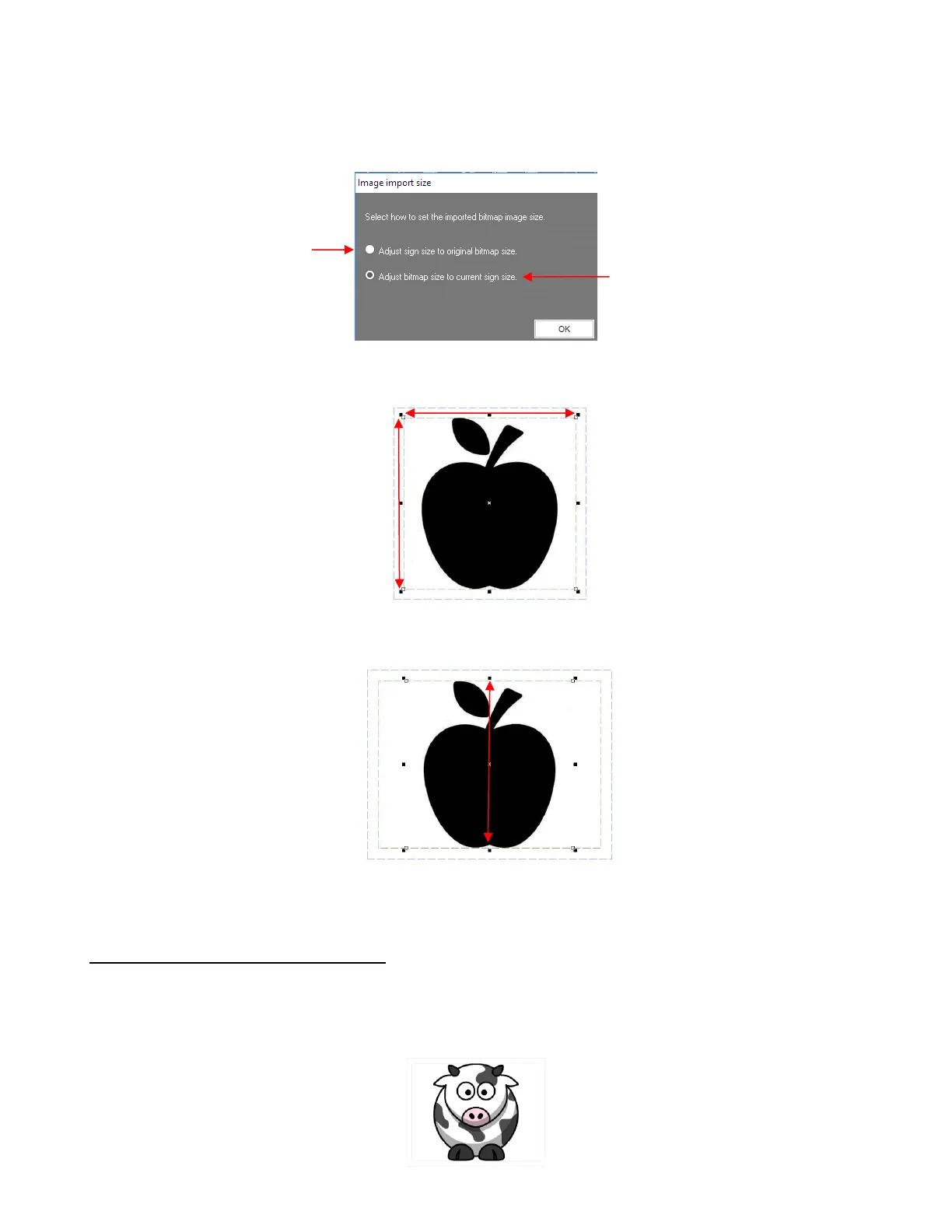
• After selecting a file and clicking on Open, a popup window will provide two options:
Either choice is acceptable since both the bitmap and the Sign Area can later be changed. If the first
option is selected, then the margin boundaries of the Sign Area will now touch the bitmap boundaries:
If the second option is selected, the bitmap is sized to fit whichever dimension (X or Y) constrains the
shape:
Note that the image will not extend beyond the green-dashed margins inside the Sign Area.
5.01.2 Step-by-Step Tracing Process
• While SignCut Draw offers several methods for vectorizing imported images, the easiest one for creating a
contour cut line is the Create outline on bitmap function.
• For this tutorial, an example of tracing an image for a contour cutting (print and cut) application is chosen:



 To Next Page