2.08 Scale Calibration
• If you were to cut out any particular shape, for example, a 10” x 10” square, you might find that it actually
measures 9-15/16” x 10-1/32”. It will be very close to 10” x 10” but perhaps just slightly smaller or larger in
either or both dimensions. Now this might be perfectly acceptable for the type of cutting you do. Therefore, it
may not even be necessary to do this particular calibration. However, if you do want to make sure your
shapes are cut precisely to scale, the following procedure will allow you to calibrate your Skycut.
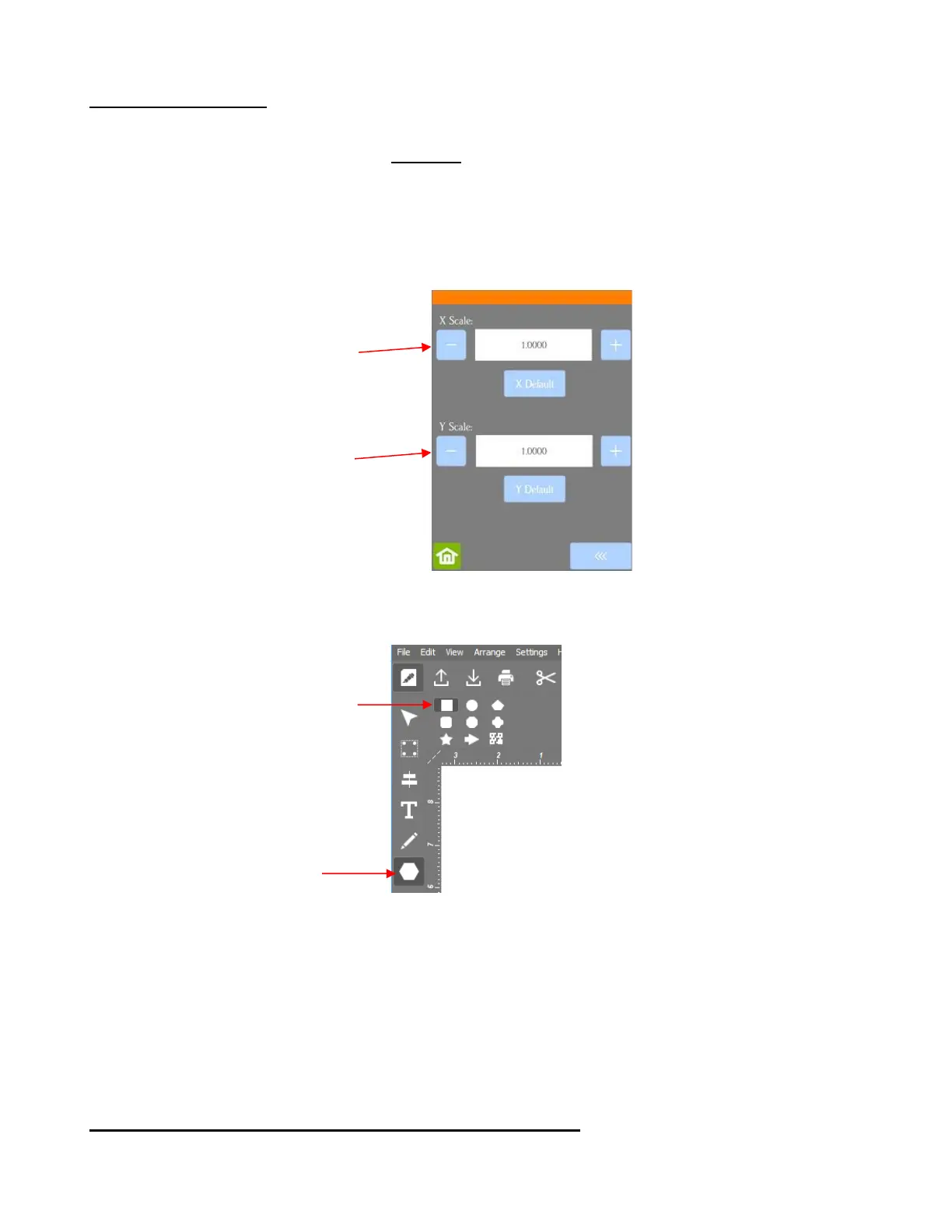
• Before beginning the calibration, it’s a good idea to make sure the Scale values which can also be stored on
the Skycut’s control panel are set at a default of 1. Go to Set>Advanced Settings> Scale. The following
window opens:
• In SignCut Draw click on the Shape tool on the Tools panel and then select the rectangle shape:
• Left click once in the Sign Area, press and hold the Ctrl key and move the cursor down and to the right.
Click again to create a square. Later the dimensions will be set.
• The calibration process can be conducted in inches, cm, or mm. Both mm and inches will be presented
here. In general, it is recommended that mm be used, however, if you do not have a metric ruler, then you
can use inches instead.
• Pick one of the two following sections and follow the instructions. Once you have calculated your new X
Scale and Y Scale, return to the screen above and enter the values using the + and – buttons.
2.08.1 Skycut Resolution Using Millimeters for Measurement
• In SignCut Draw, go to Settings>Settings and select millimeter (mm):



 To Next Page