B. The Skycut has previously been connected to a wireless network.
A. The Skycut has never been set up wirelessly to a network
• Power on the Skycut and wait for the light to come on.
• On your computer, open your list of available networks. In the list, you should see one with this type of name
format: HI_LINK_XXXX where “XXXX” can be any alphanumeric combination, such as “92BF” or “08A5”.
• Select that network and enter the following Network Key when prompted: 12345678.
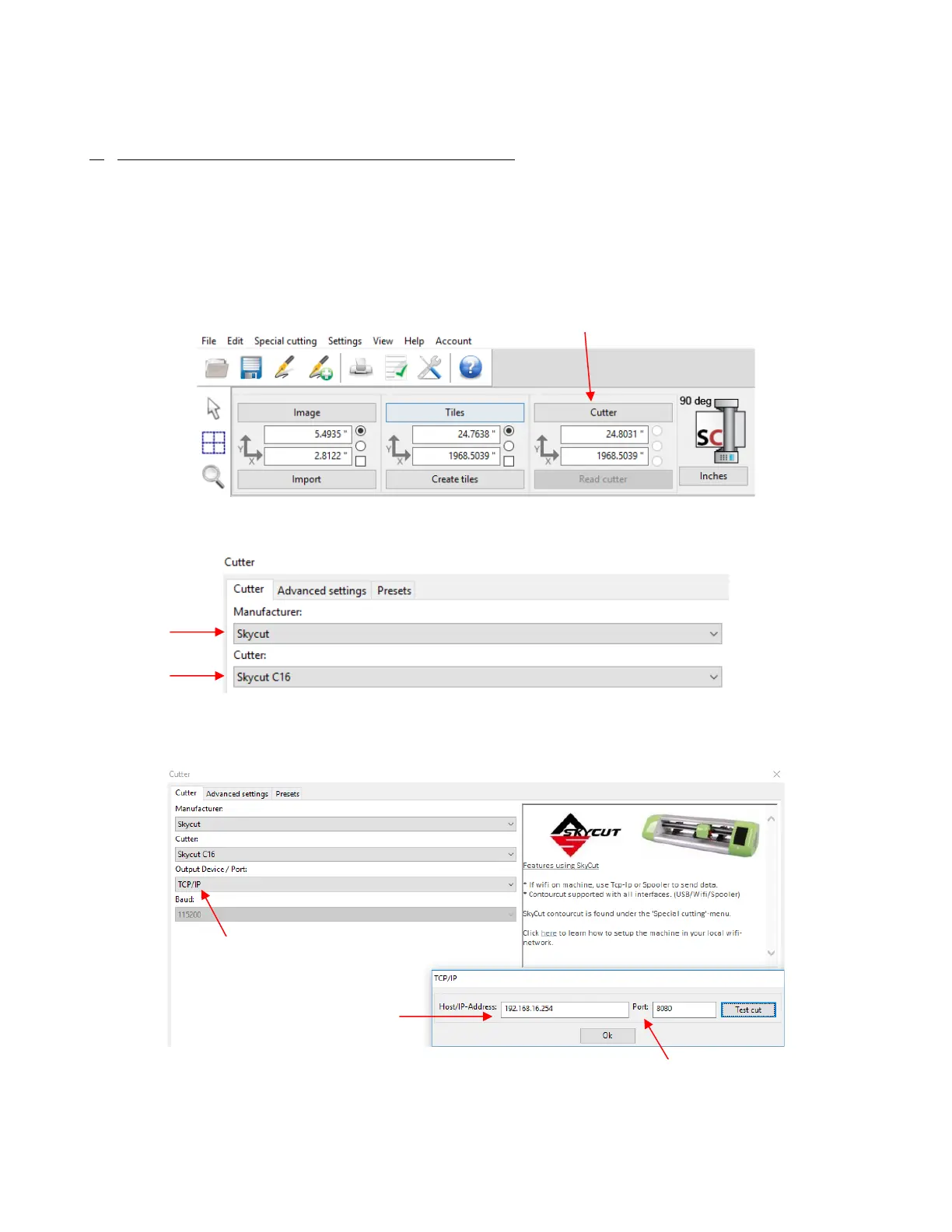
• In SignCut Pro, click on the Cutter button near the top of the screen:
• The Cutter window will open. From the drop-down menus, select the Manufacturer and Cutter as shown:
• In the drop-down menu for Output Device/Port, select TCP/IP and a new window will open. In that window,
enter 192.168.16.254 as the IP Address. Also, enter 8080 for the Port assignment:
• Click on Ok to close the TCP/IP window and Ok again to close the Cutter window. Proceed to Section 1.13.



 To Next Page