• Color Toolbar
Use this option instead of the Advanced settings tab to assign cut settings to each color:
o First, left click on a color thumbnail on the Color Toolbar to select the shapes of that color and hide
those of other colors. If another color will share the same cut settings, then hold the Shift key and
left click on that color (or more, as appropriate).
o Right click on any of the selected thumbnails and the same Set Attributes window will open where
settings can be entered.
o These new settings will then match those assigned by color in the Advanced settings tab.
• Tools for objects > Setup path(s) attributes
Use this option if you want to select particular shapes and temporarily override the current cut settings
assigned to those shapes based on their color.
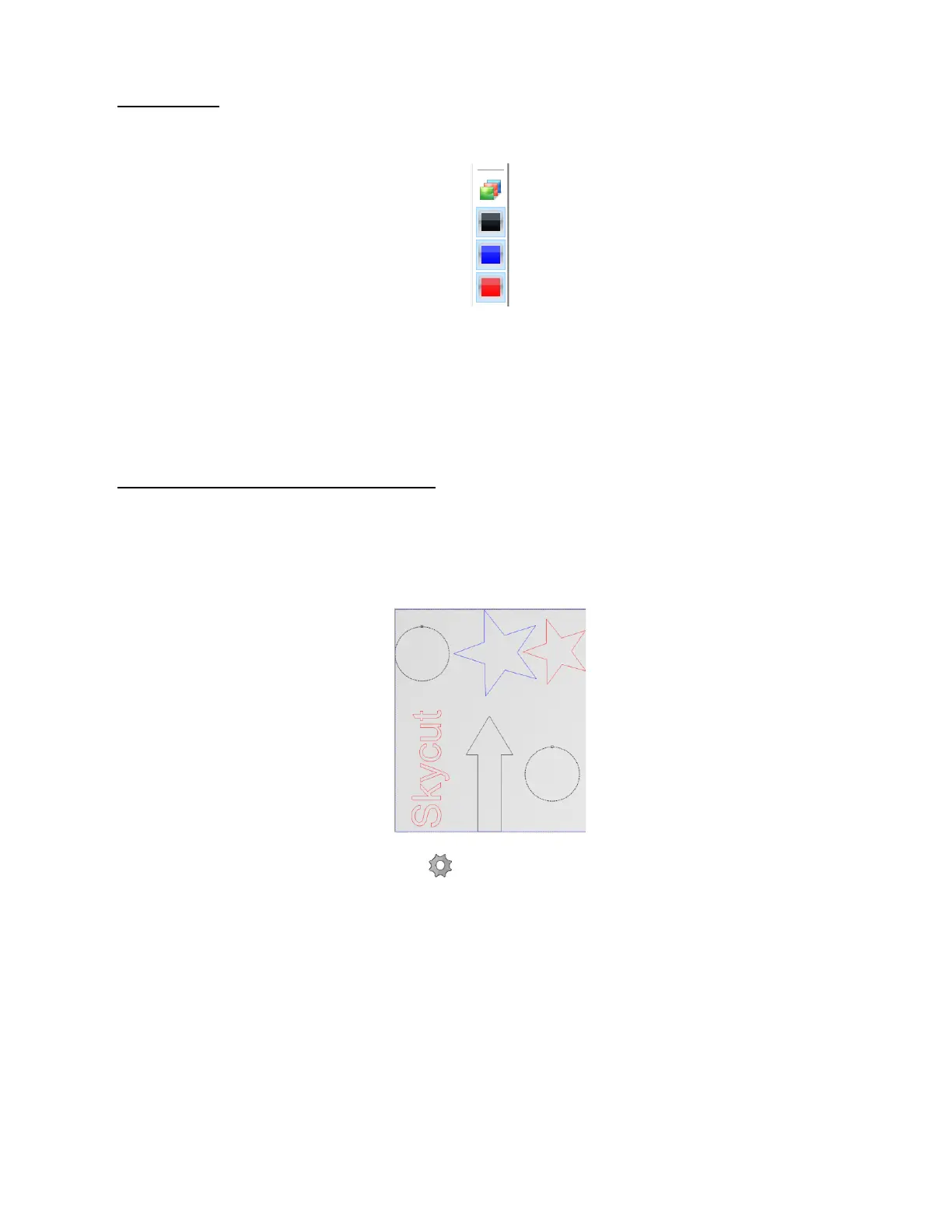
Use the instruction in Option 5 of Section 2.02.1 to select the shapes you wish to cut. In this case the
same two circles as presented in that section will be selected:
Click on the Setup path(s) attributes icon on that Sub-toolbar . The same Set Attributes window opens
and new settings can be entered.
Go to the Cut out window and, again as shown in Option 5 of Section 2.02.1, the shapes are moved to the origin
and nested.



 To Next Page