6.4.7 Storing Ergonomic Spreads
If you have an ergonomic spread in front of you that you like and wish to recall at will, you can save
it into one of the four hotkeys on the expert panel (for one touch recall), once you fill these four hot
keys you can then “flip” them to store another four ergonomic spreads. To do this, hold down the Smart
+ e1-4 combination. Alternatively, you can store as many ergonomic spreads as you like onto any
MonARC channel (for two touch recall).
6.4.8 Storing Ergonomic Spreads Using Hotkeys
Press the store button and it will start to flash. Then press one of the hotkeys (e1 to e4) to store the
spread into. Store the second 4 ergonomic spreads to the hot key by pressing Smart + e1- e4. If a
hotkey is illuminated that means it's holding an ergonomic spread information. If you change your
mind, simply touch solo clear touch point to cancel the process.
Recalling ergonomic spread from the hotkeys is easy, simply press one of the hotkeys (e1 to e4) for
the first 4 ergonomic spreads, or Smart + e1 – e4 for the second set of ergonomic spreads. Remember,
any held channels will not be affected. The stored ergonomic spread can be cleared by holding down
the hotkey while touching the solo clear touch point. The hotkey LED will turn off.
6.4.9 Storing Ergonomic Spreads into a MonARC Channel
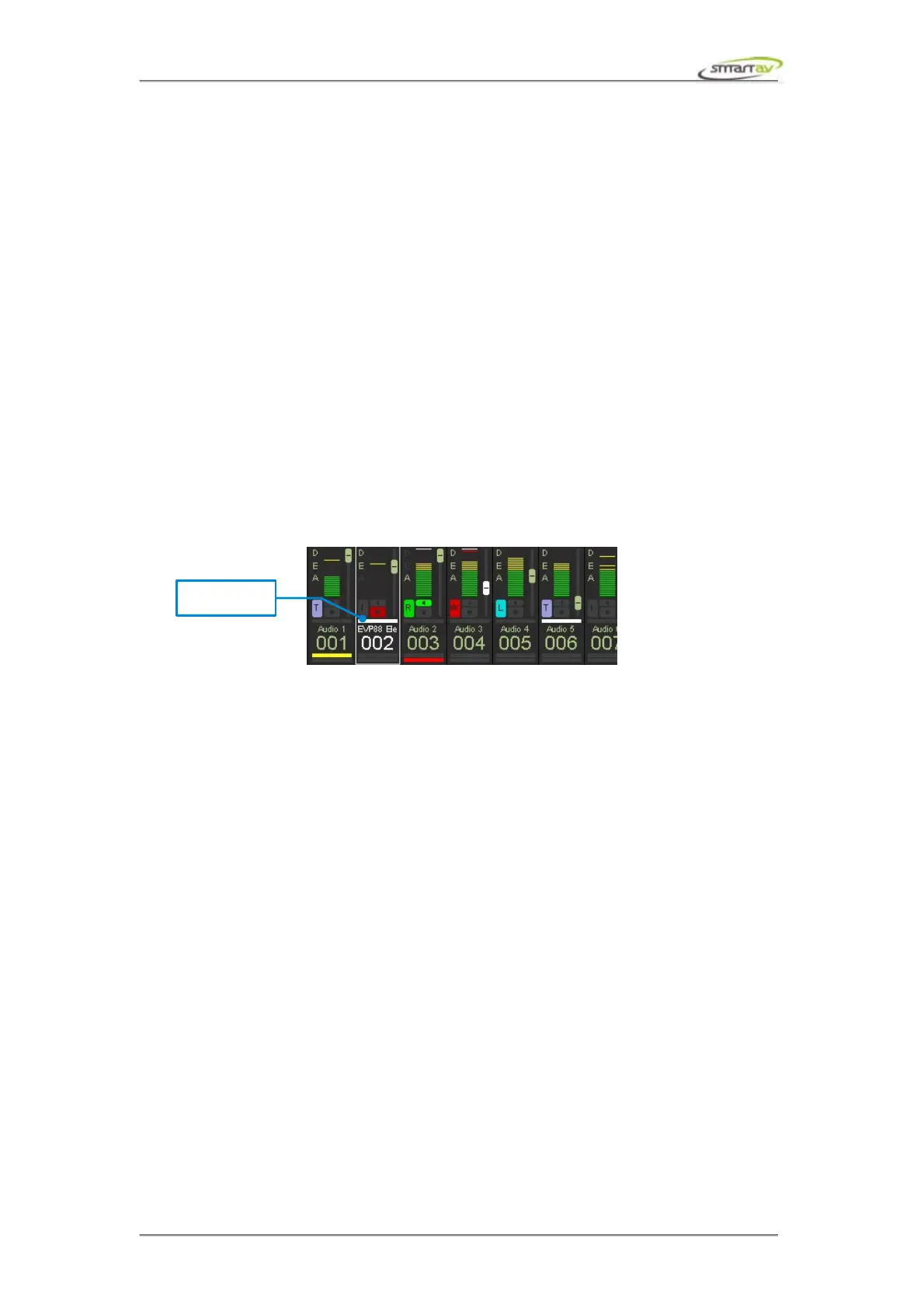
Press the store button and it will start to flash. Any MonARC channels which already contains an
ergonomic spread will now have its UPO indicator lit.
Now touch the MonARC segment you wish to store the spread into. The UPO will remain lit for two
seconds to indicate it has stored the Spread, and then extinguish.
Recalling the ergonomic spread is just as easy, simply press the recall button and it will start to flash.
Any MonARC channel which contains a spread will now have its UPO indicator lit. Once you touch
any MonARC channel that contains a spread it will be recalled instantly. Remember, any held channels
will not be affected. If you change your mind, simply touch solo clear touch point to cancel the
process.
6.5 Group Controls
Grouping on Tango is simple, fast and flexible. We can currently create fader groups, mute groups and
solo groups. Press the group button to enter group mode. The group button will be lit. Once in group
mode you can quickly create a new group or modify an existing group.
6.5.1 Fader Groups
The following description assumes that no current groups exist. Read the following sections to learn
more about adding and removing faders from the existing groups.
Enter group mode by pressing the group button. The group button will light up. Now, touch the first
fader you wish to add to the group. The console knows that the fader is not in any group and so it
automatically enters ‘add to group' mode and the + Button will illuminate. Now simply touch any other
fader or touch any MonARC channels to add them to the fader group. Each fader touched is
immediately added to the group. The channels in the group have their UPO lit up on the MonARC
display. When all the channels are added to the group, press group to exit grouping mode. This will
create the group. If you change your mind and no longer wish to create this group, you can touch the
Operation Manual – Tango Smart Console 32


 To Next Page