the virtual keyboard to split your button names over multiple lines of text within the button.
8.2.6 Button Colour
Touch one of the 10 colour selector buttons to set the colour for the button. Use the page next >> and
page previous << buttons to scroll through banks of available colours.
8.2.7 Macro Trigger Selector
You can have macros triggered four different ways: on button press, on button release, jogging the
wheel left while holding down a button or jogging wheel right while holding down a button. Be set
using macro trigger selector. Note that the wheel functions will colour the main bar red to draw your
attention to the fact that you are editing the wheel trigger functions, rather than the press or release
button function.
8.2.8 Assigning Functions
In order to assign a function to an edit panel button you need to be in edit mode. Once in edit mode
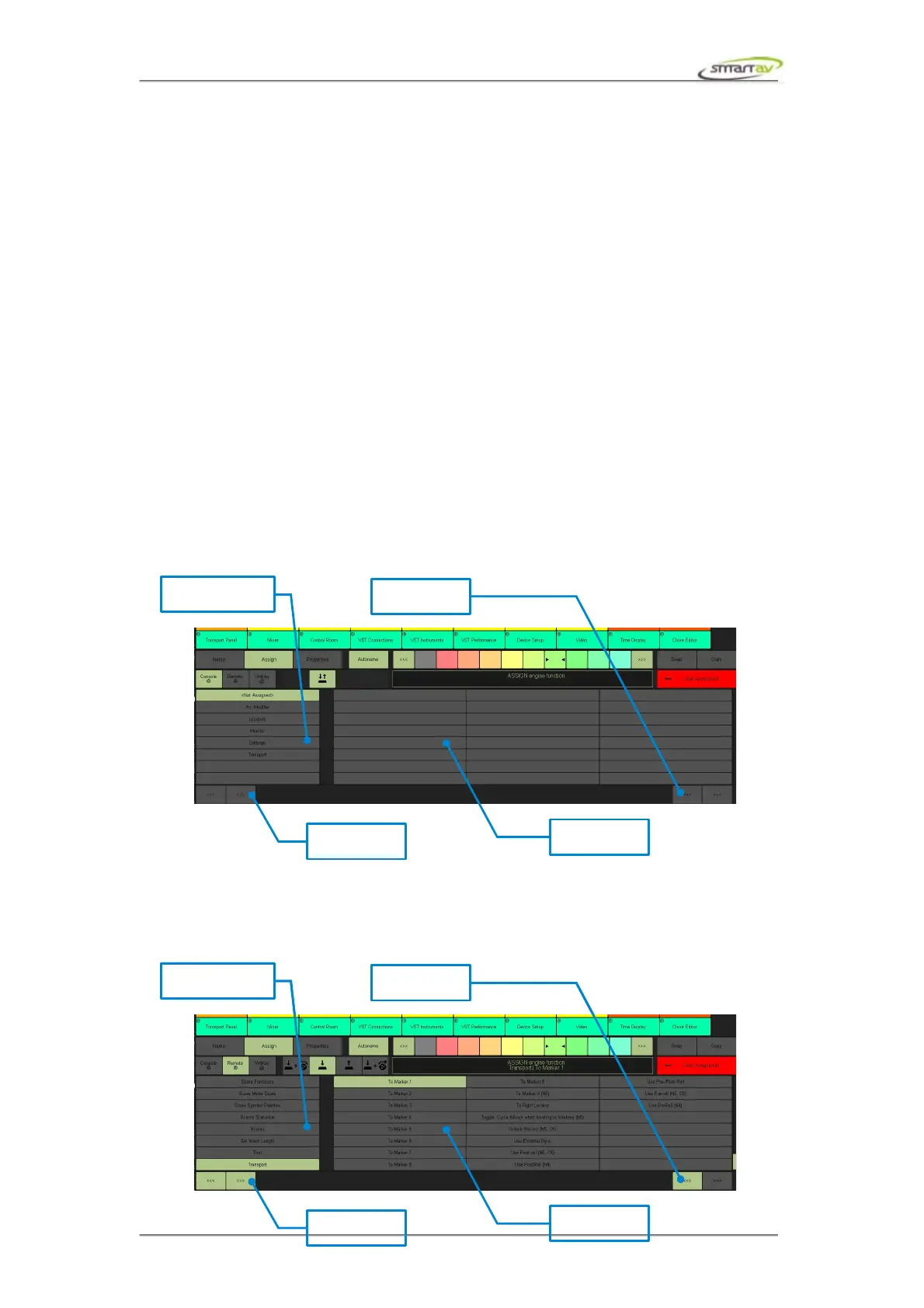
press the Function button to assign either Console, Remote or VirtKey macro.
When in console mode, console functions are similar to remote functions except they also display the
state of your DAW. For instance, if you assign a transport play Console function to a programmable
key it will light up when DAW is in a playback mode. Some console functions such as MonARC
modifiers don't send messages directly to your DAW, instead they change the state of your Tango
which in turn changes the state of your DAW. Learn more about Tango modifiers in MonARC section.
When in remote mode, Tango will issue commands to the DAW via the remote control protocol.
Remote functions are selected via the remote selection panel. The command categories are listed in the
left most window. With the remaining three windows listing available functions. Simply touch the
desired category and function and then touch the change button to assign the selected function.
Operation Manual – Tango Smart Console 41


 To Next Page