8. EDIT PANEL
8.1 Virtual Keyboard
8.1.1 Overview
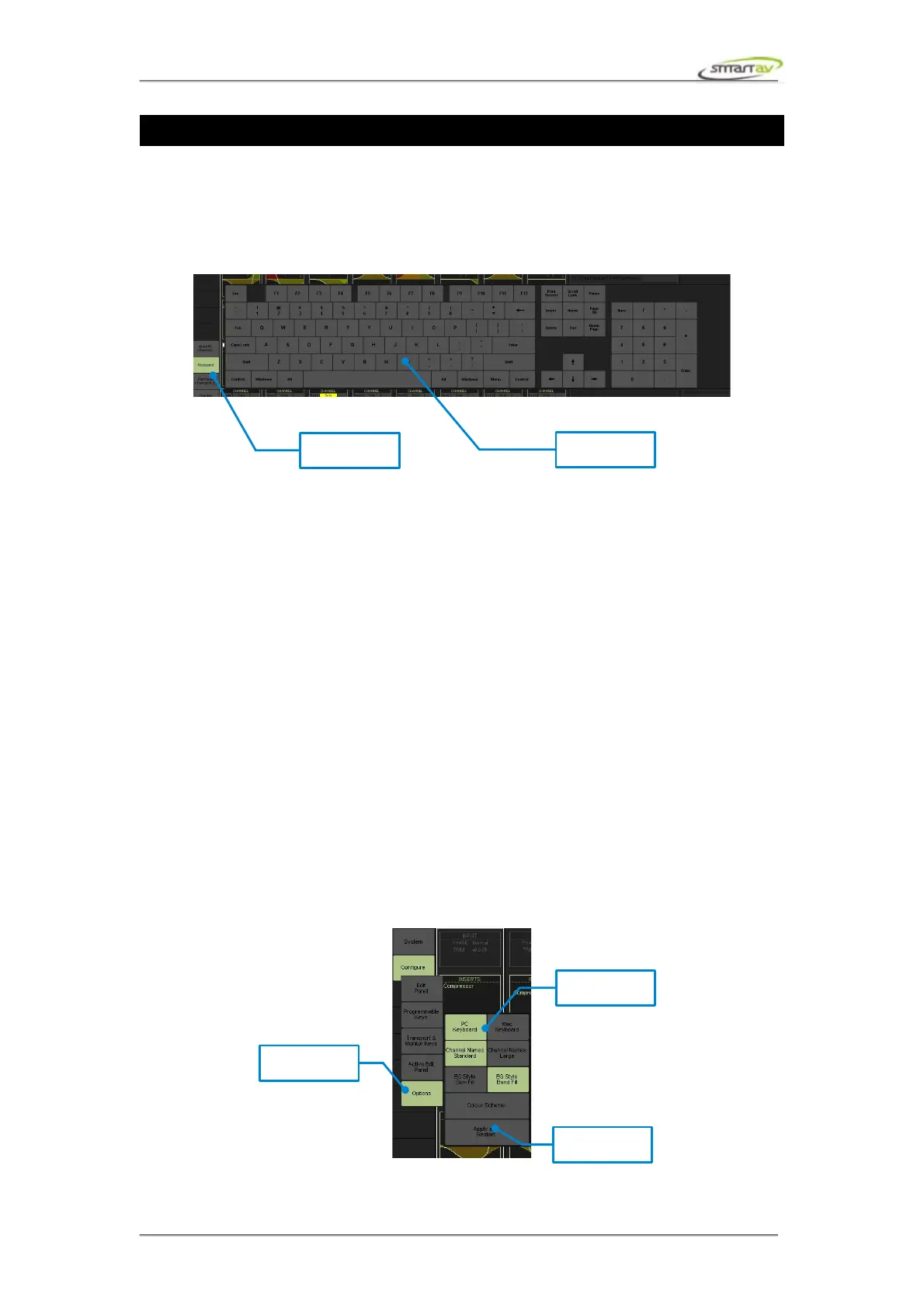
Tango features an on screen keyboard utilising its touch screen technology. To access the keyboard,
press the Keyboard button on the panel selector (left hand side of the touch screen).
It functions just like a regular keyboard, but only one key can be pressed at any one time. You must
have the Smart AV Net Smart software installed on your DAW for this on screen keyboard to function
(see Tango Install Guide).
The shift, ctrl, win, alt, command and option keys will all latch when touched and will un-latch when
touched a second time or automatically once another normal key is pressed. The latched state will be
displayed on the screen as the button staying depressed.
The key combinations command-tab (Mac) and alt-tab (PC) are special in a way that command or alt
won't un-latch when the tab key is pressed, this allows switching between active windows on your
DAW.
8.1.2 Virtual Keyboard Options
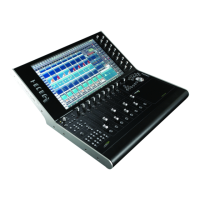
You can select either a Mac or PC keyboard layout via the Configure > Options panel. If you change
the keyboard layout you will need to restart Tango for the change to take effect. Simply press Apply
and Restart button.
The Options panel also allows you to select where the virtual keyboard appears. You have two choices:
the main Tango unit or the passive extension bay. This doesn't require a restart.
Operation Manual – Tango Smart Console 38


 To Next Page