8.2.12 Copying a Button
The copy function is identical in operation to the swap function. The Copy button will only copy to
buttons that are empty of text and coloured the first (left most) black colour. This is to prevent
accidentally copying over existing buttons.
Pressing the copy button again will take you out of copy mode.
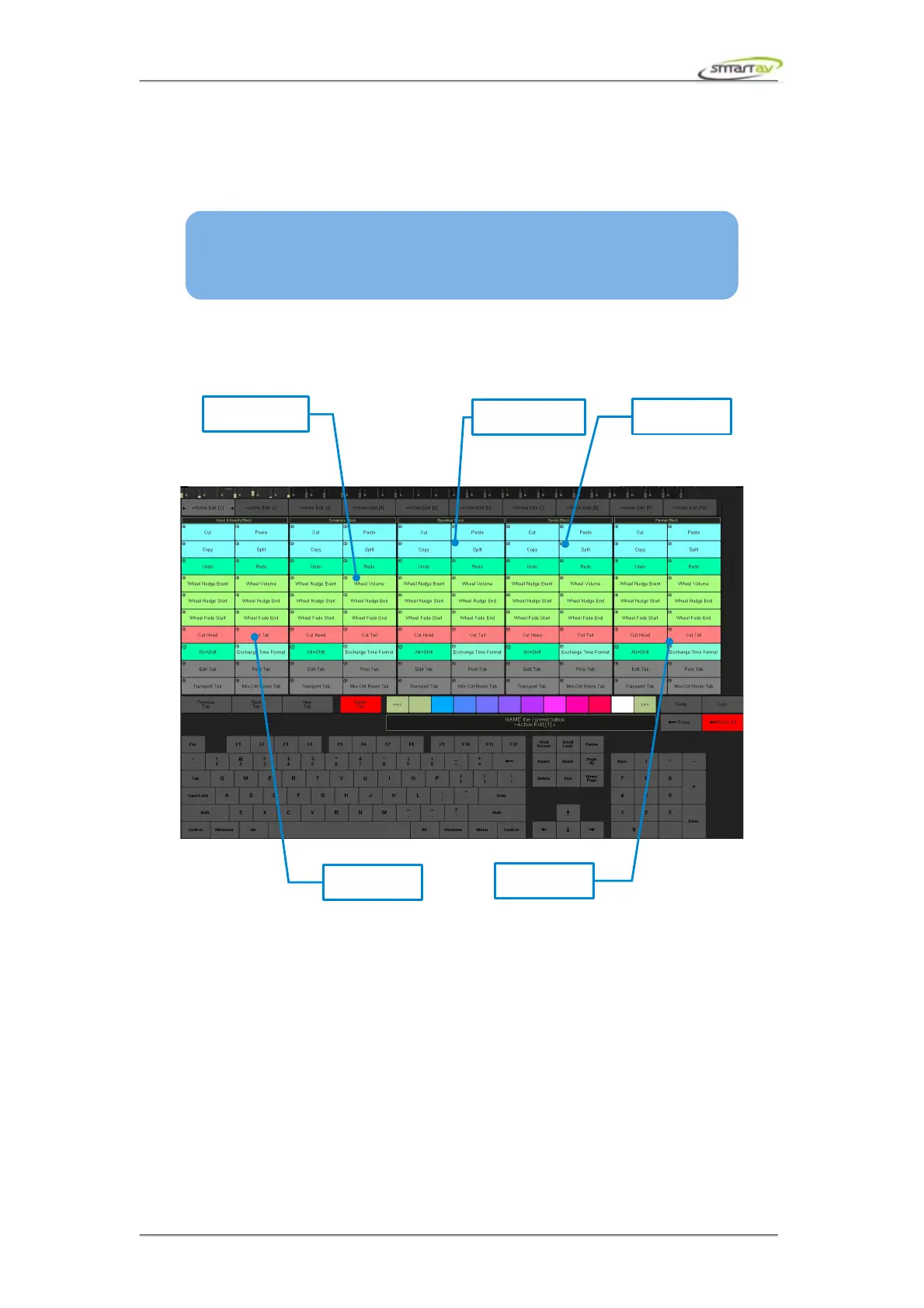
8.2.13 Configuring Active Edit Panel
The active edit panel configuration is identical to the other edit panel configurations with the
exception that the page is divided into 5 sets of two columns.
Once again, these buttons can be labeled and each set can be selected to appear in the active display
area using the Active Display button on the left hand side of the touch screen to toggle the display
through the possible settings. The sets are grouped as follows: Inputs and Inserts, Dynamics, EQ,
Sends and Panner. And the set changes depending what type of channel block is active.
8.2.14 Editing Tabs
Selecting a tab button will select and activate that tab. This will allow it to be named and assigned a
colour as well as allow button layouts to be created, loaded or deleted.
Operation Manual – Tango Smart Console 44
SMART TIP: While in Copy mode, you can select a destination and press Erase All
and select the first black colour tile to clear the button assignment. And then continue
with your copy operation!
panner block
input & inserts
block
sends block
EQ block
dynamics block


 To Next Page