8.3 Programmable Keys
8.3.1 Overview
The programmable keys on the Tango control surface are also customisable. Not only can you
customise the key functions, but you can have different functions assigned for each of the 10 edit tabs.
This allows the user to group the virtual edit keys and physical hardware keys into functional groups
such as post production, mixing, editing, composition etc. Touching a Smart touch point doubles the
number of functions that can be assigned to the programmable keys.
8.3.2 Configuring Programmable Keys
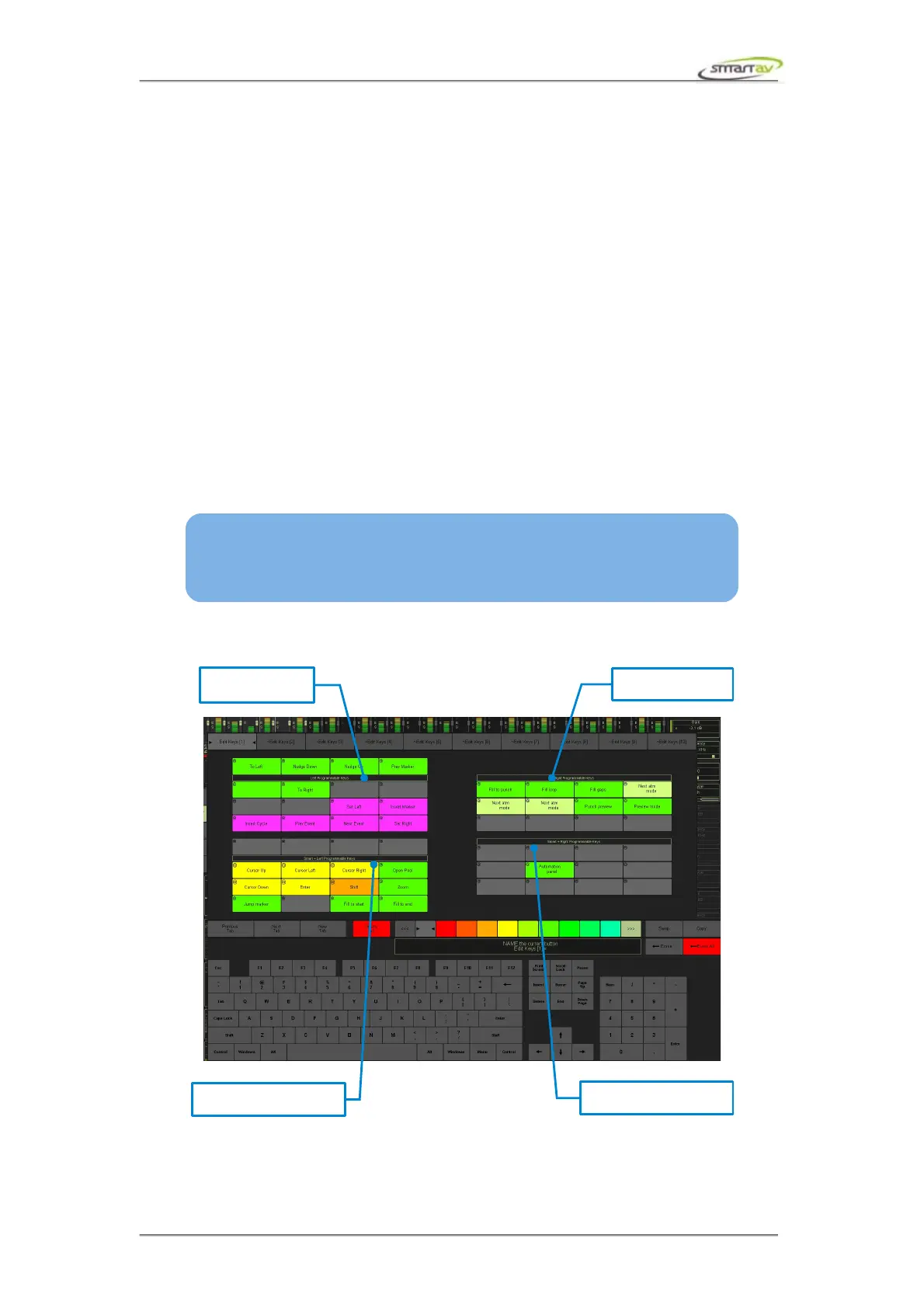
The programmable keys configuration panel is identical to the edit panel configuration page with the
exception of the number of keys, and the physical key icons on each button.
Once again, these buttons can be labelled. The labels will appear on one of two Tango OLED screens.
Remember, there are separate key assignments for each of the 10 edit tabs, so you can make your
physical keys change their function depending upon which edit tab you are in.
Operation Manual – Tango Smart Console 47
SMART TIP: If you are having difficulty finding the key in the configuration page, just
press the key on your Tango and it will “depress” on the configuration screen so you
can spot it quickly and easily!
Smart +
Right programmable keys
Left programmable
keys
Right programmable
keys
Smart +
Left programmable keys


 To Next Page