8.2.2 Configuring Edit Panel
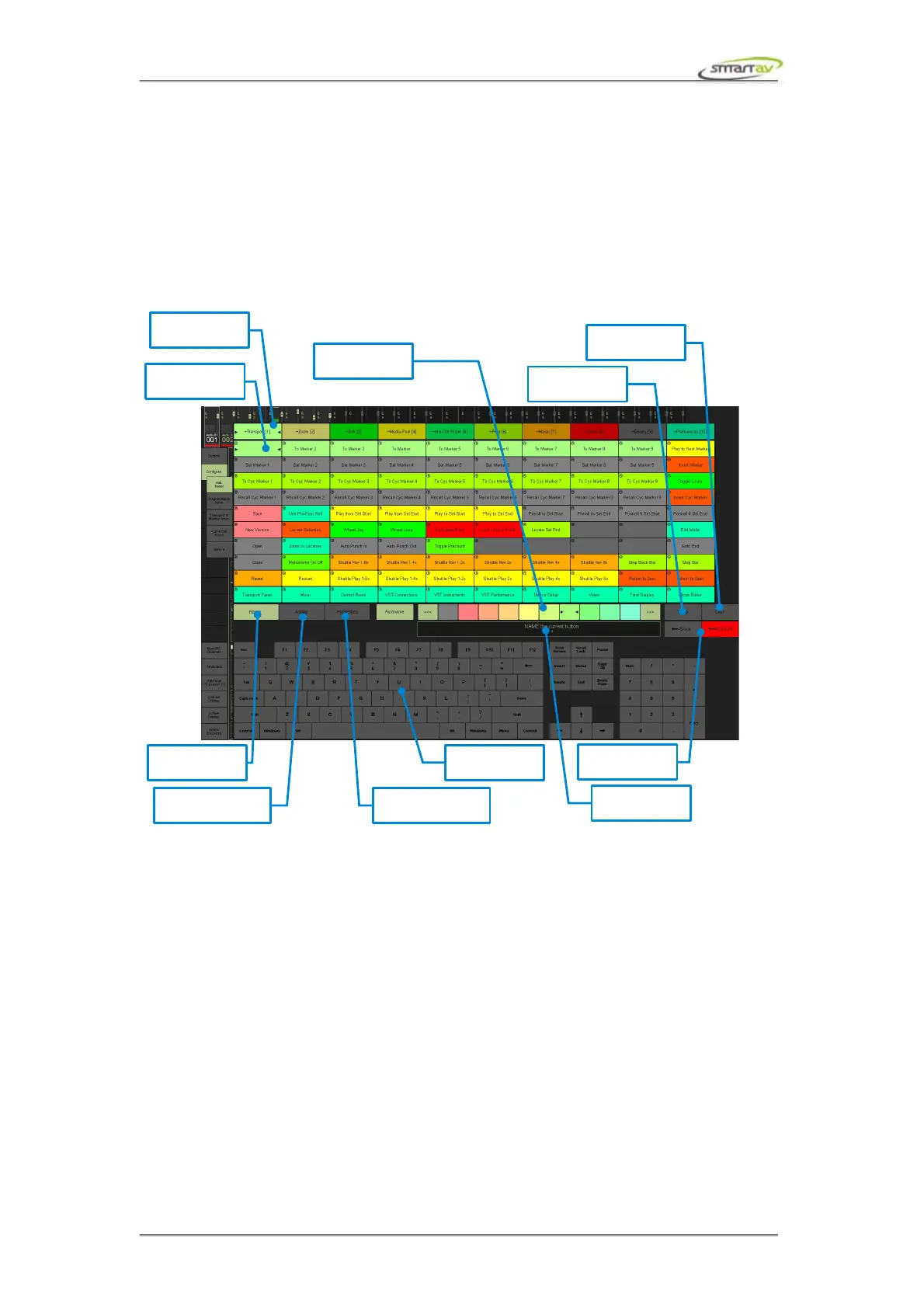
To configure the edit panel, select Configure > Edit Panel from the panel selector. This is used to
configure the 100 buttons on each of the 10 edit panel tabs.
The edit panel will appear in the top half of the Tango screen and when you press either a tab button or
an edit panel button, the editor will appear underneath it. The selected button will be indicated by two
white triangles at the edges of the button.
When you select an edit button you can name and assign functions to either the button press, button
release, button held plus left jogger wheel turn or button held plus right jogger wheel turn. Once you
select a button for editing you can:
8.2.3 Configuration Modes
Every edit panel button has three configuration modes: name mode, edit mode and properties mode.
The mode button and the status display will change colour corresponding to the mode you have
selected.
8.2.4 Autonaming Buttons
After you assign a function to an edit panel button Tango automatically names it based on the assigned
function's description.
8.2.5 Manually Naming Buttons
If you are not happy with the name that was automatically assigned to the button simply go into name
mode sand use the virtual keyboard to type in the desired name. You can use the Erase key to erase a
single letter or the Erase All key to erase all of the letters in the name. You can use the Enter key on
Operation Manual – Tango Smart Console 40


 To Next Page