9.1.5 Firmware
This menu item allows you to update Tango firmware.
9.1.6 Edit Panel
This menu item allows you to import, install and export edit panel layouts.
9.1.7 Resync Engine
Pressing Resync Engine forces Tango to resync with the workstation. Depending which engine you are
running the functionality of this menu item could be slightly different.
9.1.8 Engines
This menu item allows you to change the engine Tango is communicating with. Currently you have a
choice of Nuendo/Cubase, Logic Pro, Pyramix, Pro Tools (HUI), Final Cut Studio (MC), Vegas Pro
(MC) & Digital Performer (OSC).
9.1.9 Shut Down
This menu item allows you to shutdown or restart Tango.
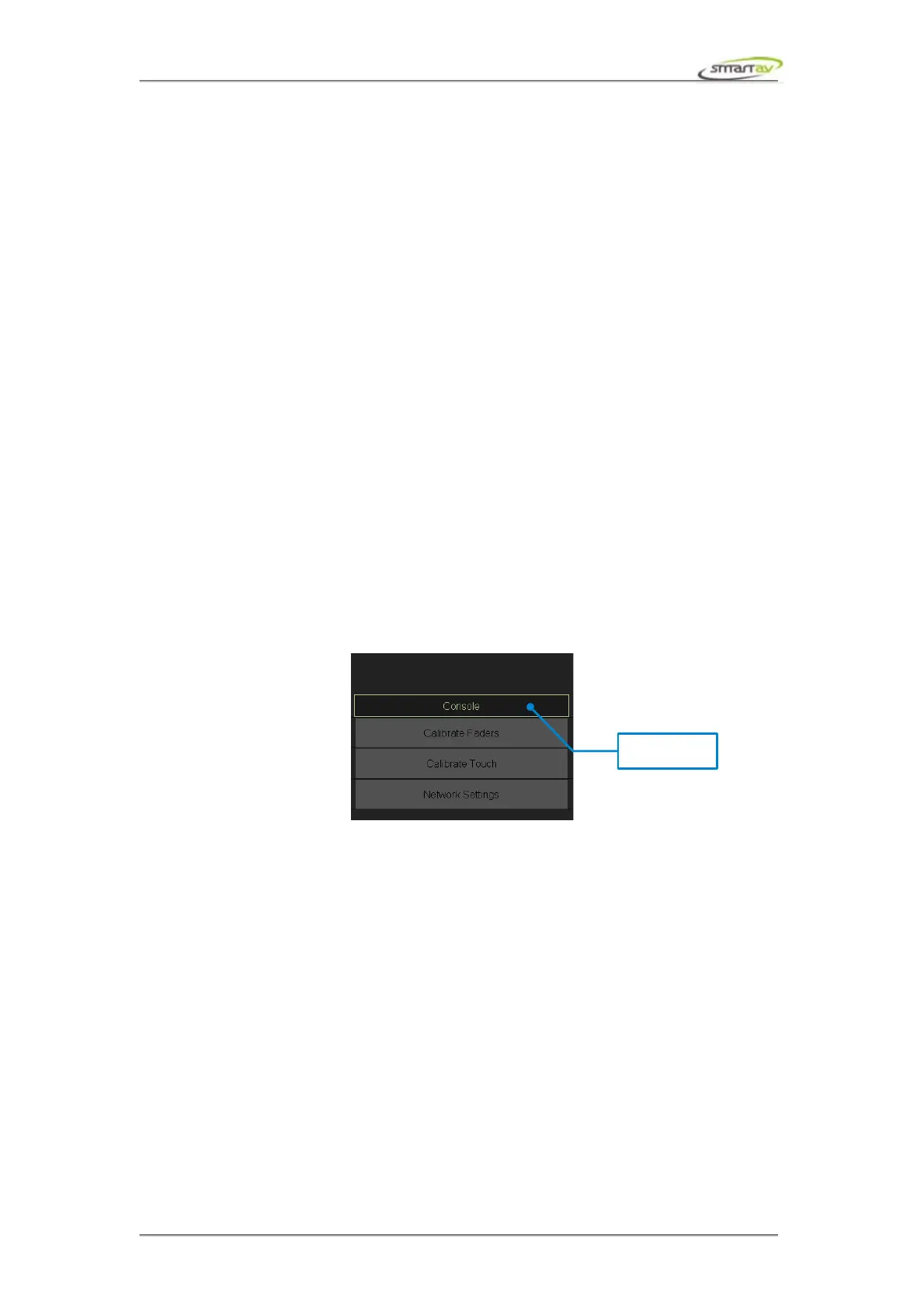
9.2 Console Menu
To access the Console settings press Console button. In here you can set calibrate the touchscreen,
calibrate the faders and set network address for Tango. To calibrate the touchscreen select Calibrate
Touch and follow the instructions displayed on the screen. To calibrate faders select Calibrate Faders,
position all faders at 0.0dB and press confirm. This applies to extension bays as well.
9.3 User Files
9.3.1 Overview
To access the user files panel press User Files button under the System menu. This panel allows users
to select, name, copy and delete user files. User files are templates which remember group, ergonomic
spread and memory information. Typically you will want one for each project you are working on.
9.3.2 Creating User Files
User files that are empty are shown labelled with No Name in dark grey. Files that contain data are
shown in white (if you don’t bother naming them, they will still be labelled No Name). The currently
selected (and therefore active) user file is shown in yellow. When you select a new user file, the current
settings are automatically saved and stored in the previous user file, so you can never lose any settings.
9.3.3 Copying User Files
To copy the current user file, use the Copy button, then select the destination file you wish to replace
Operation Manual – Tango Smart Console 51


 To Next Page