User Manual |
102
Laser Engraving and Cutting - 03 How to Laser Engrave and Cut
A G-code le contains a series of G-code instructions. To operate the machine for engraving and cutting, you must
rst prepare a G-code le. This section describes how to prepare a G-code le.
(1) Open Luban on your computer.
(2) Connect Luban with your machine. Then, use Camera Capture to take photos of the work area and generate a
background for your image.
(Skip this step if you use work origin to determine the position of your engraving and cutting image.)
(3) Load cases or add images, text, or patterns to the canvas for editing.
• You can choose a case from the case library of Luban and load it to the canvas.
• You can also click
and choose an image from your computer. The add les icon is on the left of the
canvas.
Luban supports the following image formats: .svg, .png, .jpg, .jpeg, .bmp, .dxf, and more formats are
to be added.
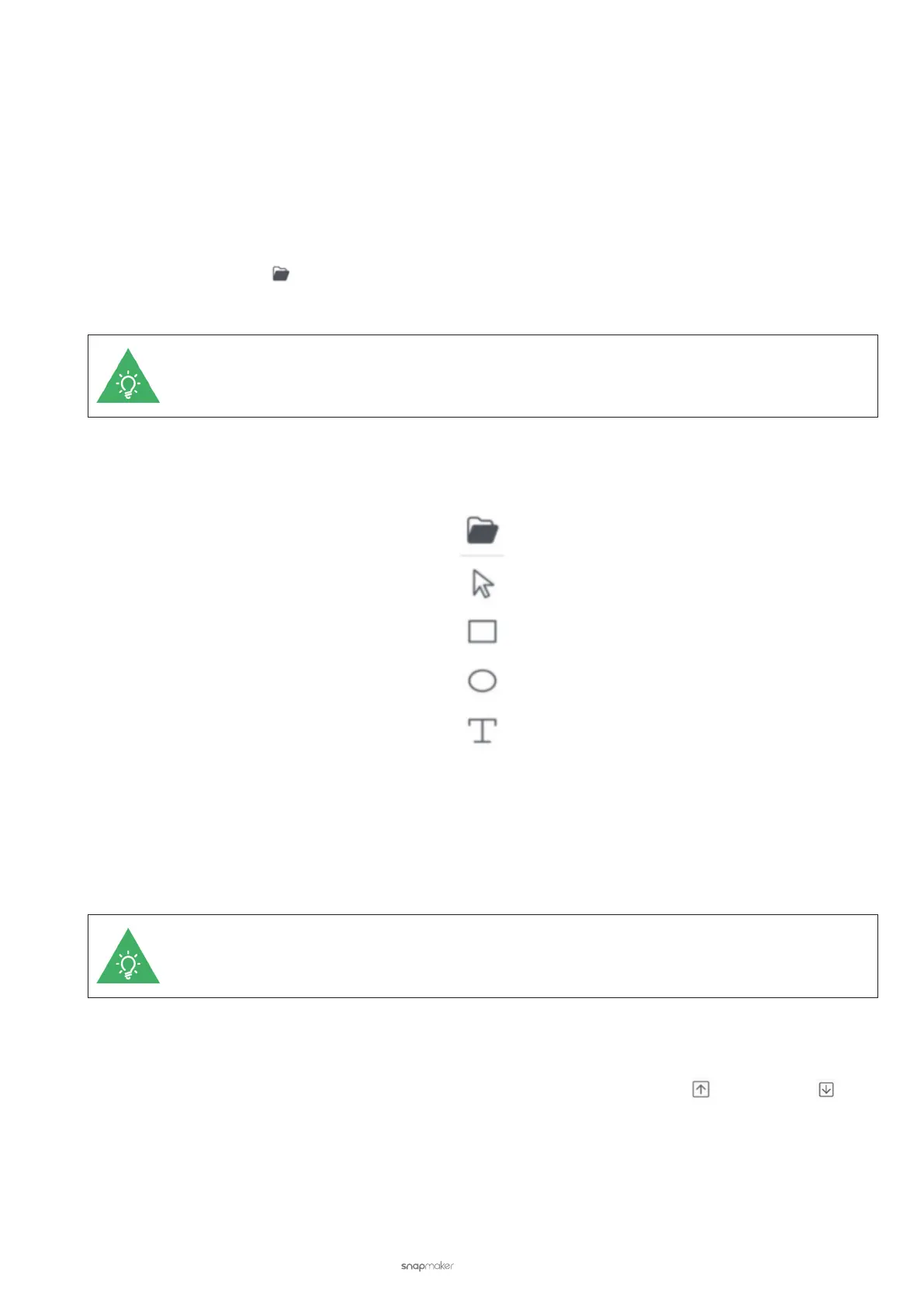
• You can also add text, rectangles, ellipses or other patterns. The tool bar is on the left of the canvas. When
adding text, you can type in any characters and set the font and the font size.
(4) Adjust the positions, sizes, and rotation angles of the images, patterns or text.
(5) Click to choose an image, and select and congure a Processing Mode (see 3.7 Four Modes to Process the
File) for the image. Repeat this step to congure processing modes for the other images. When multiple
images overlap, you can right click on the images to Bring to Front and Send to Back to select the image you
want.
You can congure the same or different processing modes for different images.
(6) Switch Edit to Process. Click to choose an image, a pattern, or text, and click Create Toolpath. Congure
parameters about the toolpaths of the laser engraving and cutting machine. Repeat this step to create and
congure toolpaths for the other images, patterns, or text. Then, you can Prioritize
or Deprioritize each
toolpath to determine the engraving and cutting sequence.



 To Next Page