User Manual |
38
3D Printing - 03 How to 3D Print
• 3D scan models of various physical objects using a 3D scanner.
• As a reminder, Luban supports these design le formats for 3D printing: .stl, .obj, more formats to be added.
Generate the G-code File
Open Luban and follow the Snapmaker 2.0 Quick Start Guide to generate the G-code file.
3.5 Transfer the File and Start Printing
You can transfer the G-code file to Touchscreen or keep it on Luban for printing.
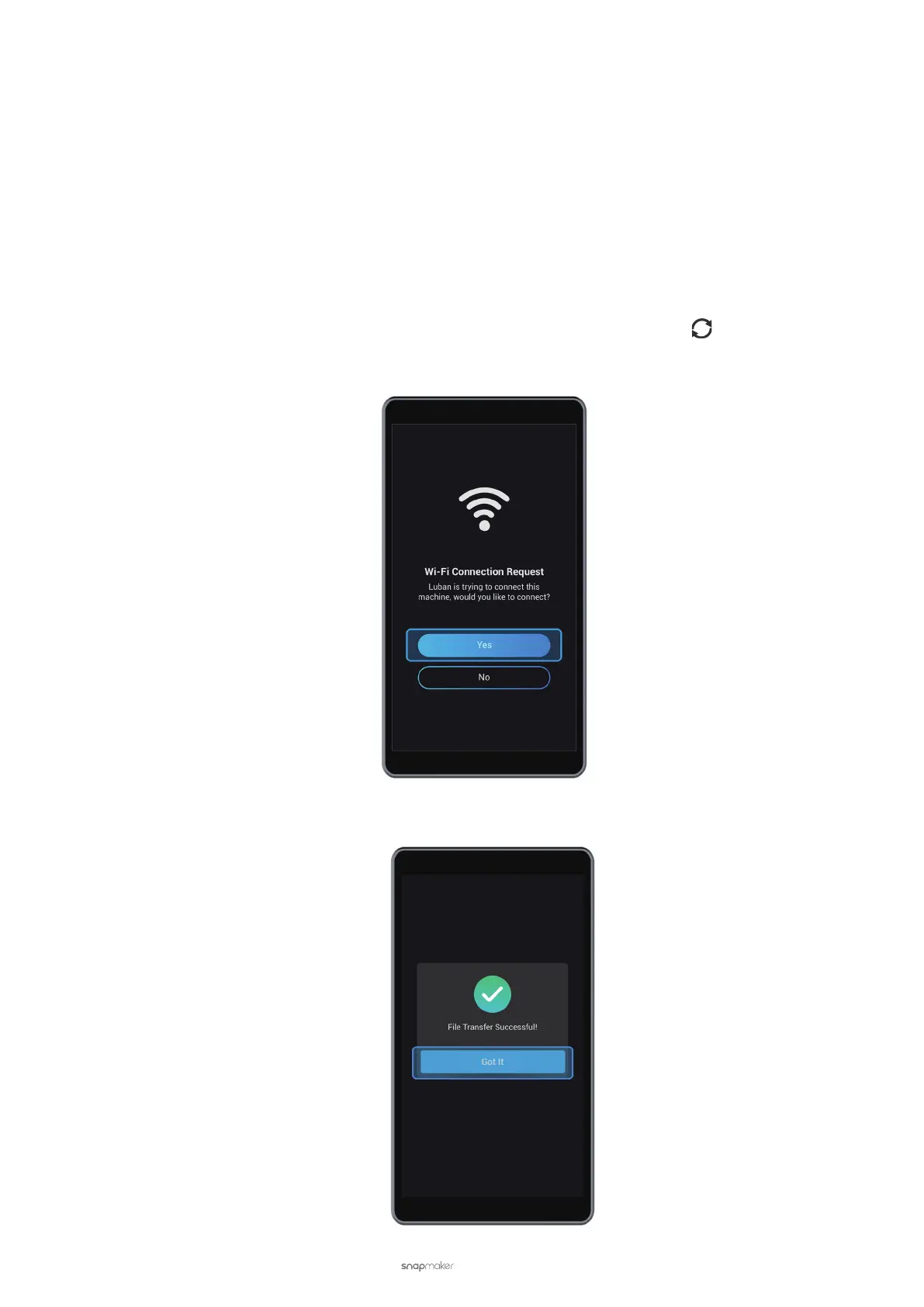
Start Printing on the Touchscreen via Wi-Fi
(1) On Luban, click Workspace. In the Connection panel, click Connect Wi-Fi > Refresh > Select your 3D printer
in the drop-down list > Connect Luban to your 3D printer.
(2) On the Touchscreen, tap Yes to grant Wi-Fi connection.
(3) In Workspace, click Send to Device via Wi-Fi.
(4) On the Touchscreen, tap Got It to receive the G-code le.



 To Next Page