Basic Operations 36
2.
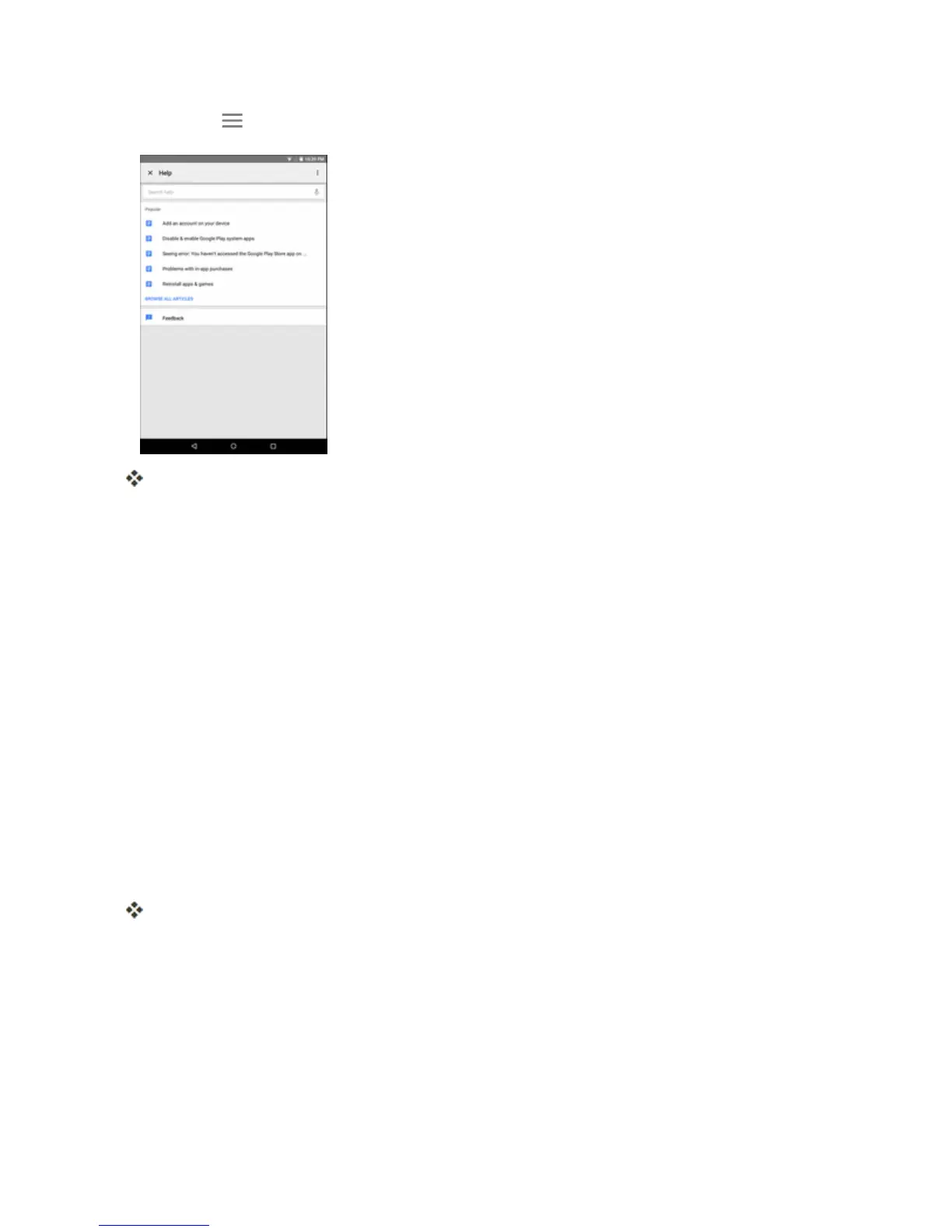
TapMenu >Help & Feedback.
TheGooglePlayStoreHelppageopensandyoucanfindcomprehensive,categorized
informationaboutGooglePlayStore.
Lock and Unlock Your Screen
Yourtabletallowsyoutoquicklyturnthescreenoffwhennotinuseandtoturnitbackonandunlock
itwhenyouneedit.
Turn the Screen Off When Not in Use
n Toquicklyturnthescreenoff,pressthePower/lockbutton.PressingthePower/lockbutton
againorwillturnonyourtabletscreenandshowthelockscreen.
Tosavebatterypower,thetabletautomaticallyturnsoffthescreenafteracertainperiodoftime
whenyouleaveitidle.Youwillstillbeabletoreceivemessageswhilethetablet’sscreenisoff.
Note:Forinformationonhowtoadjustthetimebeforethescreenturnsoff,seeDisplaySettings.
Turn the Screen On and Unlock It
1. Toturnthescreenon,pressthePower/lockbutton.
Thelockscreenappears.
2. Swipeyourfingerupwardtounlockit.


 To Next Page