EN-24
5� Pressing the OSD STATUS LOCATION button toggles between options for where device
status messages will appear on the surgical display�
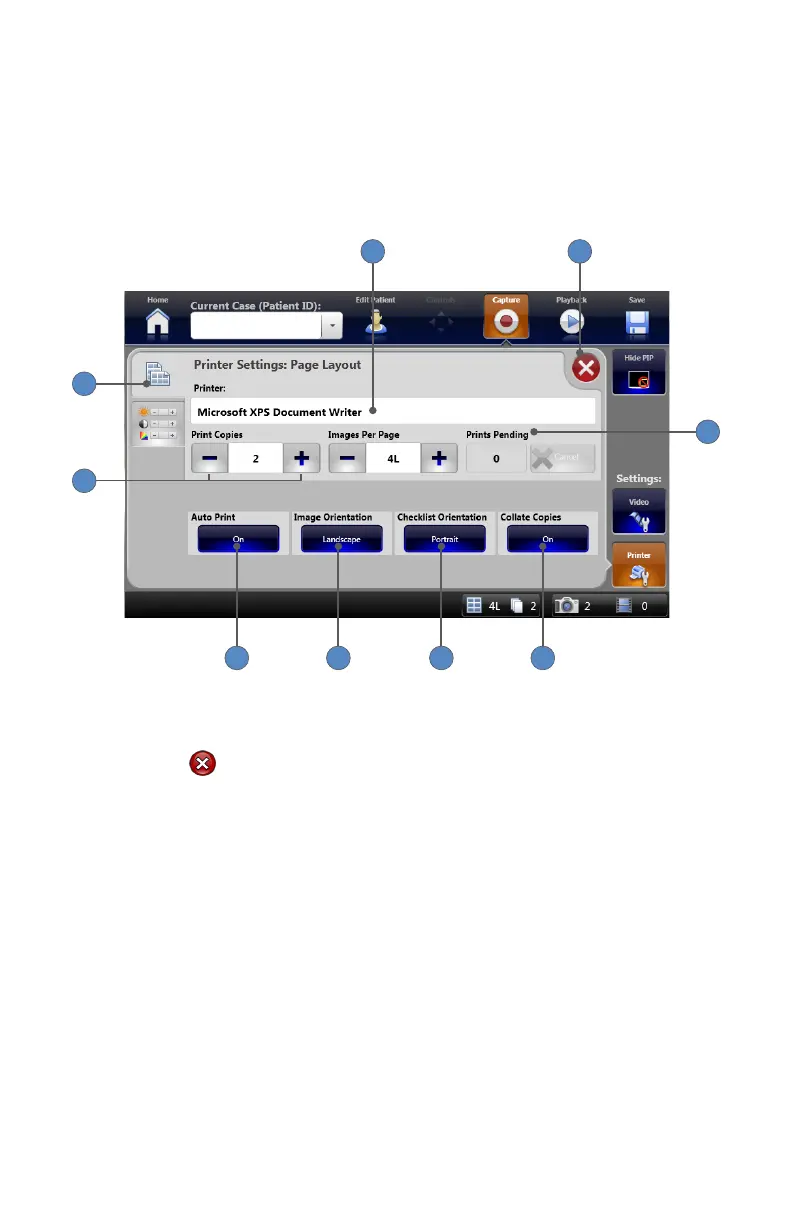
Printer Settings: Page Layout
Page Layout settings are accessible from the PRINTER SETTINGS tab�
1
9
6 58 7
4
32
1� Selecting the PAGE LAYOUT tab displays the “Printer Settings: Page Layout” screen�
2� The name of the connected printer appears here�
3� Pressing the button closes the settings screen and returns to the Capture screen�
4� The Prints Pending window displays the number of images ready to be printed� Pressing the
CANCEL button cancels a pending print job�
5� Pressing the COLLATE COPIES button toggles between On and O�
Note: When viewing the status of shaver handpieces, only the status of the rst
connected handpiece will appear on the surgical display.
6� Pressing the CHECKLIST ORIENTATION button orients printouts of the Surgical Timeout
Checklist� Choose between Portrait and Landscape�
7� Pressing the IMAGE ORIENTATION button orients image printouts� Choose between
Portrait and Landscape�
8� Pressing the AUTO PRINT button toggles between On and O� When Auto Print is On, the
print job will start as soon as the required number of images is captured�
9� The +⁄− buttons adjust the number of copies printed, and how many images print per page�





 To Next Page