S CLASS™ cutter User’s Manual
Setup 1-21
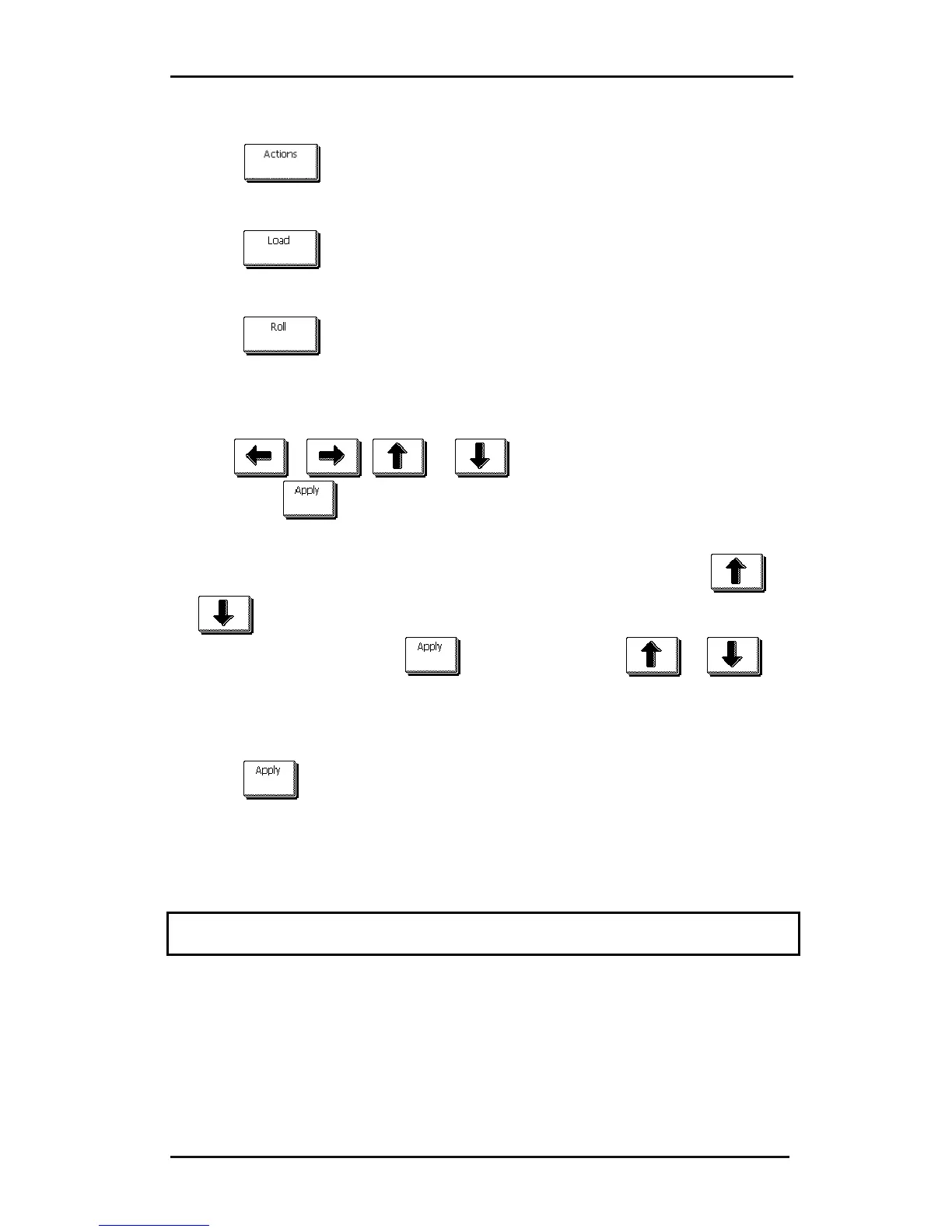
¾ Loading a roll.
1. Press
.
The actions menu will appear on screen.
2. Press
.
A message will appear letting the user choose between roll and sheet.
3. Press
.
Four arrows will appear, together with an “apply” button. The status is visible in the
middle of the right-hand side of the screen.
4. Use
, , or to reposition the origin, if necessary.
Then press
.
Two arrows will stay on the screen with which the necessary length can be loaded.
5. The media length needed for the task can be entered by pressing
or
and thus then loading the needed length. Or the needed length for the job
can be entered by pressing
and then by pressing or to
change the value of the default length to load.
Depending on the manner chosen for entering the needed length of the job, the
cutter will either load the length or display the chosen length on screen.
6. Press
The cutter will now complete the loading sequence. Then the cutter will come
online and will be ready. The length of the job it can cut is limited to the actual
length of the media that is left on the roll. The cutter will always assume a full roll,
thus it will use 50000mm (1982 inches) on the status screen.
When the built-in media sensors detect the end of the roll, the cutter will complete the
loading sequence and display the media size on the status window.







 To Next Page