Telephone Line Emulator User’s Manual
40-400-00020, Rev. M 12
configurations in the Configuration Set to the TLE. The Query button will query the
settings for the current configuration in the TLE. The Query All button will query all of the
stored configurations in the TLE. The Defaults button will reset any Configuration under
edit to the factory default settings.
The bottom section displays buttons that conform to the natural order of call placement
and pressing any of these buttons will bring up windows with information regarding the
operation of the TLE. Another method to use when changing the operation of the TLE is
to use the S
creens menu on the menu bar. All of the screens are displayed in
alphabetical order. A Find button is also supplied to help with locating the parameter to
be changed.
The bottom line of the Main screen will report three items:
1) The name of the saved file under edit.
2) If the Configuration Set under edit matches what is stored in the TLE, Set=TLE will be
displayed. If the Configuration Set does not match, Set<>TLE will be displayed.
3) If the Configuration being edited matches the configuration stored in the TLE,
Configuration=TLE will be displayed. If not, then Configuration<>TLE will be displayed.
The S
creens menu is used to change the settings of the operational features of the TLE.
These are broken into individual screens labeled as Audio, Busy, Call Waiting, Caller
ID, DC Signaling, Dial Tone, Loop Parameters, Miscellaneous, Phone Numbers, Port
Configuration, Reorder, Ringing, Special Information Tones, and Voice Messages.
Other screens that are active if the TLE-INTL, TLE-ADV, or TLE-TEST software modules
are purchased include Country, Metering Tones, Impairments, Signal Level
Measurement, and Automated Test. The TLE-ICID Software Module combines Call
Waiting and Caller ID into a single screen called Caller ID/Call Waiting.
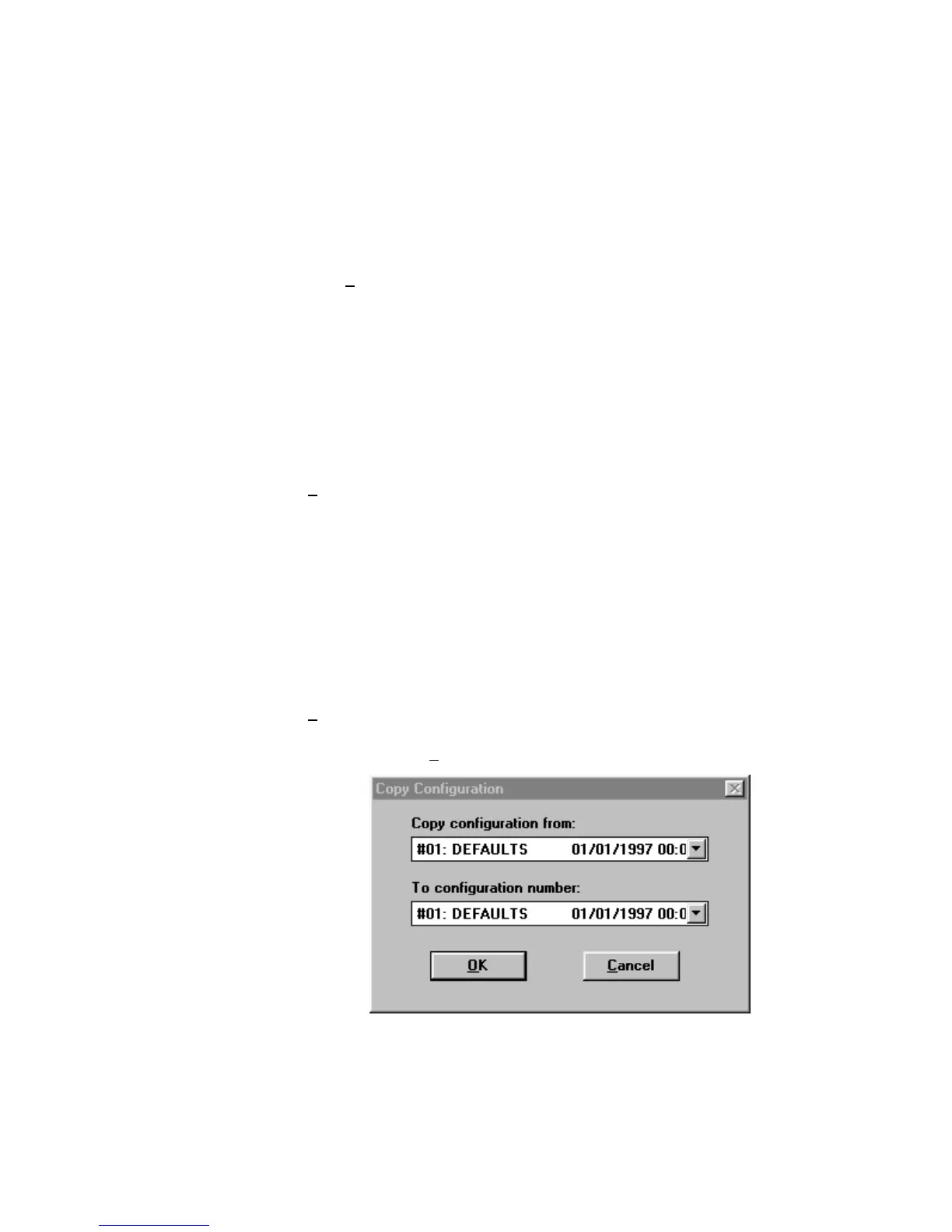
Copy Configurations
The Edit menu is used to copy settings from one configuration to another, or to copy the
settings from one Line to another by using the Copy Configuration and Copy Line
commands found in the E
dit Configuration menu.
Figure 6. Copy Configuration Screen



 To Next Page