94
MAINTENANCE
Adjusting the color LCD monitor
• This instrument is adjusted for the best image quality before shipment, however, readjust-
ment may be required due to influences, including vibrations, during transportation.
• The image quality adjustment switch is on the left side of the color LCD monitor.
Contact your dealer for further adjustment of the image quality.
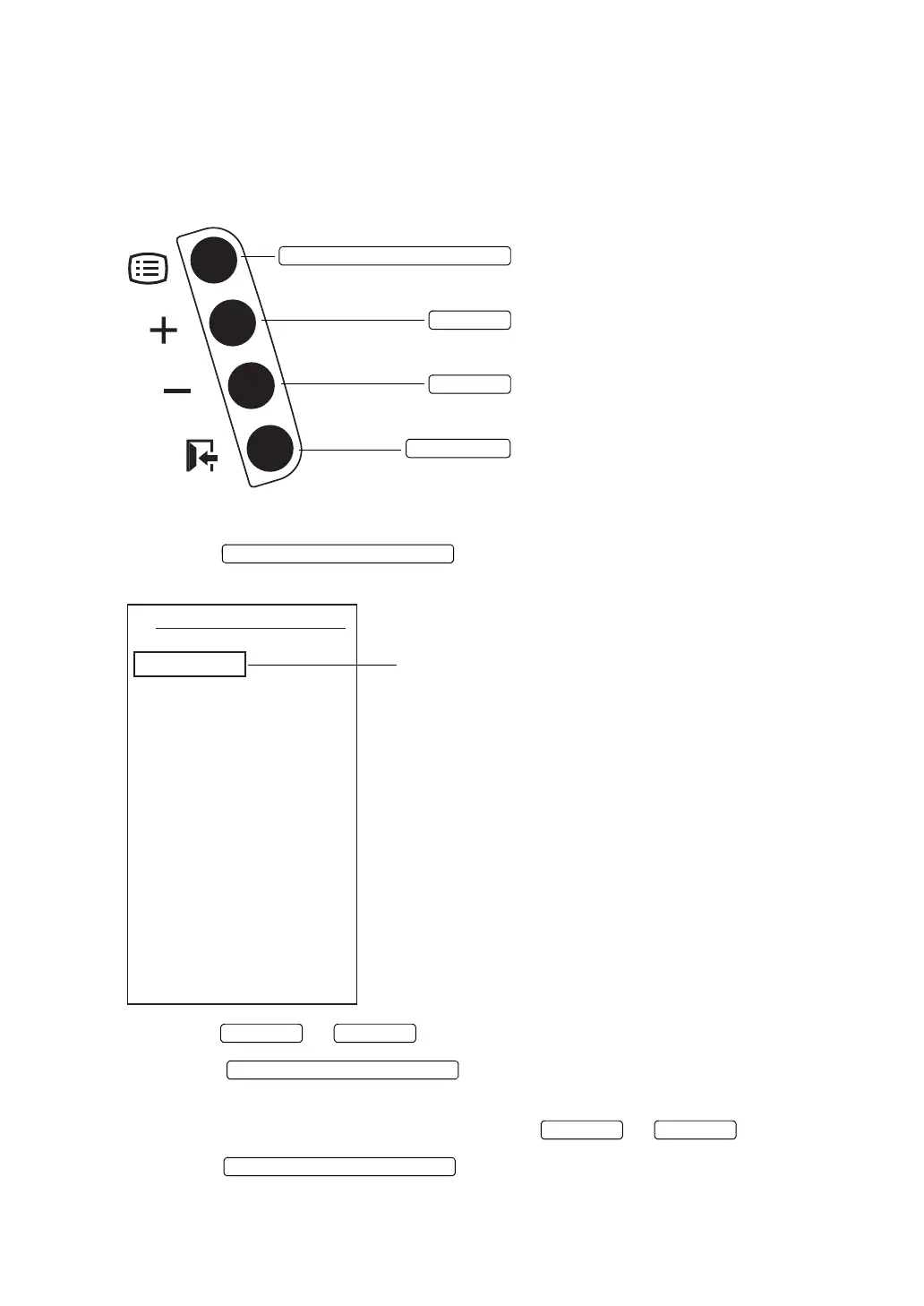
• Names of switches
• Image quality adjustment procedure of the color LCD monitor
1 Press the , and the image quality adjustment menu appears
on the color LCD monitor.
2 Press the or to move to a desirable item.
3 Press the . The selected item color is changed to yellow
and you can change the set value.
4 Change the set value of the selected item with the or .
5 Press the . The set value is decided and the selected item
color is changed to gray.
IMAGE QUALITY MENU SWITCH
+ SWITCH
-
SWITCH
EXIT SWITCH
: Displays the image quality adjustment menu.
Decides or cancels the selected item.
: Moves the item to be set upward.
Changes the set value by "+1".
: Moves the item to be set downward.
Changes the set value by "-1".
: Cancels the changes and exits from the image
quality adjustment menu.
IMAGE QUALITY MENU SWITCH
M o n i t o r S e t t i n g
C o n t r a s t
H P o s i t i o n
V P o s i t i o n
H T o t a l (C l o c k)
P h a s e
C o n t r a s t R e d
C o n t r a s t G r e e n
C o n t r a s t B l u e
B a c k l i g h t
A u t o A d j u s t
A u t o C o l o r
D e f a u l t
S a v e D a t a
C a n c e l
O p t i o n
The selected item is displayed in gray.
IMAGE QUALITY MENU SWITCH
IMAGE QUALITY MENU SWITCH



 To Next Page