VideoIQ User Guide91
Using the Full Scene Window
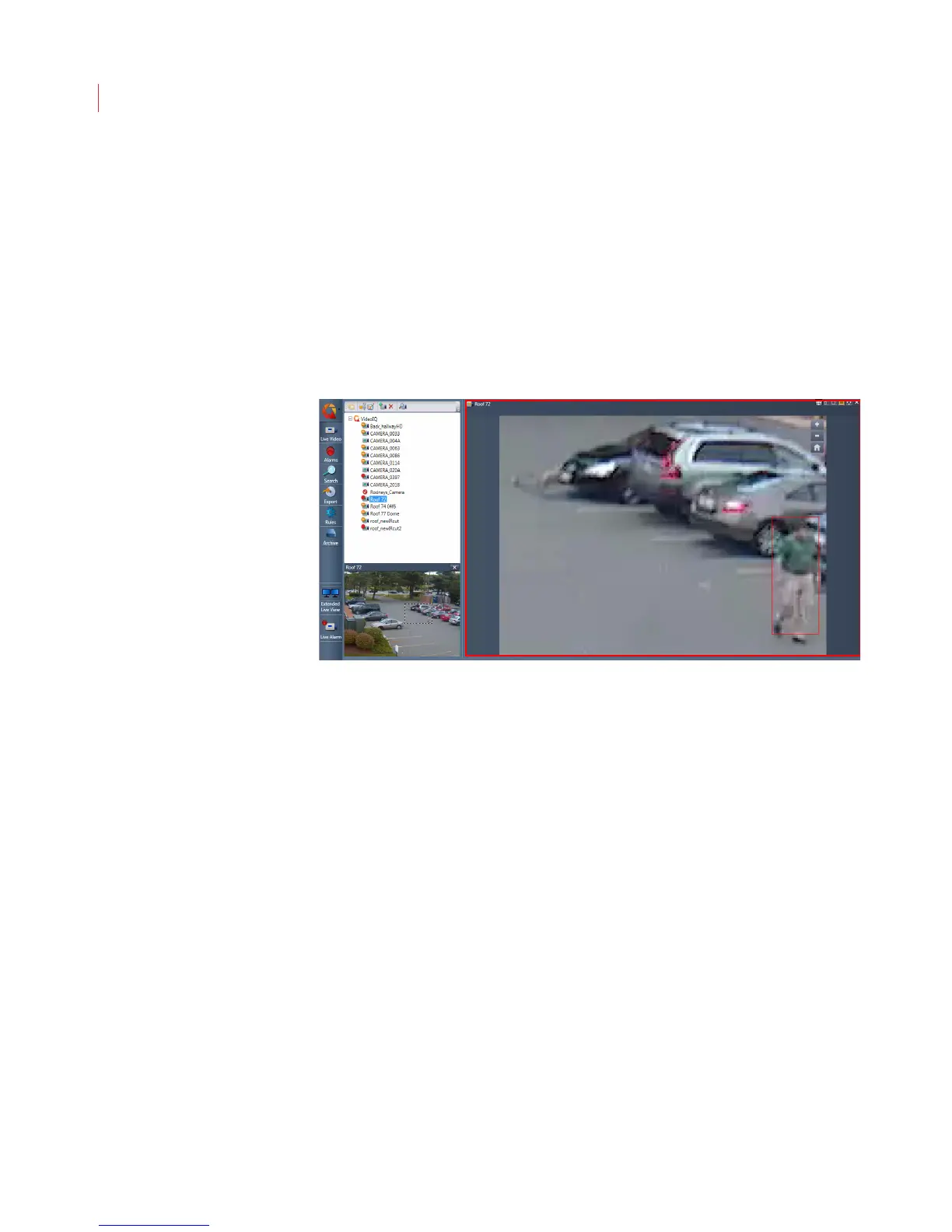
As you zoom in or out on a camera window, you can view the full camera display
as a smaller image in the Full Scene window, located under the camera tree. To
enable this window, click the Enable Full Scene Window button.
If there is more than one camera in zoom mode, the Full Scene window shows the
last camera where the zoom controls were used.
While zooming in or out, the Full Scene window shows a crop rectangle that
corresponds to the zoom area in the camera window.
While clicking and dragging the crop rectangle within the Full Scene window, the
view within the zoomed camera window changes to correspond to the position of
the rectangle.
When a camera is not in zoom mode, the Full Scene window displays the same
video that shows in the live window, including any bounding boxes.
To close the Full Scene window, click the X in the top right corner of the window.
Using the Home button to return the camera to its original position will also close
the window.
If you do not want the Full Scene window to display, click the Disable Full Scene
Window button.



 To Next Page