Administering Cameras
80
Configuring Email Settings
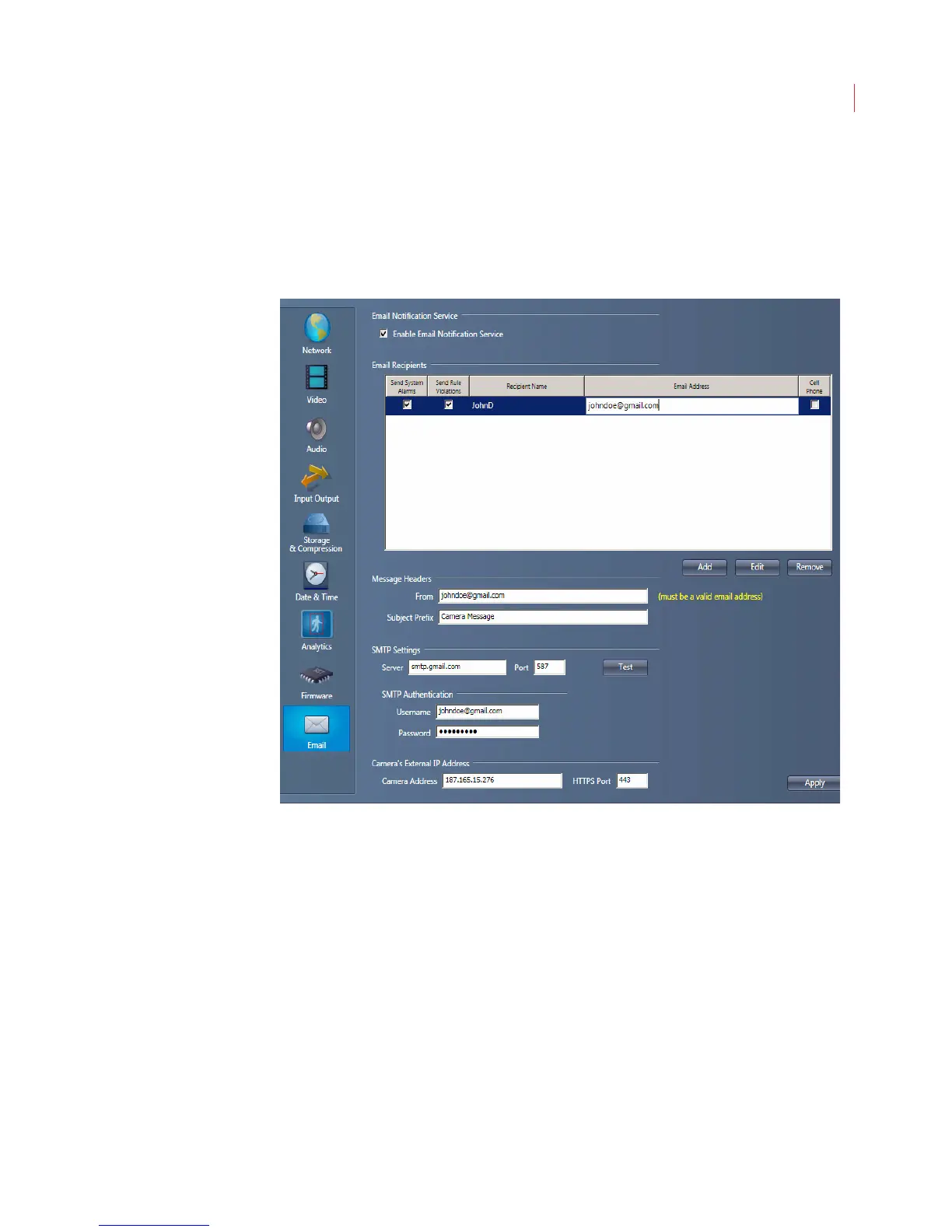
Email Settings work together with Send email notification on the Actions tab of
a rule to allow you to receive system alerts or rule violations when not logged into
View. The notification lists the camera name, rule violated or system alert, and
links to the video alarm clip as well as live video.
1. When the Configure Camera window opens click Email.
2. Ensure that the Enable Email Notification Service box is checked.
3. Click the Add button to enter the name and email address of the person
receiving alerts. You can enter up to seven email addresses per camera.
a. Send System Alerts: Sends an email when systems alerts such as
scene changes or a camera reboot occur.
b. Send Rule Violations: Sends an email when a rule violation occurs.
c. Cell Phone: Sends a text-only message to the recipient’s cell phone.
4. Fill in the Message Headers:
a. From: This is the email address of a user on the SMTP server, and will
show as the sender of the notifications.
b. Subject Prefix: Text entered in this field will appear at the beginning of
the email Subject line, allowing you to filter incoming notifications from
your other emails.



 To Next Page