VideoIQ User Guide102
Saving Alarm Clips to a Hard Drive
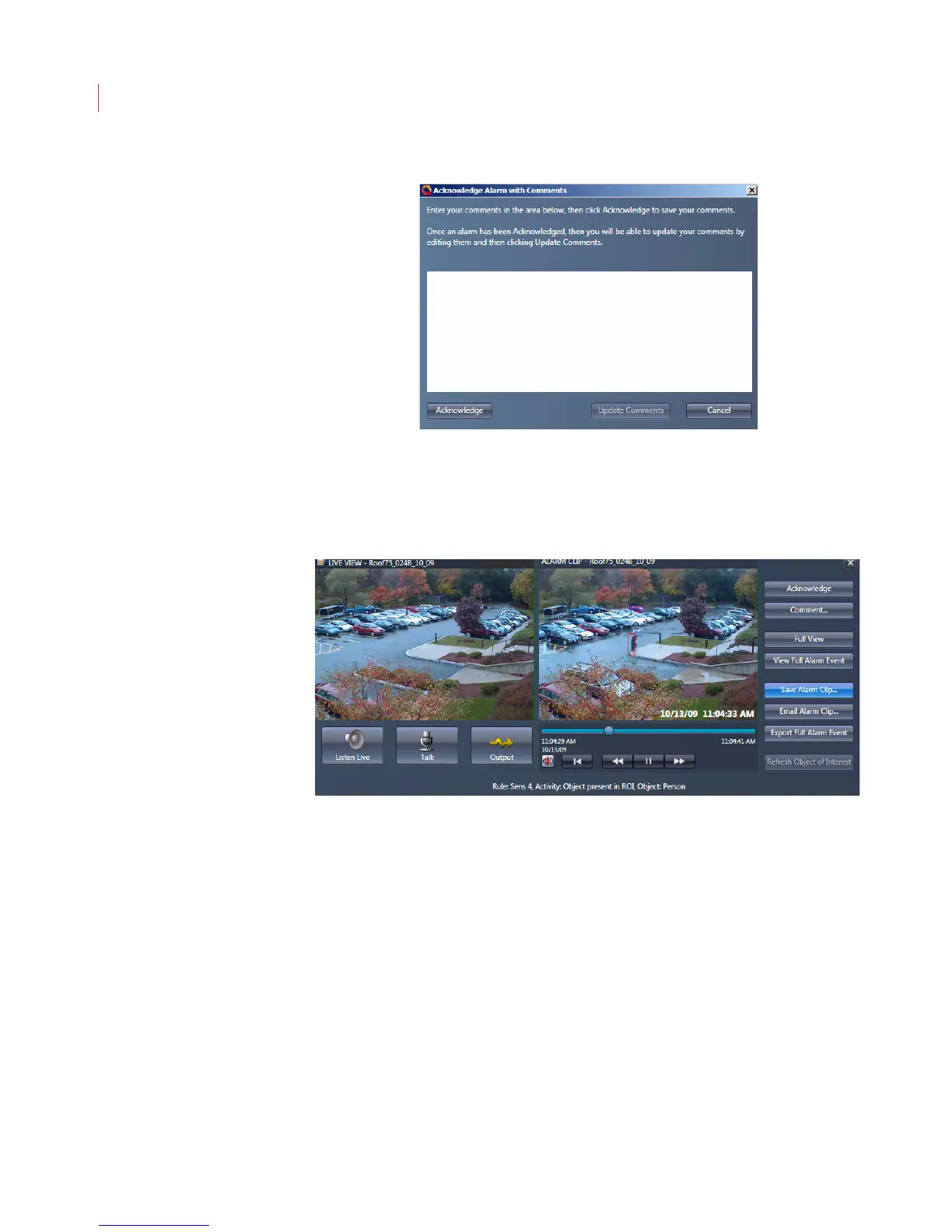
You can save alarm clips to a location outside of the iCVR:
1. Select the alarm event from the list and click the Review button.
2. Click the Save Alarm Clip button.
3. Navigate to the directory where you want to save your clips.
4. Click Save.
Repeat these steps for each clip you want to save.
Saved clips can be viewed with Windows Media Player. To view the colored
bounding boxes, download the VideoIQ Media Components plug-in from the
VideoIQ support website.
Emailing Alarm Clips
You can send alarm event clips as email attachments:
1. Open your email program.
2. Select an alarm event from the list and click the Review button.



 To Next Page