VideoIQ User Guide55
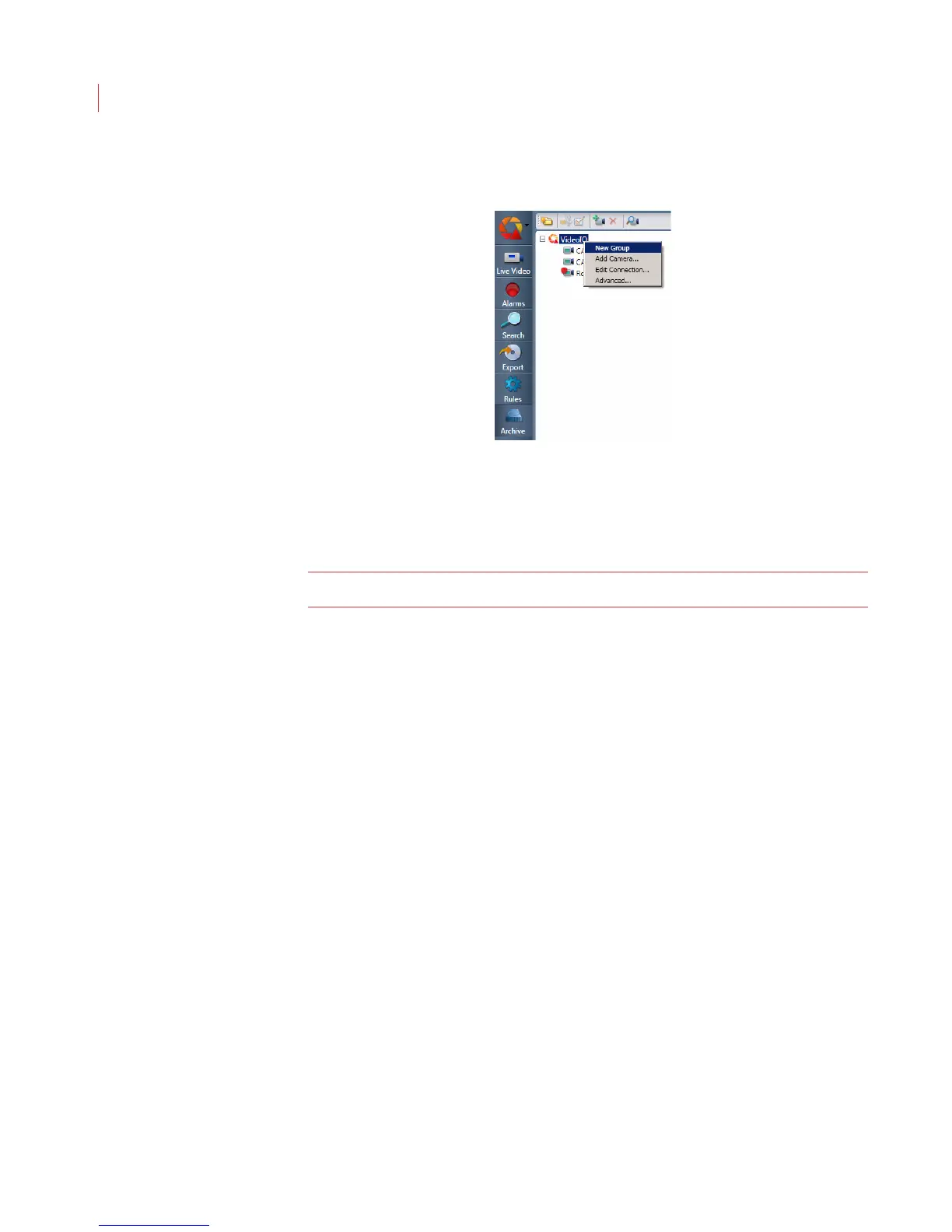
2. When the New Group icon appears, right-click on it and choose Rename to
assign it a name.
3. When the group name is highlighted, enter the new name and press Enter.
4. To add cameras to the camera group, drag camera icons into the camera
group folder.
The camera group displays to all users logged into View.
Note: A camera can belong to only one camera group.
Deleting a Camera Group
Deleting a camera group removes only the group folder and does not delete the
cameras from the camera tree. To delete a group:
1. Highlight the group you would like to delete.
2. Right-click on the group and choose Delete.
Displaying Camera Information
To display the current settings for a camera:



 To Next Page